How do I create a new block?
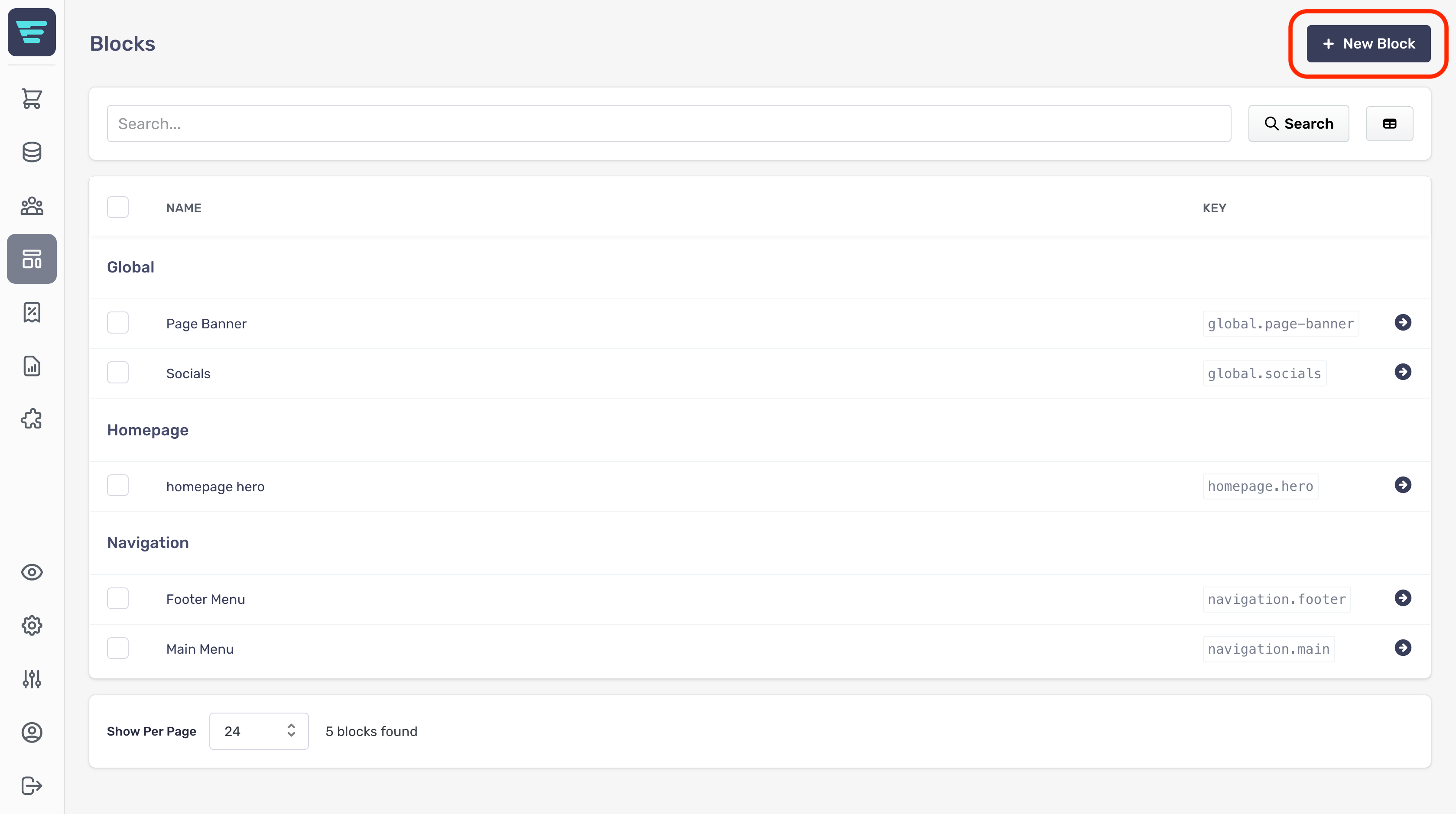
In order to create a new block for your store first navigate to the blocks listings page and click the "+ New Block" button at the top of the page.

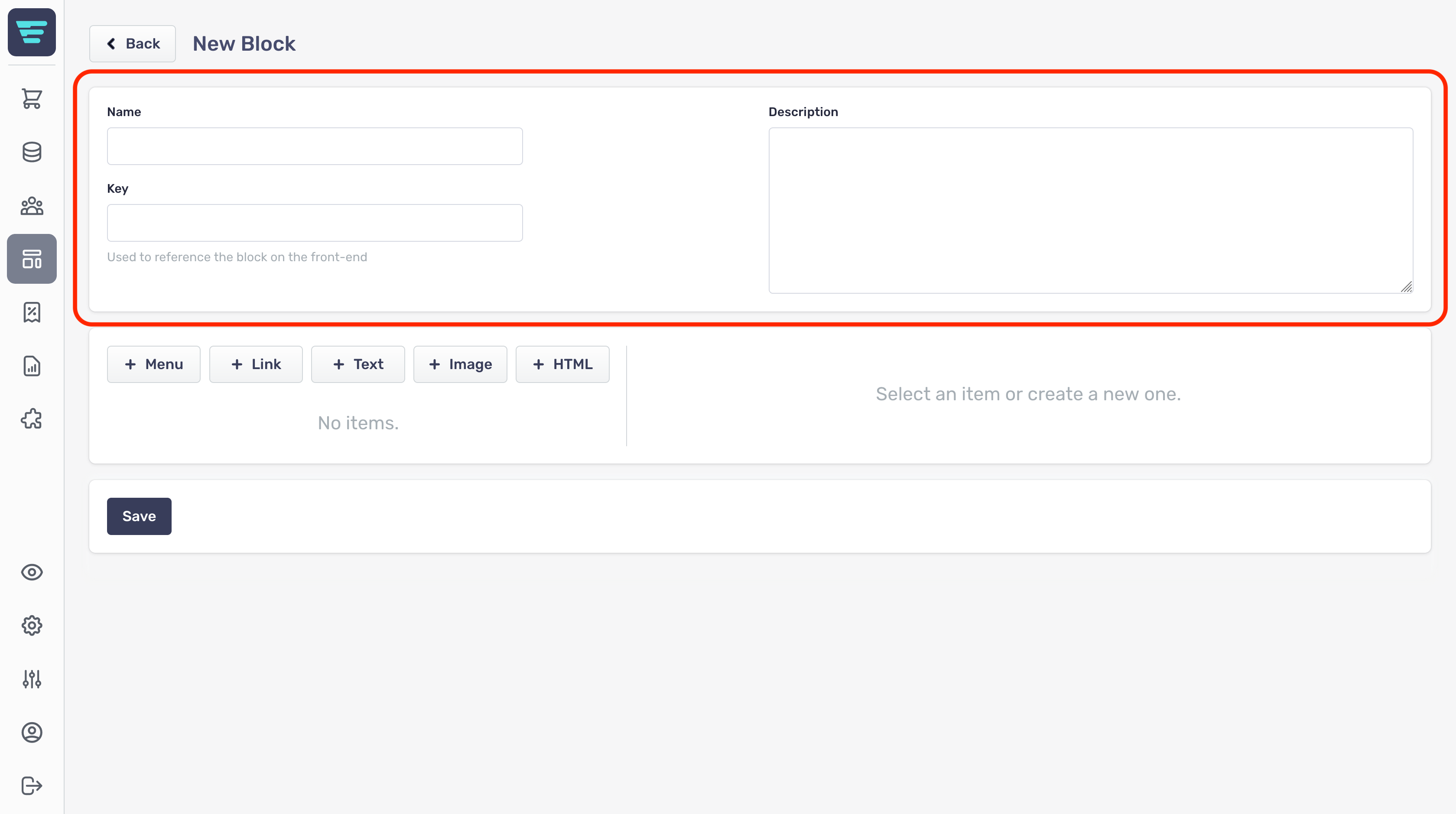
From here you will be presented with the form for creating a new block.
The form is grouped into sections with non-required sections collapsed.
Block Information
The first section is the block name, key and description;
- Name- The main identifier for your Block, shown on the Block list - Key- Allows you to enter useful information to describe your Block - Description- The back-end identifier for your Block

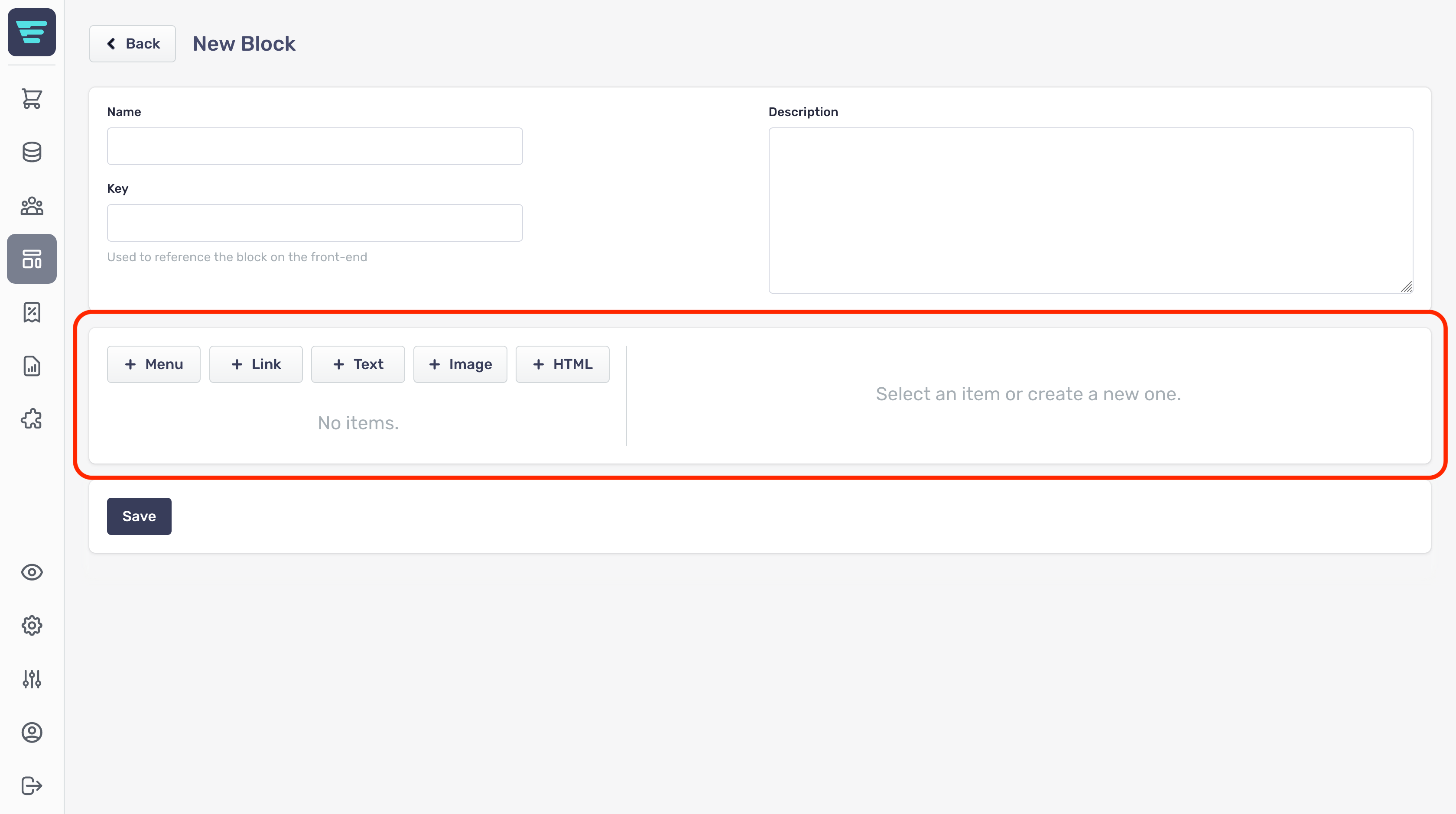
Block Elements
The block elements section is where you add content to your block;

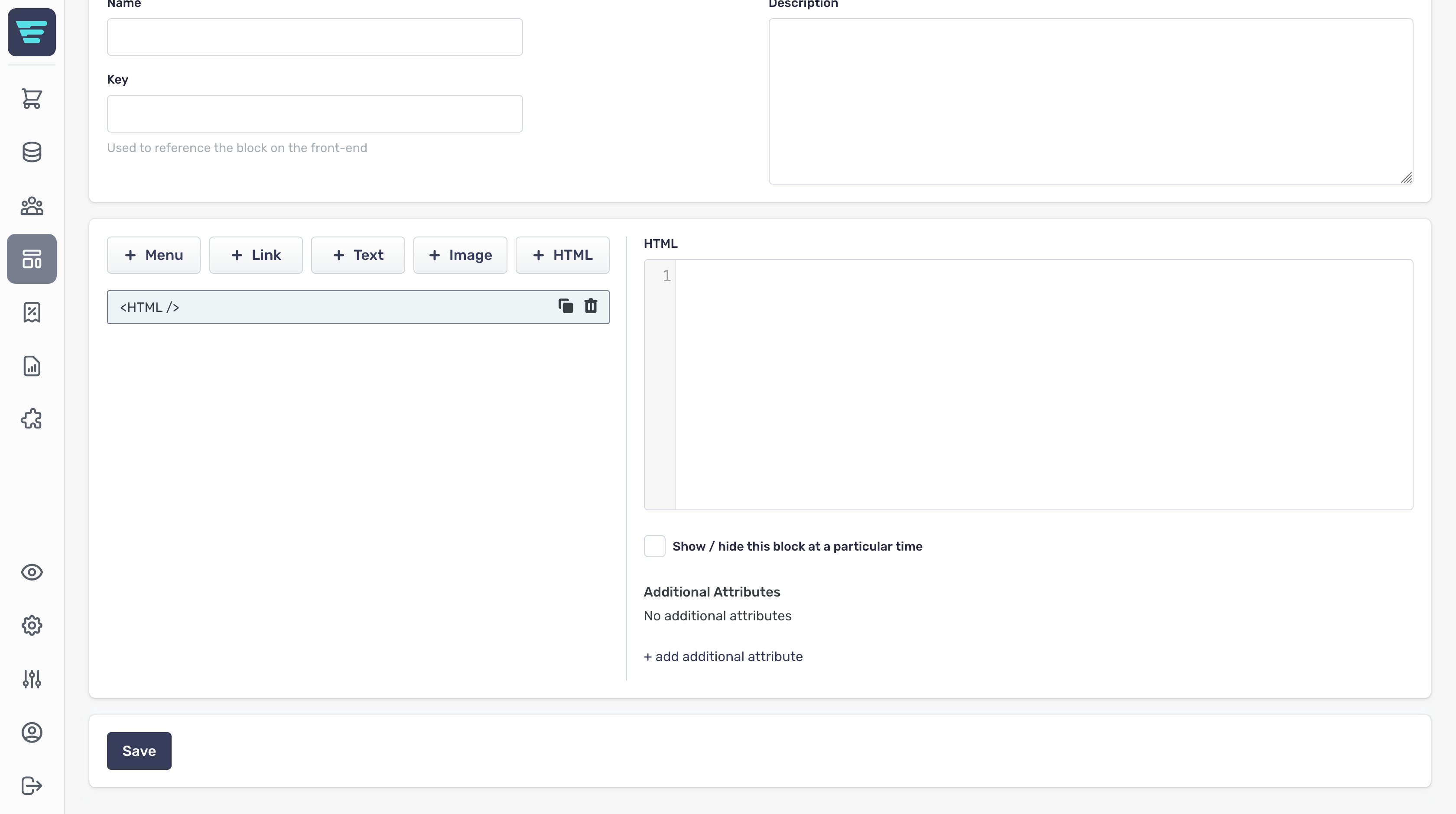
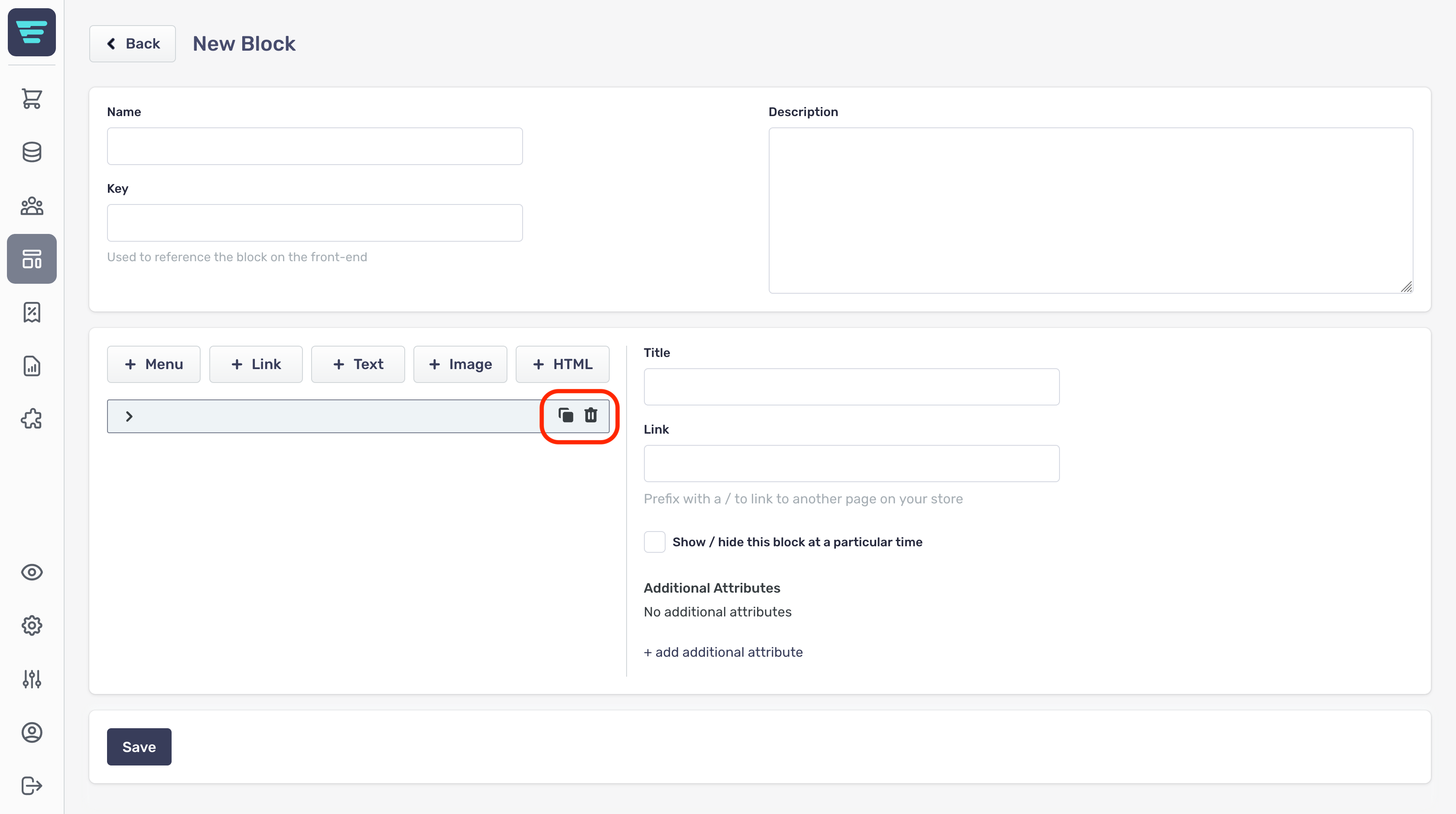
Once you have created an element you have the following options;
- Copy- Creates a duplicate copy of this element in your Block - Delete- Instantly deletes your element (also deletes elements nested beneath your element)

Element types
When adding a new element, your options change depending on the type of element;
Menu element
To nest an element under a menu, following these steps
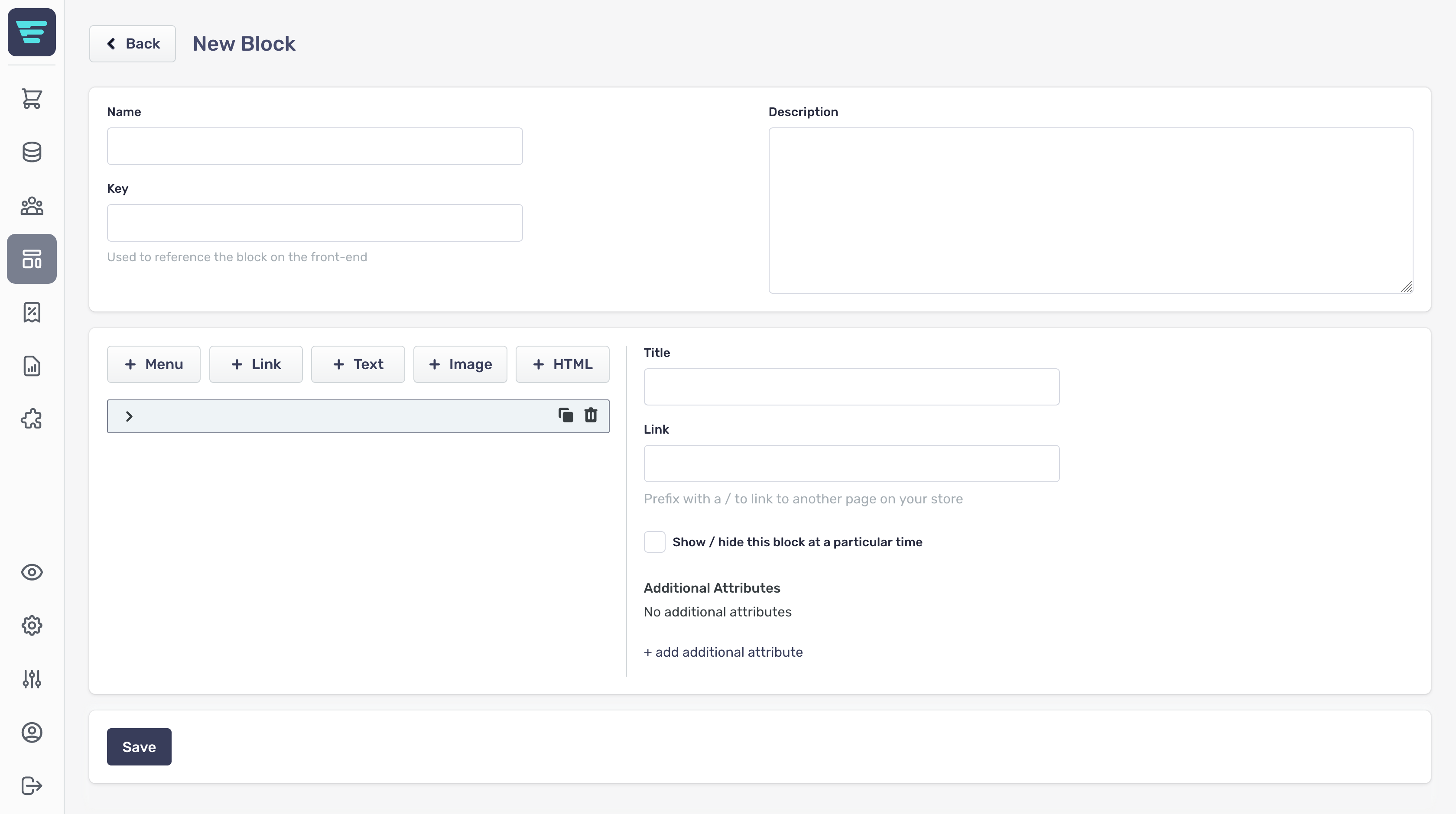
The fields available for the menu element are as follows;
- Title- The text that appears in the menu element when displayed on screen - Link- Optional - The URL your menu element links to - Show / hide this block at a particular time- Allows you to set show and hide times for your menu element
- Show at- Set the time to start displaying your menu element - Hide at- Set the time to start displaying your menu element
- Additional Attributes- Adds a new attribute
- Delete icon- Instantly delete your attribute - Name- Enter your attribute name - **Value **- Enter your attribute value

Link element
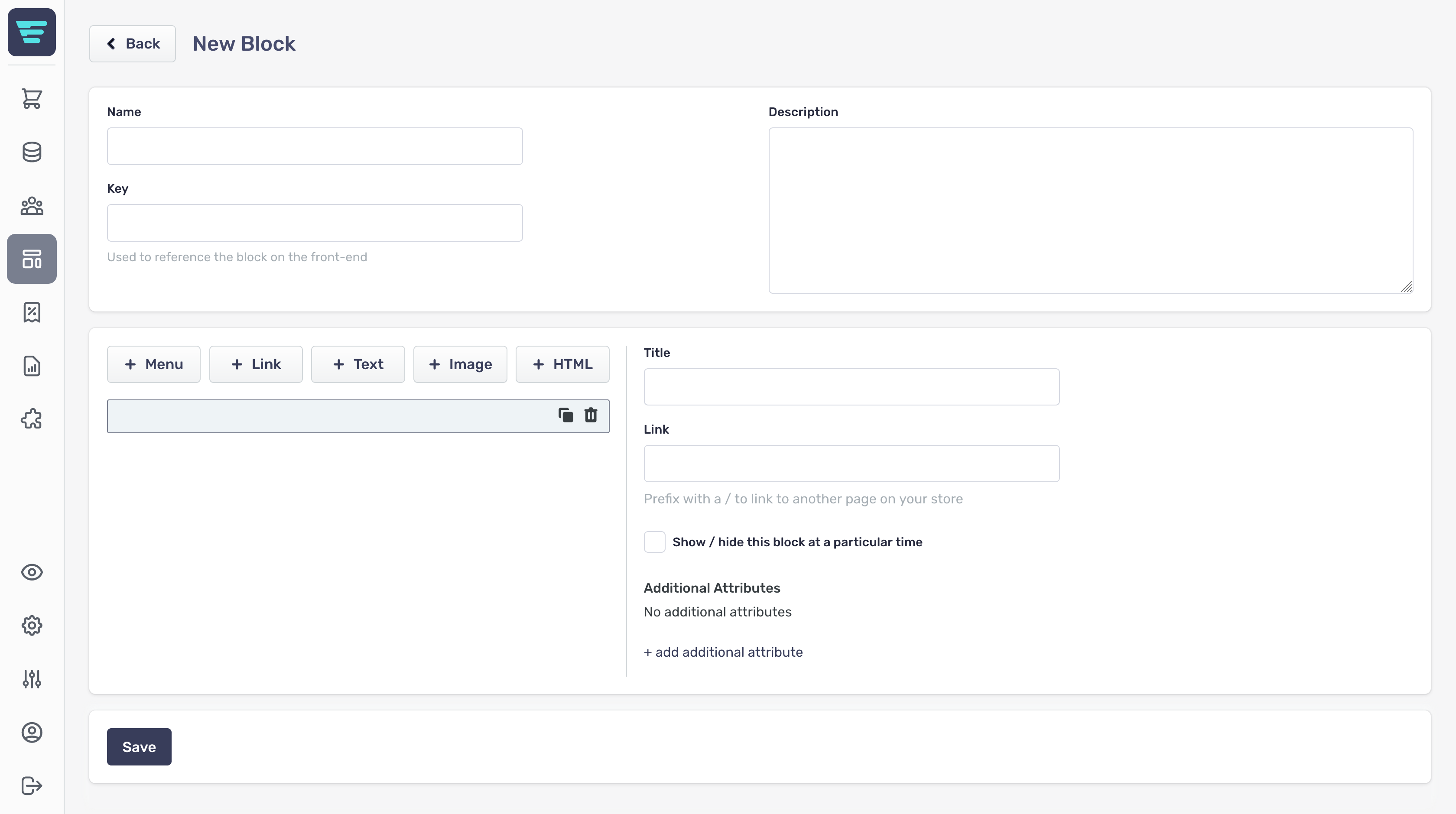
Links allow you to create linkable list elements. When used with menus you can create nested link lists.
-
Title- The text that appears in the link element when displayed on screen - Link- Optional - The URL your link element links to - Show/Hide this Block at a particular time- Allows you to set show and hide times for your link element
- Show at- Set the time to show your link element - Hide at- Set the time to hide your link element
-
+ add attribute- Adds a new attribute
- Delete icon- Instantly delete your attribute - Name- Enter your attribute name - Value- Enter your attribute value

Text element
Text allows you to create textual list elements. When used with menus, you can create nested lists.
-
Text- The text that appears in the link element when displayed on screen - Show/Hide this Block at a particular time- Allows you to set show and hide times for your link element
- Show at- Set the time to show your link element - Hide at- Set the time to hide your link element
-
+ add attribute- Adds a new attribute
- Delete icon- Instantly delete your attribute - Name- Enter your attribute name - Value- Enter your attribute value

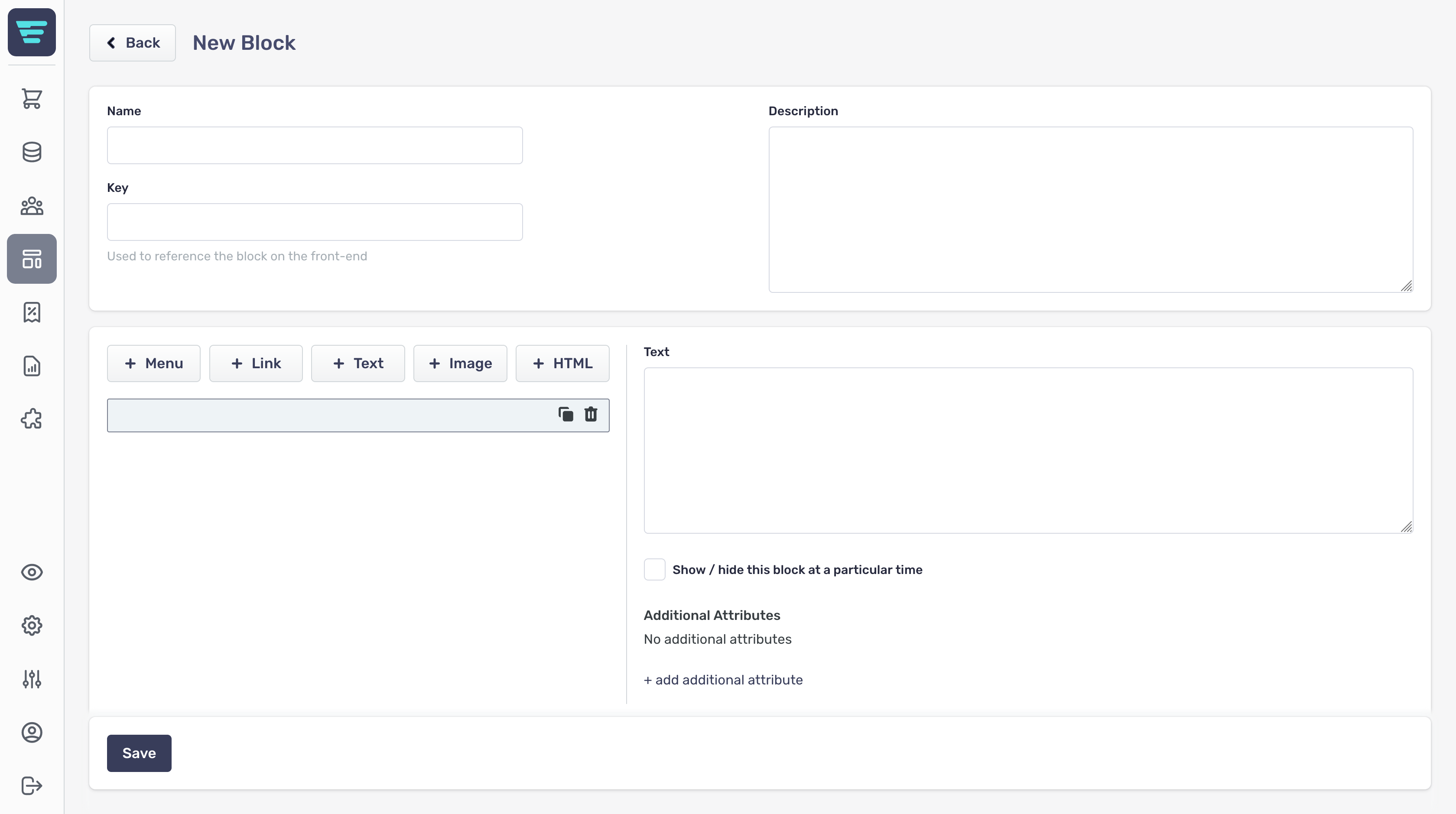
Image element
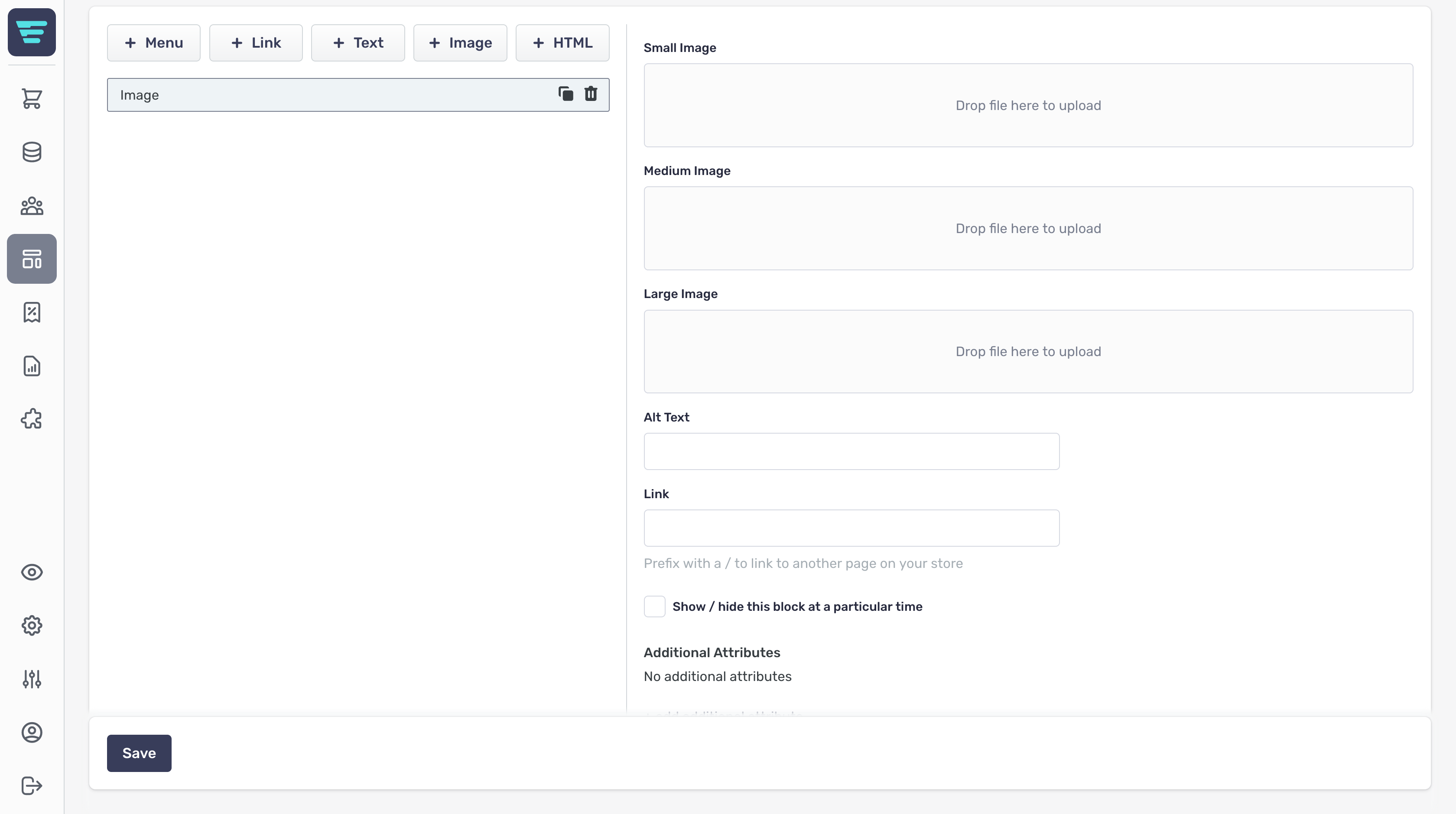
Image allows you to create image elements. These can contain up to 3 images, used depending on the type of device displaying the storefront.
Image filetypes
Aero supports the following image types:
- .png - .jpg/.jpeg
Image size
Aero storefront supports images up to 10MB
The fields available for the image element are as follows;
-
3 x Drop files here to upload- Optional - Either drag your product image file into the box or click to browse files - Alt text- Enter the alt text that describes the image - Link- Optional - The URL your image element links to - Show/Hide this Block at a particular time- Allows you to set show and hide times for your link element
- Show at- Set the time to show your link element - Hide at- Set the time to hide your link element
-
+ add attribute- Adds a new attribute
- Delete icon- Instantly delete your attribute - Name- Enter your attribute name - Value- Enter your attribute value

HTML elements
HTML allows you to create HTML Block elements.
-
HTML- - Show/Hide this Block at a particular time- Allows you to set show and hide times for your link element
- Show at- Set the time to show your link element - Hide at- Set the time to hide your link element
-
+ add attribute- Adds a new attribute
- Delete icon- Instantly delete your attribute - Name- Enter your attribute name - Value- Enter your attribute value