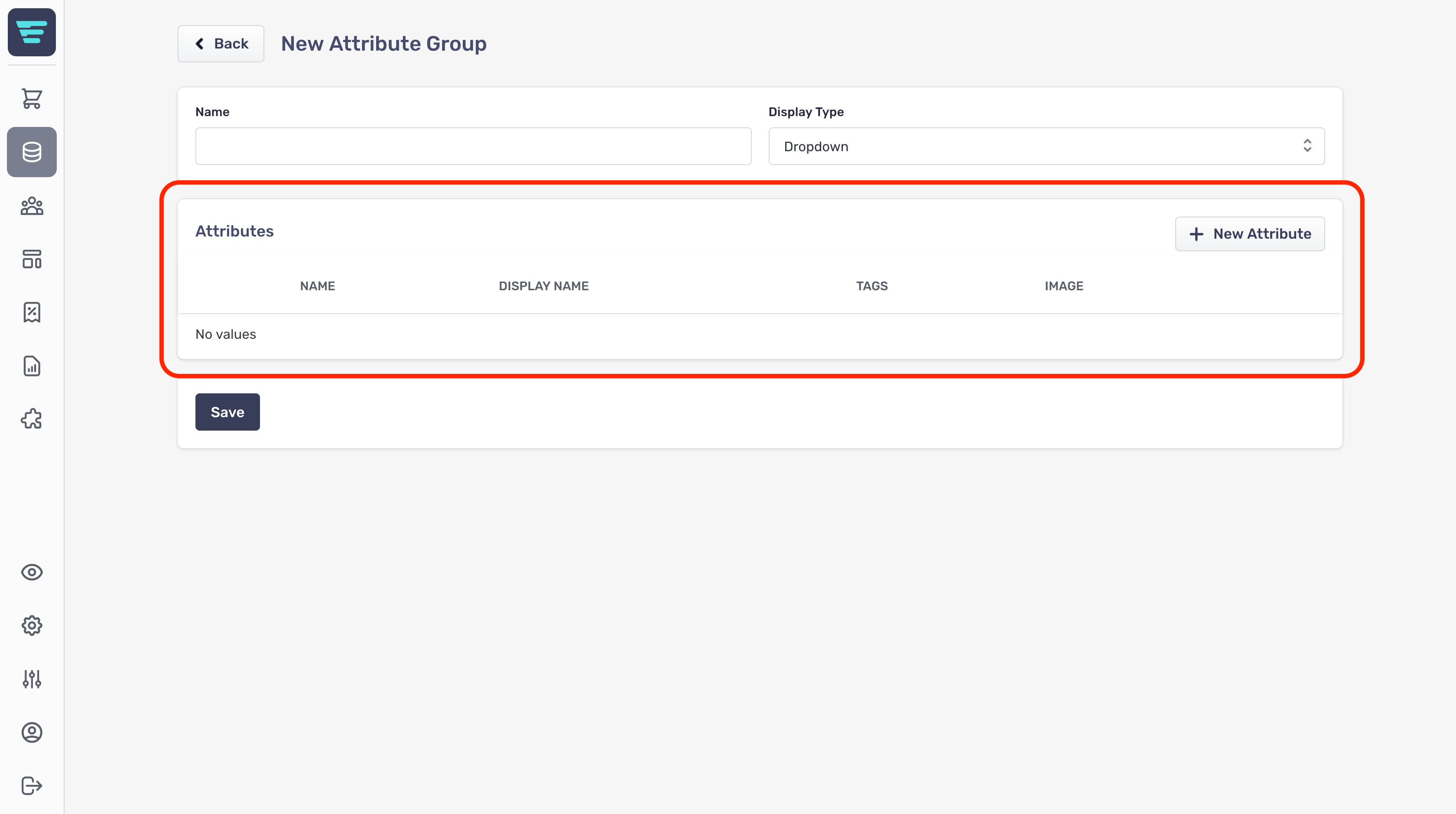
How do I create a new attribute group?
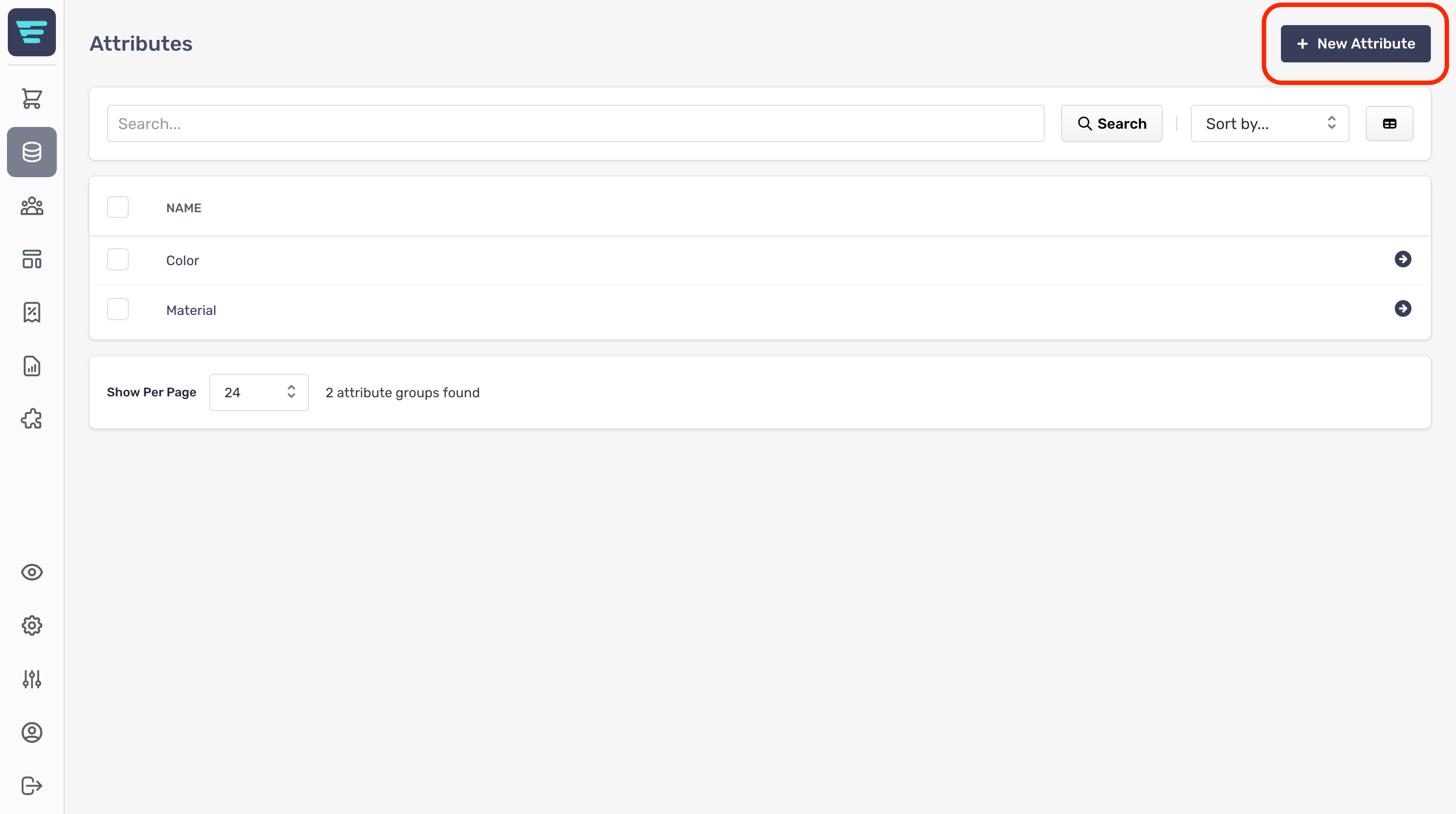
In order to create a new attribute group first navigate to the attributes listings page and click the "+ New Attribute Group" button at the top of the page.

From here you will be presented with the form for creating a new attribute group.
The form is grouped into sections with non-required sections collapsed.
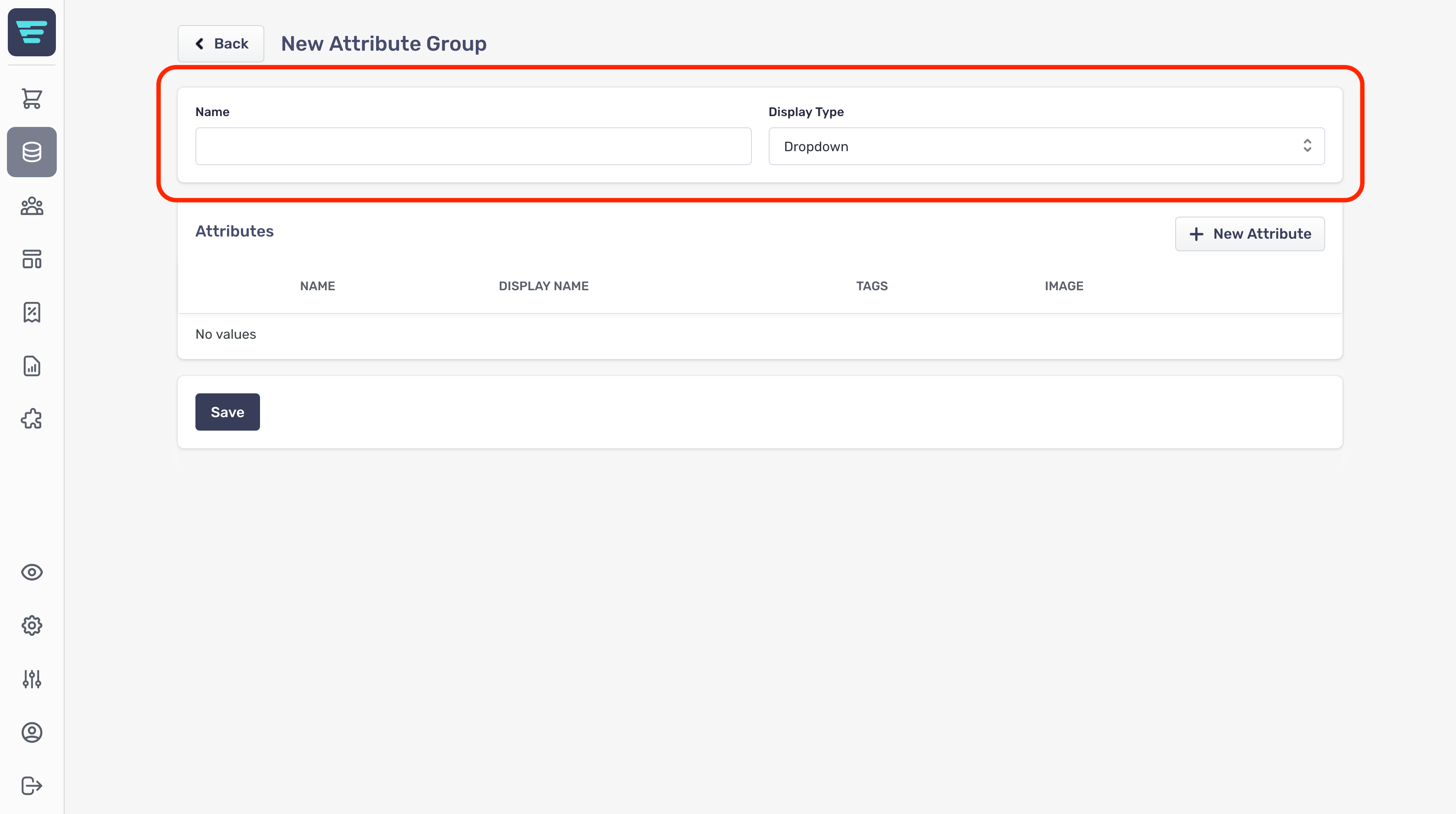
Attribute Group Information
First up is the group information;
- Attribute Group Name- The name of your group (e.g size) - Display Type- this determines how your customers will select the different options on your storefront
- Dropdown- This will provide a dropdown list to choose an option - Colour Swatches- This will display swatches attribute colours - defined by using a HEX colour in the DISPLAY NAME field (e.g. '#ff0000' for red) - Image Swatches- This will display swatches with attribute images - defined by the images uploaded against the attribute value - Swatches- This will display swatches with the product names

Attributes
The attributes section is where you create the attributes that belong to this group, for more information on how to create each individual attribute please see "How do I create a new attribute?