# Admin Vue
Admin Vue
# How do I add custom clips to the redactor editor
Clips is a [plugin for the Redactor editor](https://imperavi.com/redactor/plugins/clips) that allows you to create a list of frequently used code to be used in the editor.
In the following example we will add a label clip that will allow users to use a label in the Redactor editor that looks like this:
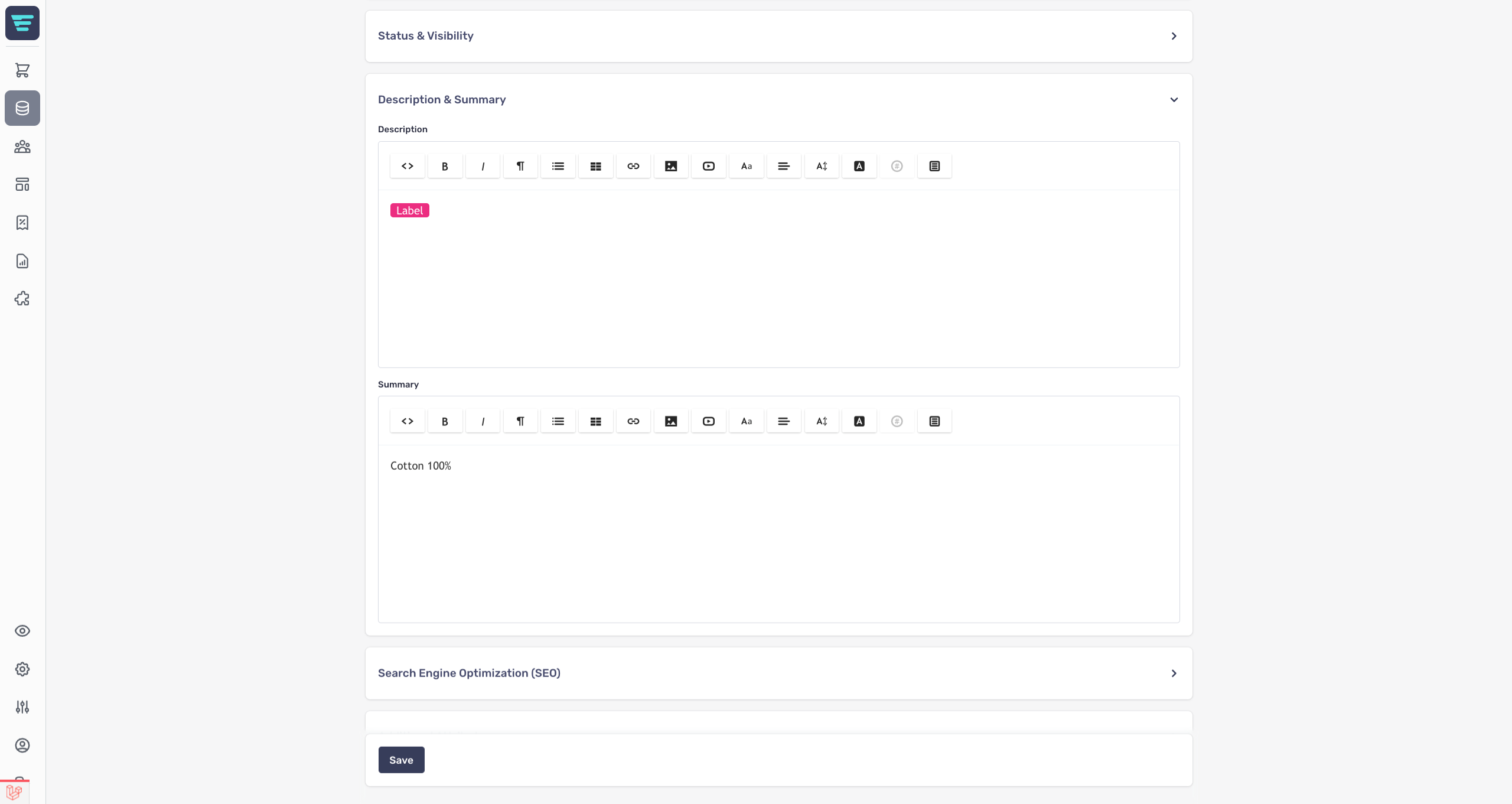
You need to use the **styles**and **scripts**slots to inject views across the whole admin that include the CSS for the clip (in this case the CSS for the label) and the JS for creating the clip. This can be done in a module service providers **setup**method or the app service providers **boot**method. If you use a module service provider, do not forget to register your views under your modules namespace using the **$this->loadViewsFrom**method.
```
loadViewsFrom(__DIR__.'/../resources/views', 'my-module');
AdminSlot::inject('styles', 'my-module::clips-styles');
AdminSlot::inject('scripts', 'my-module::clips-scripts');
}
}
```
The **my-module::clips-styles**view should contain a style tag with the CSS for the label. Any CSS for a clip should be scoped to the **.redactor-box**class in this view. You will also need to put this CSS in your themes CSS file so that it works on the storefront (this CSS doesn’t need to be scoped to the **.redactor-box**class).
```
```
The **my-module::clips-scripts**view should contain a script tag with the JS for the label. The first parameter is the text shown in the clips list and the second parameter is the code inserted when the clip is used.
```
```
Completing these steps will add a clips button to the top of the Redactor editor that when clicked will list your registered clips that can then be clicked to insert their code.
# How do I use Vue in the admin?
When in an admin's Blade view file you can use any Vue directive (such as `v-for`, `v-if`, `@click`etc).
## Putting Vue into Dev Mode
Putting Vue into dev mode allows you to use the Vue dev tools. You can put the Admin Vue into dev mode by putting this code snippet in your Blade view:
```
@push('scripts')
@endpush
```
## Extending Vue without a Custom Component
You can extend Vue without using a custom Vue component by using some of the `window.AeroAdmin`methods. Methods are provided for you to add **data**, **methods**, **computed methods**, **watchers**, and **listeners**.
### Adding Data
You can make data available in Vue through the `window.AeroAdmin.addData`method. This method expects two parameters, the variable name and the variable value. You can pass JSON as the values for complex data types such as arrays.
```
@push('scripts')
@endpush
```
### Adding a Method
You can make Vue methods using the `window.AeroAdmin.addMethod`method. This method expects two parameters, the method name and a closure defining the method. Inside of the closure you can use **this**to reference the Vue instance (this allows you to call other methods or interact with the data variables (anything you can do from within Vue).
```
@push('scripts')
@endpush
```
### Adding a Watcher
You can make a Vue watcher using the `window.AeroAdmin.addWatch`method. This method expects two parameters, the watcher name and a closure defining the watcher. Inside of the closure you can use **this**to reference the Vue instance (this allows you to call other methods or interact with the data variables (anything you can do from within Vue).
```
@push('scripts')
@endpush
```
### Adding a Computed Method
You can make Vue computed methods using the `window.AeroAdmin.addComputed`method. This method expects two parameters, the computed method name and a closure defining the computed method. Inside of the closure you can use **this**to reference the Vue instance (this allows you to call other methods or interact with the data variables (anything you can do from within Vue).
```
@push('scripts')
@endpush
```
### Adding a Listener
You can add a listener to Vue using the `window.AeroAdmin.addListener`method. This method expects two parameters, the event name to listener for and a closure defining what to do when the event is emitted. Inside of the closure you can use **this**to reference the Vue instance (this allows you to call other methods or interact with the data variables (anything you can do from within Vue).
```
@push('scripts')
@endpush
```
# How do I add a custom Vue component to the admin?
This repo ([https://github.com/aerocargo/admin-example-vue](https://github.com/aerocargo/admin-example-vue)
You need to add the `assetLinks`function to your modules service provider so that your modules assets are publicly linkable. An example module service provider can be found here in the repo ([https://github.com/aerocargo/admin-example-vue/blob/master/src/ServiceProvider.php](https://github.com/aerocargo/admin-example-vue/blob/master/src/ServiceProvider.php)
You also need to make your component `.vue`file(s) and your main `.js`file that will register all of the components. An example javascript structure can be found here in the repo ([https://github.com/aerocargo/admin-example-vue/tree/master/resources/js](https://github.com/aerocargo/admin-example-vue/tree/master/resources/js)
Once you’ve got your files setup and have built the javascript files (using npm - `npm run dev`or `npm run production`), you need to ensure that your module's components javascript file is loaded and the components are registered in the Blade view where you want to use the component(s). To do this you need to include the javascript file from your module and then register the components through the `window.AeroAdmin.vue.use`method.
```
@push('scripts')
@endpush
```
Once you have completed this you’ll be able to use your custom Vue component(s) anywhere in the Blade file where you have registered them.