Redirects
Redirects
- What is a redirect?
- Where do I find my redirects?
- How do I search my redirects?
- How do I delete a redirect?
- How do I export my redirects?
- How do I edit a redirect?
- What is the redirects list?
- How do I create a new redirect?
What is a redirect?
Within Aero, Redirects allow you to divert traffic from on URLs to another. Aero, including standard redirect codes.
Among other things, this is useful for handling missing pages.
Redirect Codes
Aero allows you to assign the following standard HTTP redirect status codes.
| Code | Purpose | Description |
|---|---|---|
| 301 | Moved Permanently | This and all future requests should be directed to the given URI |
| 302 | Found | Tells the client to look at (browse to) another URL |
| 308 | Permanent Redirect (RFC 7538) | The request and all future requests should be repeated using another URI |
Where do I find my redirects?
Your Redirects are located in your Aero admin console.
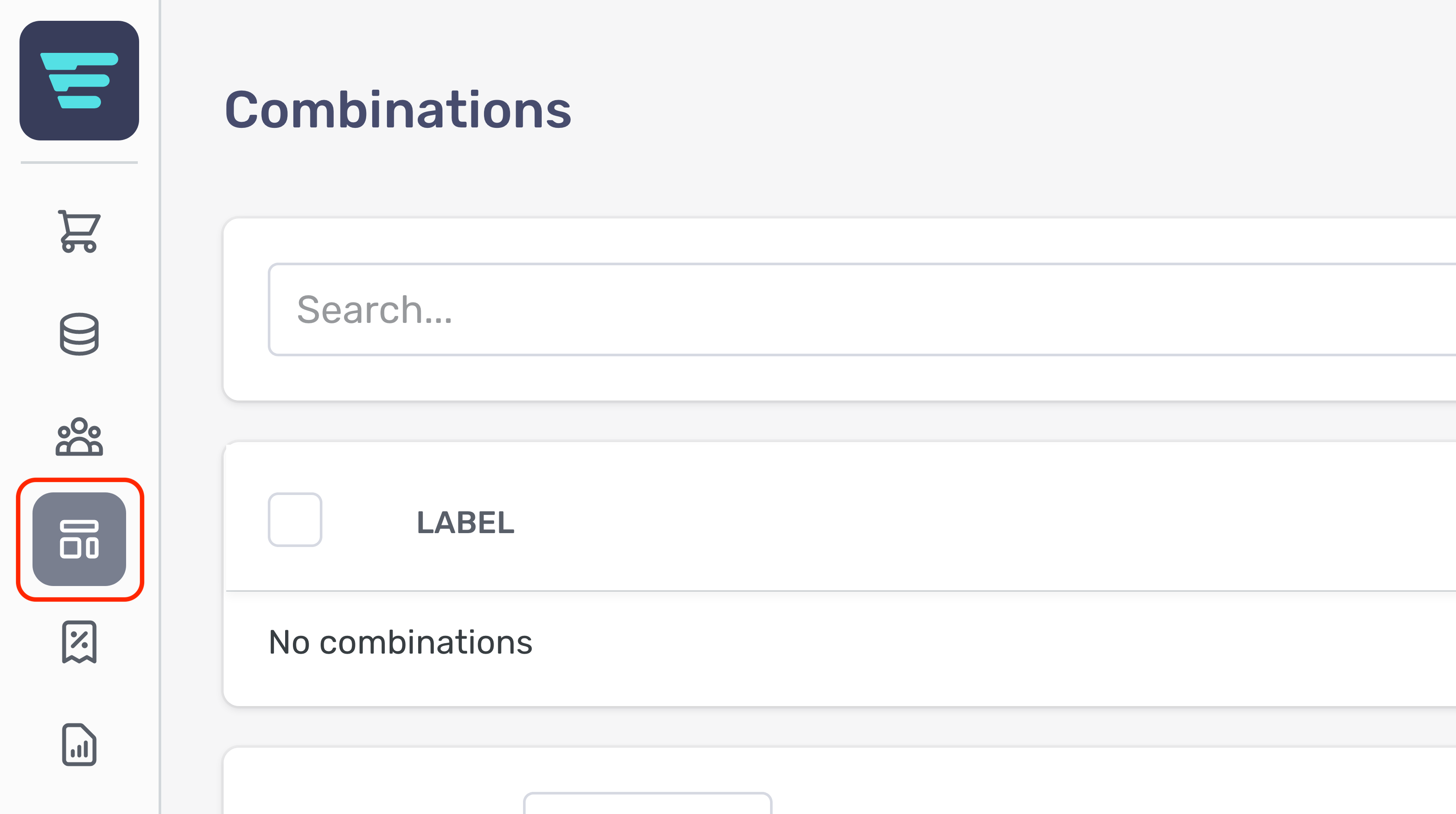
- Step 1 - Click the Content Management button in the left hand menu
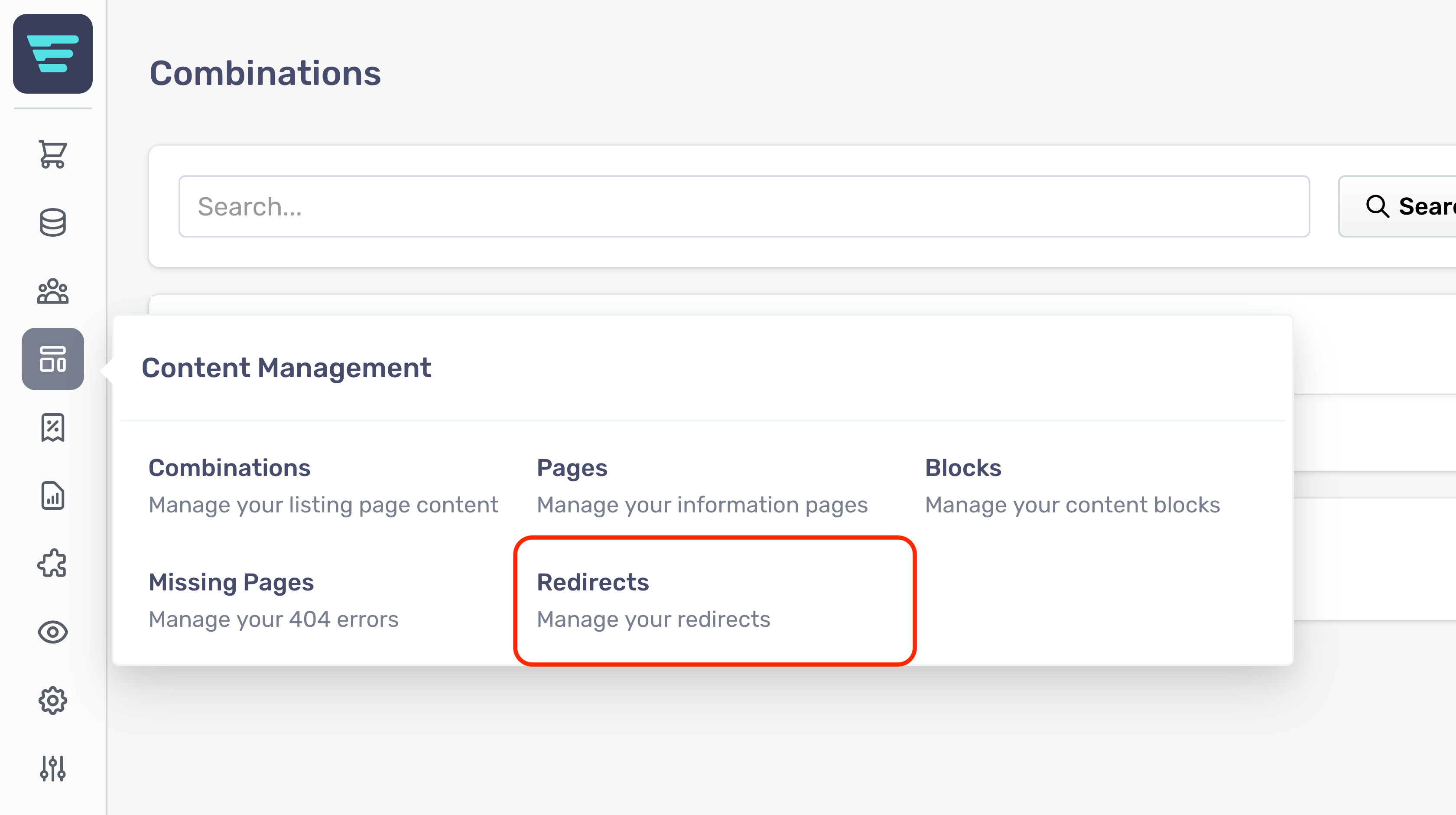
- Step 2 - Select Redirects from the Content Management menu

How do I search my redirects?
- Step 1 - Login to your Aero Admin Console - Step 2 - Hover over the 'Content Management' icon in the left hand menu
- Step 3 - Click on 'Redirects'
- Step 4 - Enter your search term in the SEARCH input at the top of the page

- Step 5 - Click 'Search'
How do I delete a redirect?
- Step 1 - Login to your Aero Admin Console - Step 2 - Hover over the 'Content Management' icon in the left hand menu
- Step 3 - Click on 'Redirects'
- Step 4 - Search for the redirect(s) you would like to delete (more information here; "How do I search my redirects? - Step 5 - Select the redirect(s) you would like to delete by click their checkbox(es)

- Step 6 - Select 'Delete Redirects' from the 'Select a bulk action' dropdown - Step 7 - Click go - A confirmation tick will appear when your bulk action has been complete
How do I export my redirects?
- Step 1 - Login to your Aero Admin Console - Step 2 - Hover over the 'Content Management' icon in the left hand menu
- Step 3 - Click on 'Redirects'
- Step 4 - Click the 'Export' button in the top right of your screen

- Step 5 – Click ‘Export as CSV’

How do I edit a redirect?
- Step 1 - Login to your Aero Admin Console - Step 2 - Hover over the 'Content Management' icon in the left hand menu
- Step 3 - Click on 'Redirects'
- Step 4 - Search for the redirect you would like to edit (more information here; "How do I search my redirects? - Step 5 - Click on the redirect NAME or arrow icon - Step 6 - Edit or enter the necessary information for your redirect - (more information here; "How do I create a new redirect? - Step 7 - Click the 'Save' button in the bottom left of your screen
What is the redirects list?
Your redirtects list shows any redirects you currently have setup, along with their from and to urls and the status code.

How do I create a new redirect?
Redirects are slighly different to how you create a new one, when compared with the other elements in the store.
Redirects require only a small amount of information therefor the create form is part of the listing page.
In order to create a new redirect first navigate to the redirect listing page. The new re-direct form is part of the listing page, being displayed between the search and the content.

Create redirect form
The form has only three fields to fill out;
-
From URL - Enter the URL that you want to redirect traffic from - To URL - Enter the URL that you want to redirect traffic to - Status - Select the appropriate code;
- 301 - Moved Permanently - This and all future requests should be directed to the given URI
302 - Found - Tells the client to look at (browse to) another URL
308 - Permanent Redirect (RFC 7538) - The request and all future requests should be repeated using another URI
- 301 - Moved Permanently - This and all future requests should be directed to the given URI