Pages
Pages
- How do I search my pages?
- How do I create a new page?
- What is a page?
- Where do I find my pages?
- What is the pages list?
- How do I edit a page?
- How do I delete a page?
How do I search my pages?
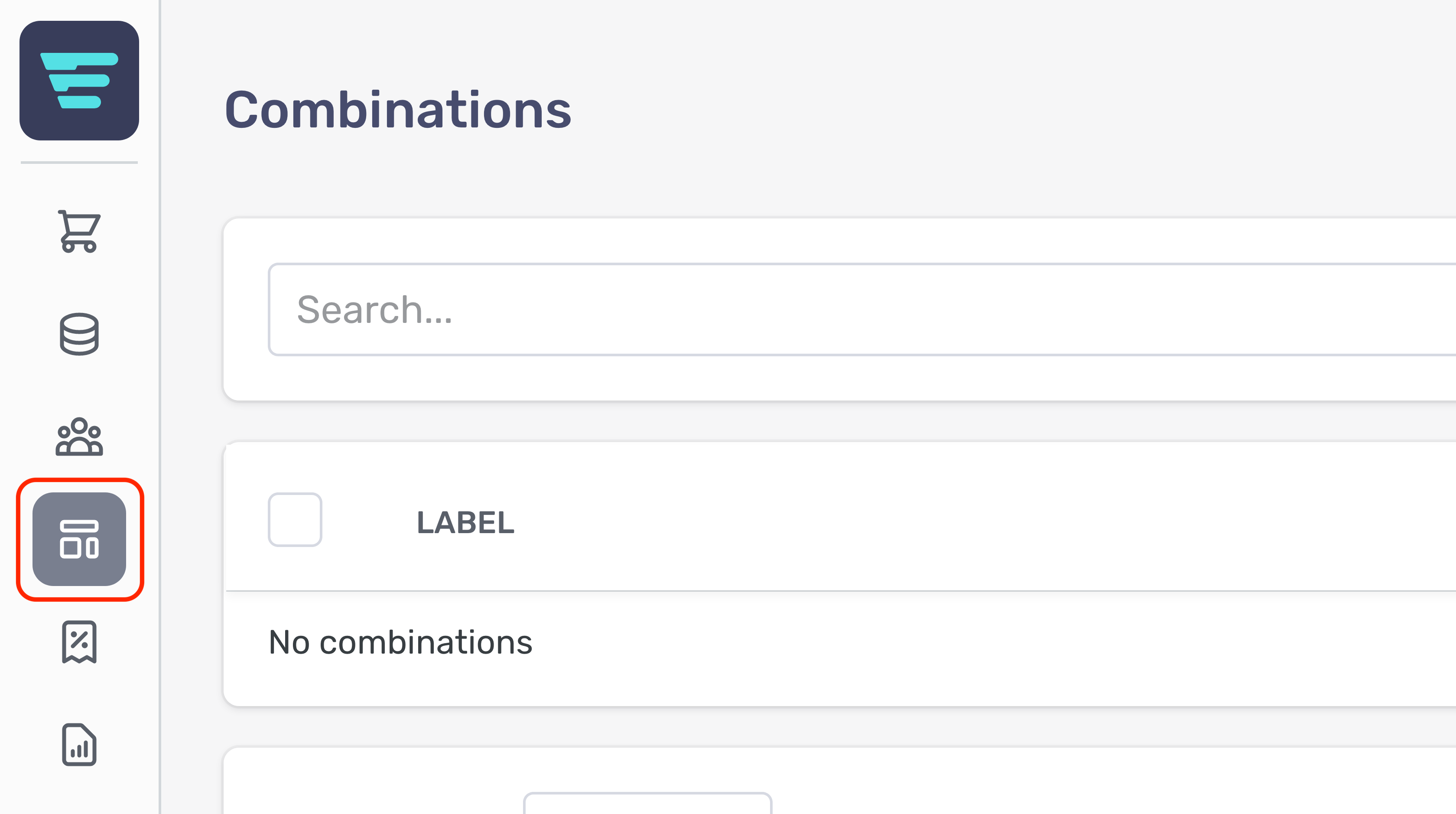
- Step 1 - Login to your Aero Admin Console - Step 2 - Hover over the 'Content Management' icon in the left hand menu
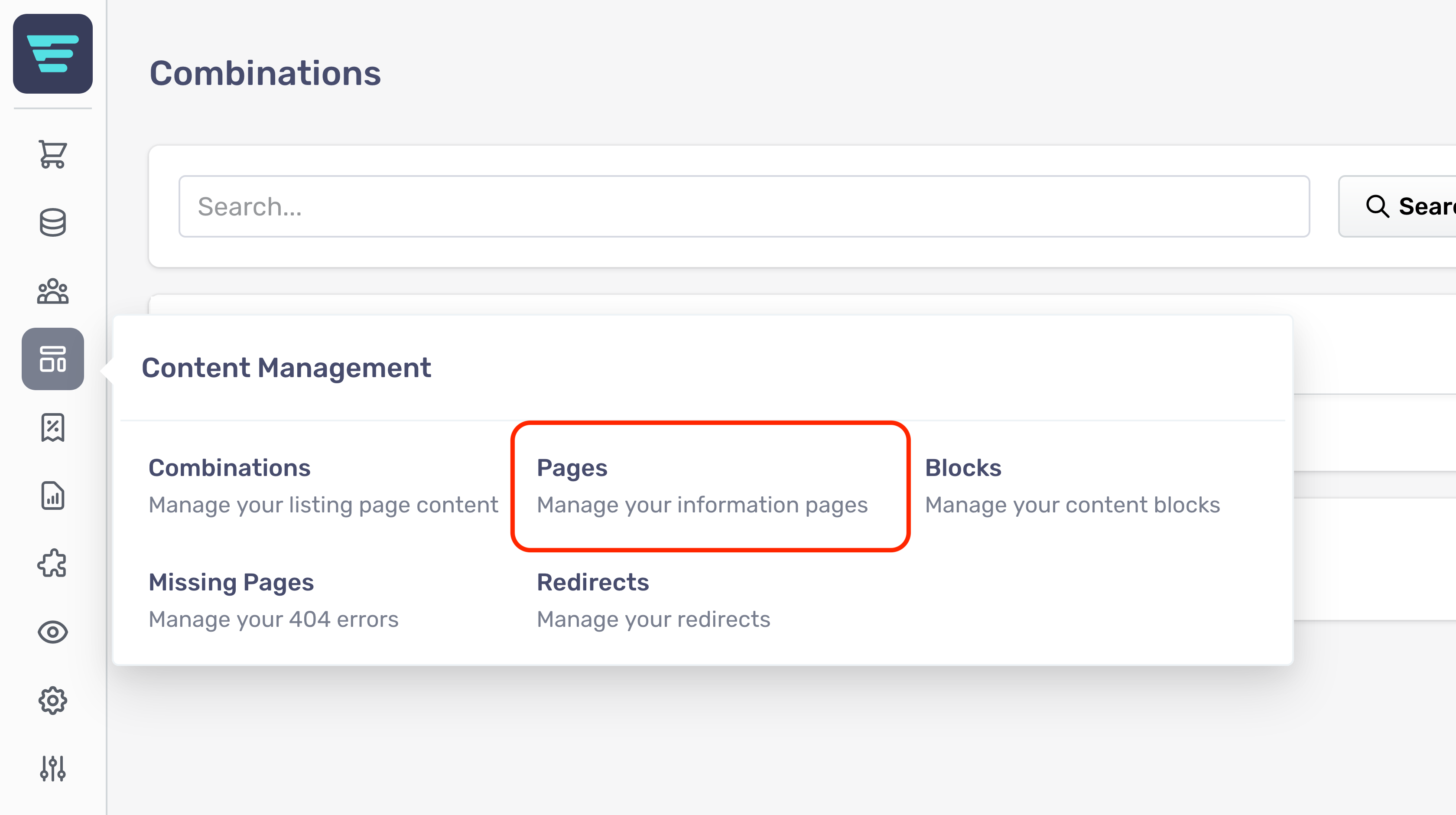
- Step 3 - Click on 'Pages'
- Step 4 - Enter your search term in the SEARCH input at the top of the page

- Step 5 - Click 'Search'
How do I create a new page?
In order to create a new page for your store first navigate to the page listings page and click the "+ New Page" button at the top of the page.

From here you will be presented with the form for creating a new page.
The form is grouped into sections with non-required sections collapsed.
Page Information
The first section is the page name and content.
- Name- This is the main back-end identifier for your Page. Note that it is neither the Page title, nor the H1 heading. These are set in the SEO section - Content- Your Page content depends on whether you have selected the standard or advanced Page type

The Contentfield provides the following inputs for controlling the content and layout;
- Bold- Embolden selected text - Italic- Italicise selected text - Format- Select from a range of standard formats. - Lists- Select bulletted or numbered lists, and change indent level. - Table- Insert and control a table (supports all standard table operations). - Link- Link or unlink - When you add a link you can choose to open in new tab - useful if the link points away from your storefront. - Image- Add an image by drag and drop or file selection. - Font- Choose from existing fonts or remove a font. - Size- Choose from existing font sizes or remove a font size. - Text Colour- Choose text or highlight colour to apply - select none to remove text or highlight colour that has already been applied. - Properties- Allows you set CSS Class and ID properties - this is advanced functionality for those comfortable working with CSS. - Main text area- This is where you enter your Page contents.
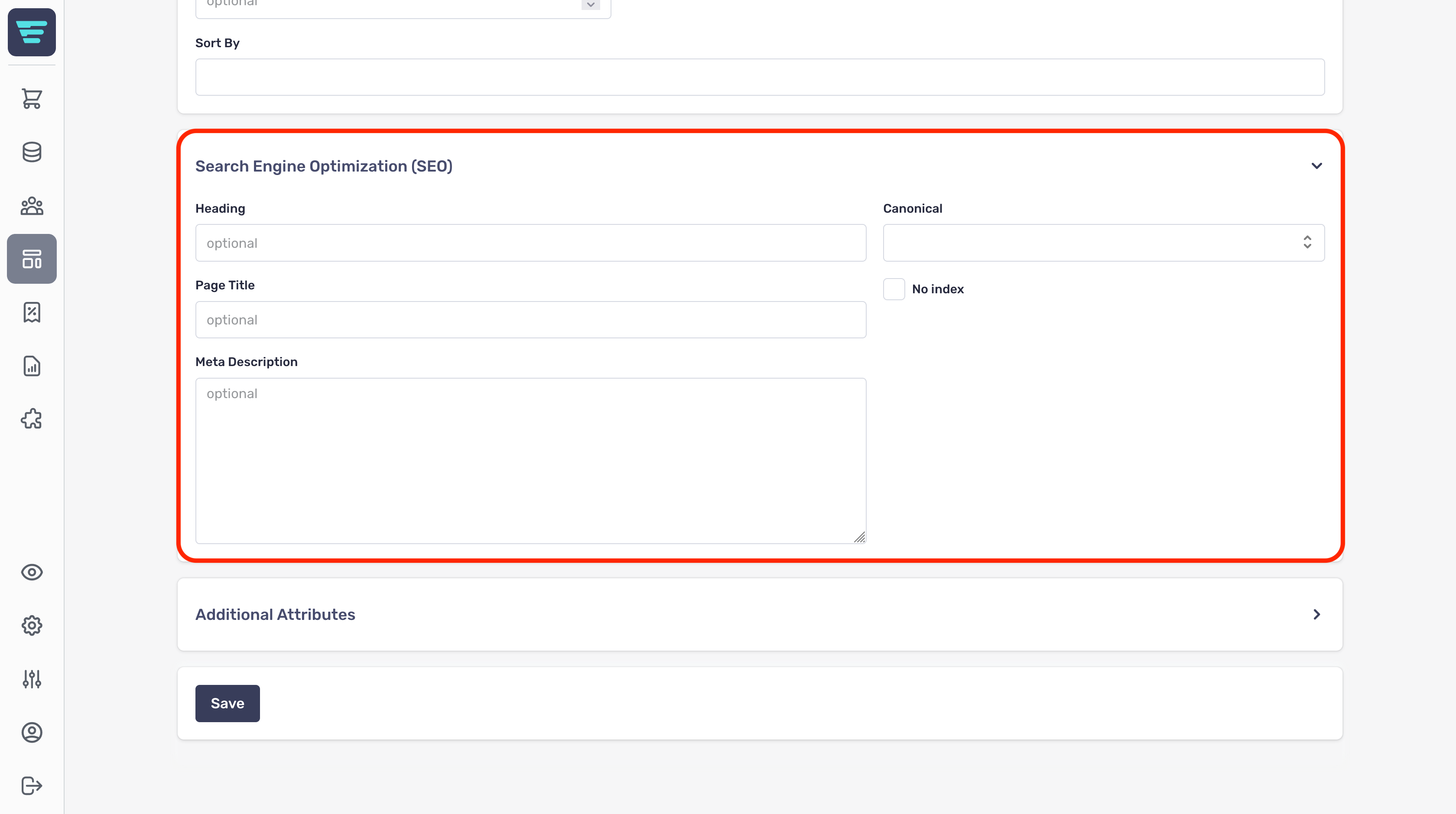
Search Engine Optimization (SEO)
The SEO section is where you manage the content used by search engines to index your store.
SEO is an important aspect when it comes to customers finding your store when searching for products you're selling.
The SEO section has a number of fields for you to complete;
- Heading- this is the page name and will be the main heading in most themes. - Page title- used by search engines as the title of this page. - Meta description- combined with the page title and displayed as the search engine listing description. - Canonical- used to determine relationships when multiple pages share duplicate content - No index- checking this box will direct search engines to not index this page.
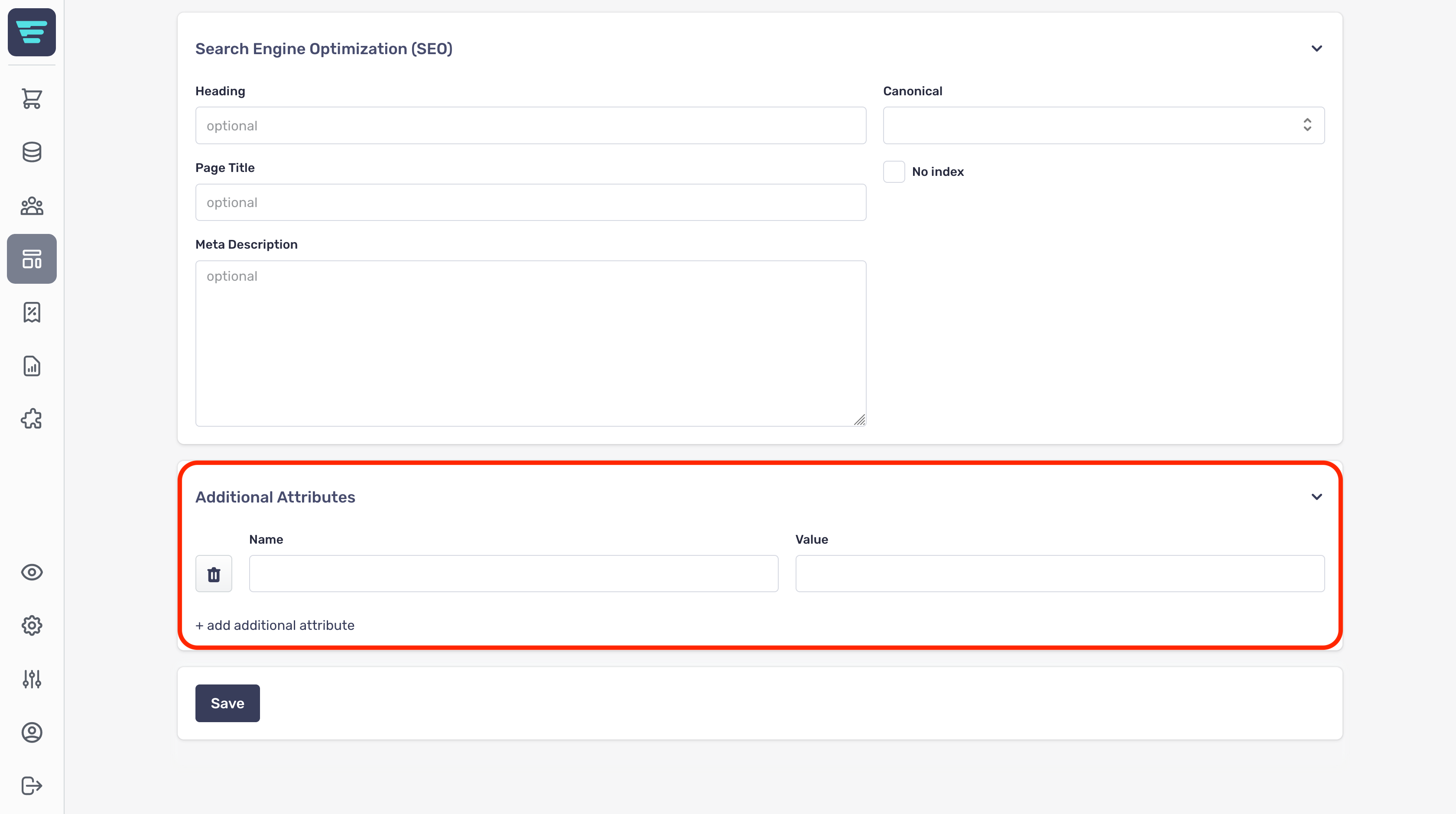
Additional Attributes
The additional attributes section is used to provide custom fields, these may have been set up by your agency and used to display additional information about your page.
Additional attributes are useful if Aero does not contain a certain attribute that you require, e.g. for integration with an ePos system.
What is a page?
Within Aero, Pages allow you to create static/information pages. These pages will not include listings.
Examples of static/information pages include:
- Terms and Conditions - About - Contact - Policies
Where do I find my pages?
Your Pages are located in your Aero admin console.
- Step 1 - Hover over the Content Management button in the left hand menu
- Step 2 - Select Pages from the Content Management menu

What is the pages list?
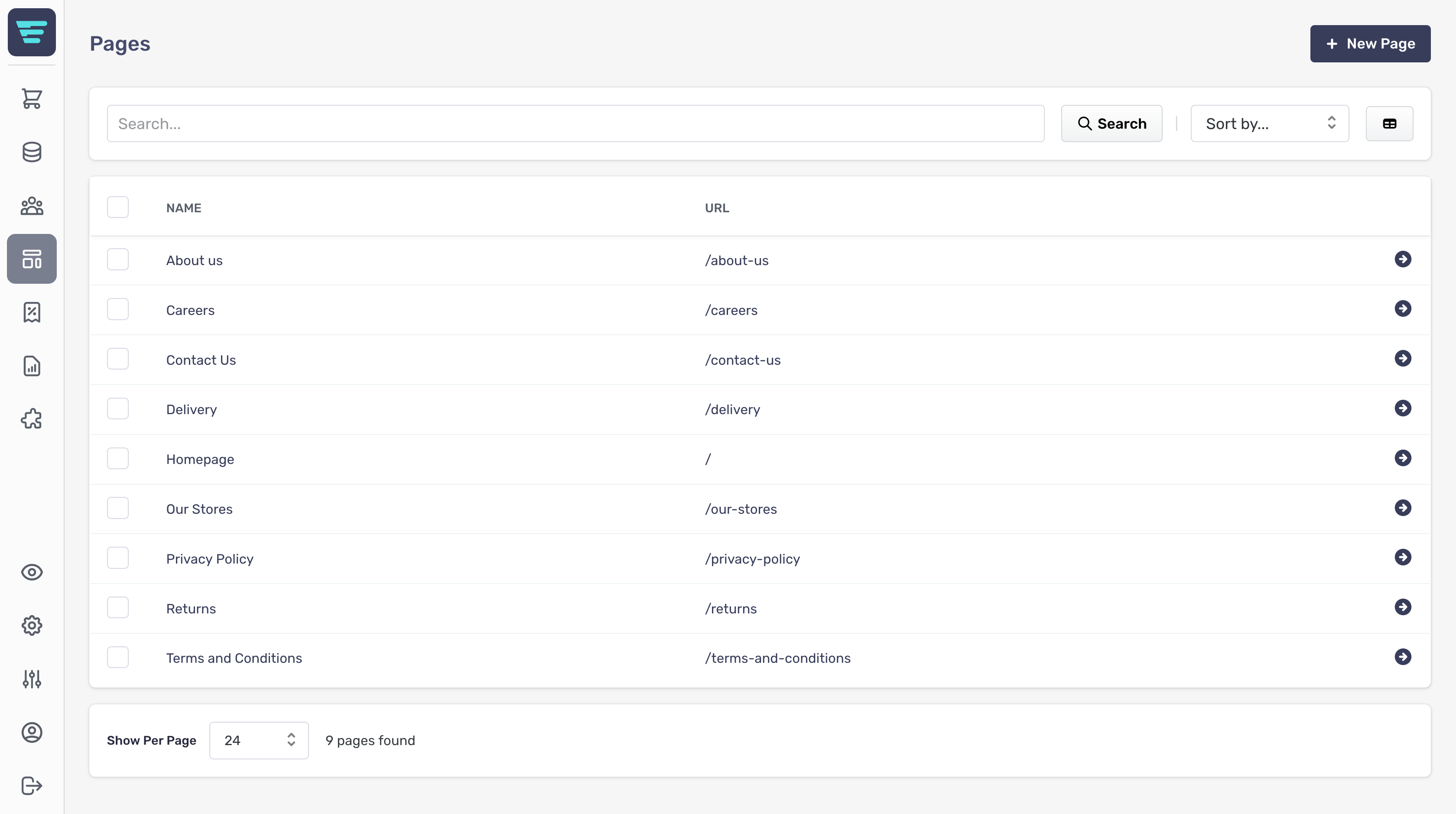
Your pages list shows all of you current pages and includes the label and url of each combination. This allows you to quickly check key details and quickly drill into your pages for further information.
Example Pages List;
How do I edit a page?
- Step 1 - Login to your Aero Admin Console - Step 2 - Hover over the 'Content Management' icon in the left hand menu
- Step 3 - Click on 'Pages'
- Step 4 - Search for the Combination you would like to edit (more information here; "How do I search my pages? - Step 5 - Click on the Combination arrow icon - Step 6 - Edit or enter the necessary information for your page - (more information here; "How do I create a new page? - Step 7 - Click the 'Save' button in the bottom left of your screen
How do I delete a page?
Deleting pages cannot be undone
- Step 1 - Login to your Aero Admin Console - Step 2 - Hover over the 'Content Management' icon in the left hand menu
- Step 3 - Click on 'Pages'
- Step 4 - Search for the page(s) you would like to delete (more information here; "How do I search my pages? - Step 5 - Select the page(s) you would like to delete by click their checkbox(es)

- Step 6 - Select 'Delete pages' from the 'Select a bulk action' dropdown - Step 7 - Click go - A confirmation tick will appear when your bulk action has been completed