Blocks
Blocks
- How do I create a new block?
- How do I delete a block?
- What is a block?
- Where do I find my blocks?
- What is the blocks list?
- How do I search my blocks?
- How do I edit a block?
How do I create a new block?
In order to create a new block for your store first navigate to the blocks listings page and click the "+ New Block" button at the top of the page.

From here you will be presented with the form for creating a new block.
The form is grouped into sections with non-required sections collapsed.
Block Information
The first section is the block name, key and description;
- Name- The main identifier for your Block, shown on the Block list - Key- Allows you to enter useful information to describe your Block - Description- The back-end identifier for your Block

Block Elements
The block elements section is where you add content to your block;

Once you have created an element you have the following options;
- Copy- Creates a duplicate copy of this element in your Block - Delete- Instantly deletes your element (also deletes elements nested beneath your element)

Element types
When adding a new element, your options change depending on the type of element;
Menu element
To nest an element under a menu, following these steps
The fields available for the menu element are as follows;
- Title- The text that appears in the menu element when displayed on screen - Link- Optional - The URL your menu element links to - Show / hide this block at a particular time- Allows you to set show and hide times for your menu element
- Show at- Set the time to start displaying your menu element - Hide at- Set the time to start displaying your menu element
- Additional Attributes- Adds a new attribute
- Delete icon- Instantly delete your attribute - Name- Enter your attribute name - **Value **- Enter your attribute value

Link element
Links allow you to create linkable list elements. When used with menus you can create nested link lists.
-
Title- The text that appears in the link element when displayed on screen - Link- Optional - The URL your link element links to - Show/Hide this Block at a particular time- Allows you to set show and hide times for your link element
- Show at- Set the time to show your link element - Hide at- Set the time to hide your link element
-
+ add attribute- Adds a new attribute
- Delete icon- Instantly delete your attribute - Name- Enter your attribute name - Value- Enter your attribute value

Text element
Text allows you to create textual list elements. When used with menus, you can create nested lists.
-
Text- The text that appears in the link element when displayed on screen - Show/Hide this Block at a particular time- Allows you to set show and hide times for your link element
- Show at- Set the time to show your link element - Hide at- Set the time to hide your link element
-
+ add attribute- Adds a new attribute
- Delete icon- Instantly delete your attribute - Name- Enter your attribute name - Value- Enter your attribute value

Image element
Image allows you to create image elements. These can contain up to 3 images, used depending on the type of device displaying the storefront.
Image filetypes
Aero supports the following image types:
- .png - .jpg/.jpeg
Image size
Aero storefront supports images up to 10MB
The fields available for the image element are as follows;
-
3 x Drop files here to upload- Optional - Either drag your product image file into the box or click to browse files - Alt text- Enter the alt text that describes the image - Link- Optional - The URL your image element links to - Show/Hide this Block at a particular time- Allows you to set show and hide times for your link element
- Show at- Set the time to show your link element - Hide at- Set the time to hide your link element
-
+ add attribute- Adds a new attribute
- Delete icon- Instantly delete your attribute - Name- Enter your attribute name - Value- Enter your attribute value

HTML elements
HTML allows you to create HTML Block elements.
-
HTML- - Show/Hide this Block at a particular time- Allows you to set show and hide times for your link element
- Show at- Set the time to show your link element - Hide at- Set the time to hide your link element
-
+ add attribute- Adds a new attribute
- Delete icon- Instantly delete your attribute - Name- Enter your attribute name - Value- Enter your attribute value

How do I delete a block?
Deleting blocks cannot be undone
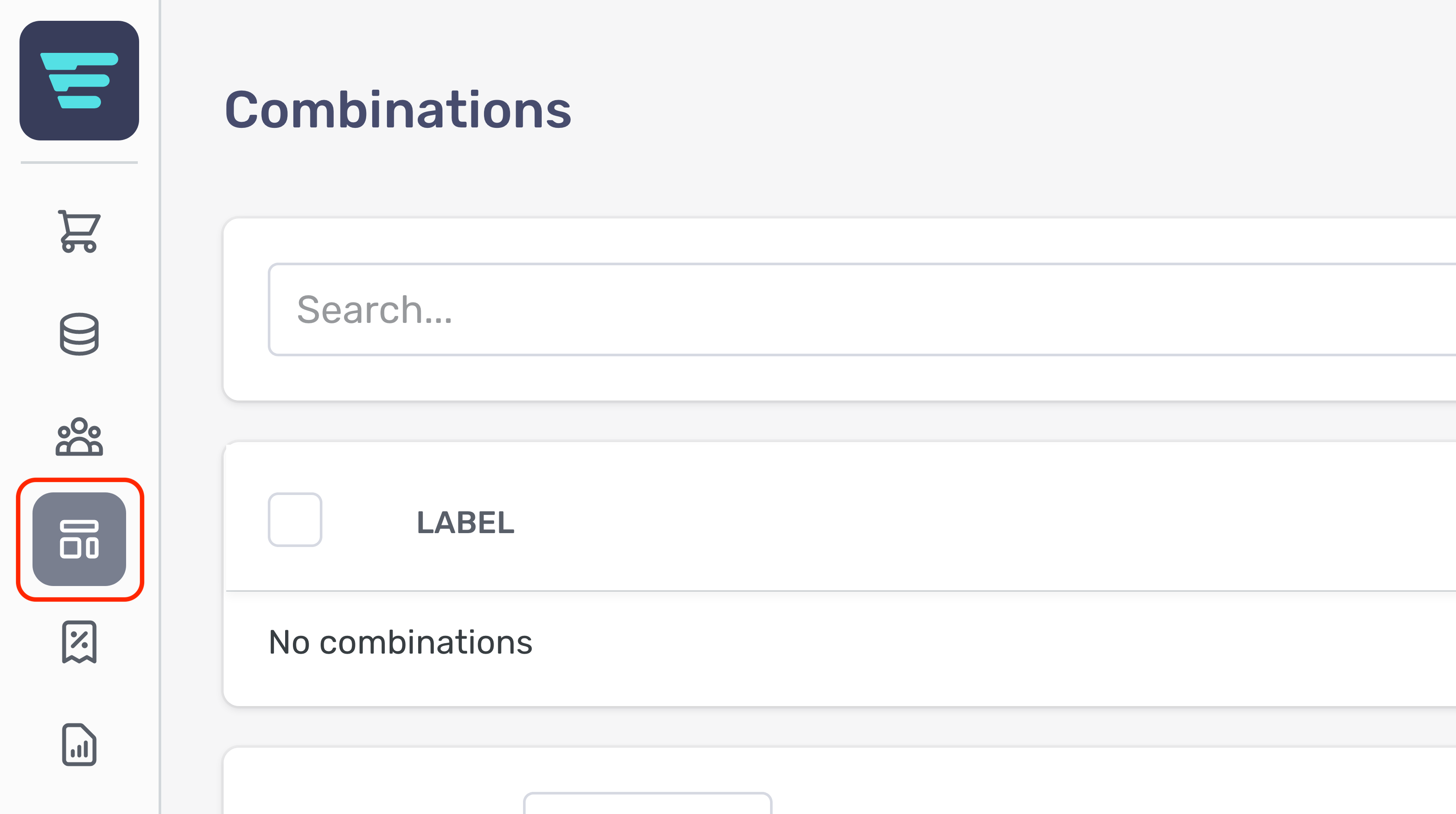
- Step 1 - Login to your Aero Admin Console - Step 2 - Hover over the 'Content Management' icon in the left hand menu
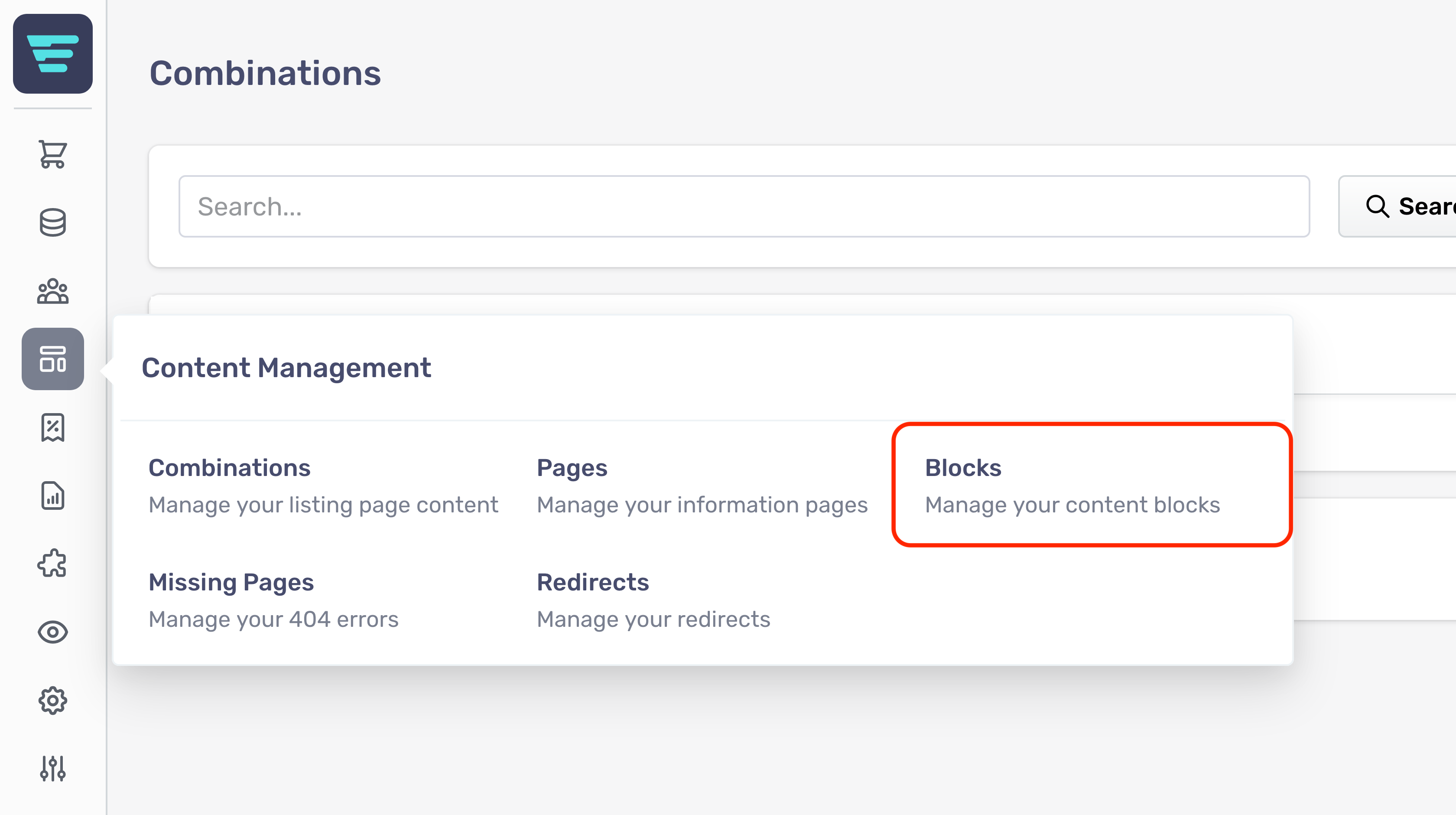
- Step 3 - Click on 'Blocks'
- Step 4 - Search for the block(s) you would like to delete (more information here; "How do I search my blocks? - Step 5 - Select the block(s) you would like to delete by click their checkbox(es)

- Step 6 - Select 'Delete blocks' from the 'Select a bulk action' dropdown - Step 7 - Click go - A confirmation tick will appear when your bulk action has been completed
What is a block?
Within Aero, Blocks provide an easy way to include dynamic content in your storefront.
Blocks are specific elements, or sections of displayed content within pages. Blocks allow easy duplication of content and can be reused across an unlimited number of pages.
Blocks can be made up of a combination of the following content types:
Where do I find my blocks?
Your Blocks are located in your Aero admin console.
- Step 1 - Hover over the Content Management button in the left hand menu
- Step 2 - Select Blocks from the Content Management menu

What is the blocks list?
Your blocks list shows all of you current blocks and includes the label and key of each block. This allows you to quickly check key details and quickly drill into your blocks for further information.

How do I search my blocks?
- Step 1 - Login to your Aero Admin Console - Step 2 - Hover over the 'Content Management' icon in the left hand menu
- Step 3 - Click on 'Blocks'
- Step 4 - Enter your search term in the SEARCH input at the top of the page

- Step 5 - Click 'Search'
How do I edit a block?
- Step 1 - Login to your Aero Admin Console - Step 2 - Hover over the 'Content Management' icon in the left hand menu
- Step 3 - Click on 'Blocks'
- Step 4 - Search for the block you would like to edit (more information here; "How do I search my blocks? - Step 5 - Click on the block name or arrow icon - Step 6 - Edit or enter the necessary information for your block - (more information here; "How do I create a new block? - Step 7 - Click the 'Save' button in the bottom left of your screen