How do I create a new manufacturer?
In order to create a new manufacturer for your store first navigate to the manufacturer listings page and click the "+ New Manufacturer" button at the top of the page.

From here you will be presented with the form for creating a new manufacturer.
The form is grouped into sections with non-required sections collapsed.
Manufacturer Information
The first section is the manufacturer name, tags and logo.
- Name- The main identifier for your manufacturer. Namewill be shown on the manufacturer page and on the associate product pages and listings - depending on your theme/configuration. - Tags- Select any tagsthat apply to your manufacturer. - Logo- Optional logo for your manufacturer.

Listing Page Content
The content entered here will be used to populate certain content areas depending on your theme/configuration.
- Summary- Enter a shorter summary of your manufacturer - Description- Enter a detailed description of your manufacturer - Images- Optional - Either drag your manufacturer image file(s) into the box or click to browse files. The images section is broken down into 3 sections allowing you to provide different sized images for different screen sizes.

Both Summaryand Descriptionprovide the following inputs for controlling the content and layout;
- Bold- Embolden selected text - Italic- Italicise selected text - Format- Select from a range of standard formats. - Lists- Select bulletted or numbered lists, and change indent level. - Table- Insert and control a table (supports all standard table operations). - Link- Link or unlink - When you add a link you can choose to open in new tab - useful if the link points away from your storefront. - Image- Add an image by drag and drop or file selection. - Font- Choose from existing fonts or remove a font. - Size- Choose from existing font sizes or remove a font size. - Text Colour- Choose text or highlight colour to apply - select none to remove text or highlight colour that has already been applied. - Properties- Allows you set CSS Class and ID properties - this is advanced functionality for those comfortable working with CSS. - Main text area- This is where you enter you manufacturer description - the detailed manufacturer text that your customers will see.
Listing Page Options
This section allows you to control the products shown on this page by applying various filters;
- Hide categries- Select this to hide categories from your filters list - Hide filters- Select this to hide categories from your filters list - Applicable & available filters- Drag filters from available filtersto applicable filtersto add them to your manufacturer page - Show per page- Enter the number of listings to show on this manufacturer page - Sort by- Select the 'sort by' options that will be displayed on this manufacturer page

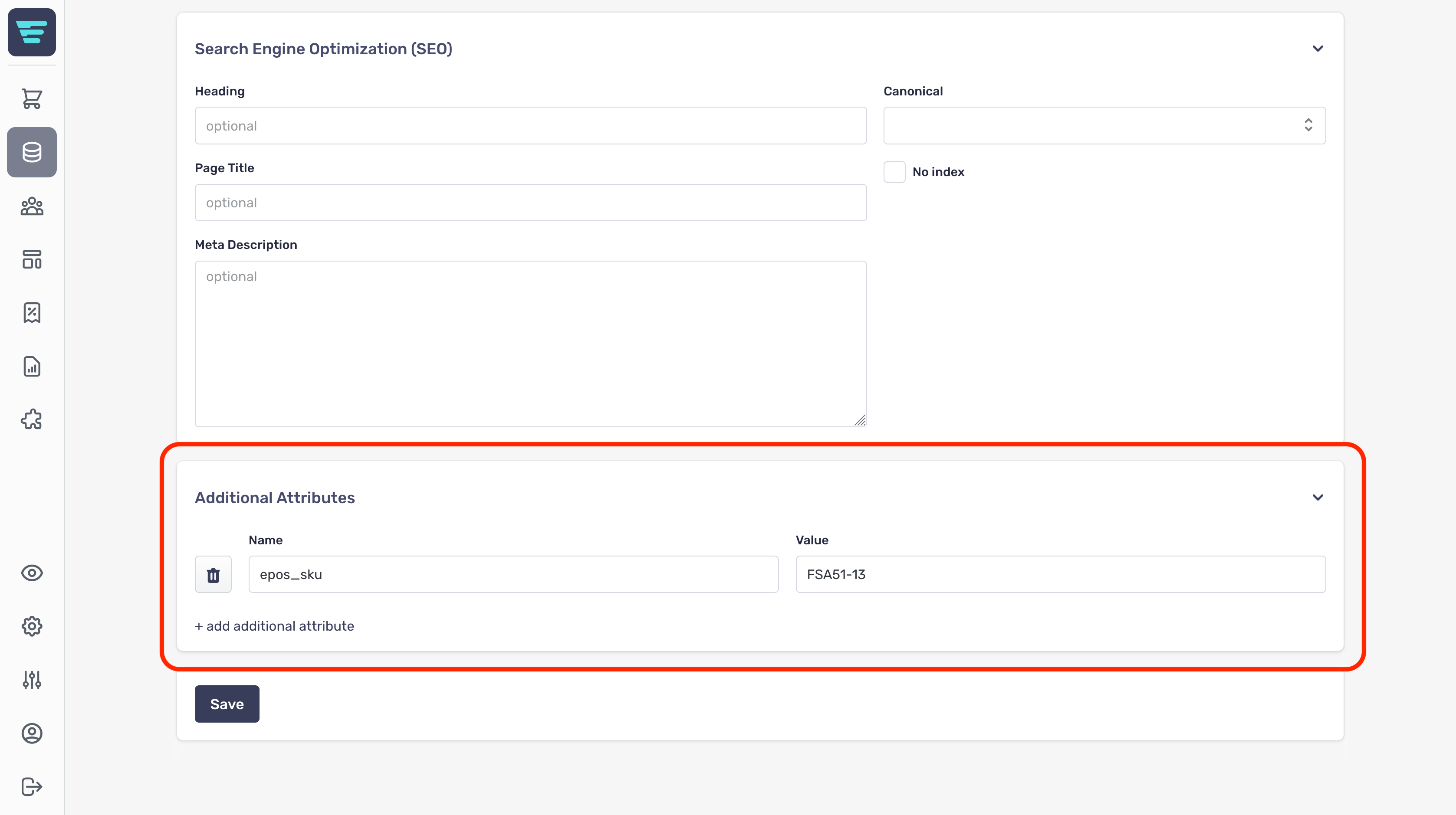
Search Engine Optimization (SEO)
The SEO section is where you manage the content used by search engines to index your store.
SEO is an important aspect when it comes to customers finding your store when searching for products you're selling.
The SEO section has a number of fields for you to complete;
- Heading- this is the manufacturer name and will be the main heading in most themes. - Page title- used by search engines as the title of this page. - Meta description- combined with the page title and displayed as the search engine listing description. - Canonical- used to determine relationships when multiple pages share duplicate content - No index- checking this box will direct search engines to not index this page.
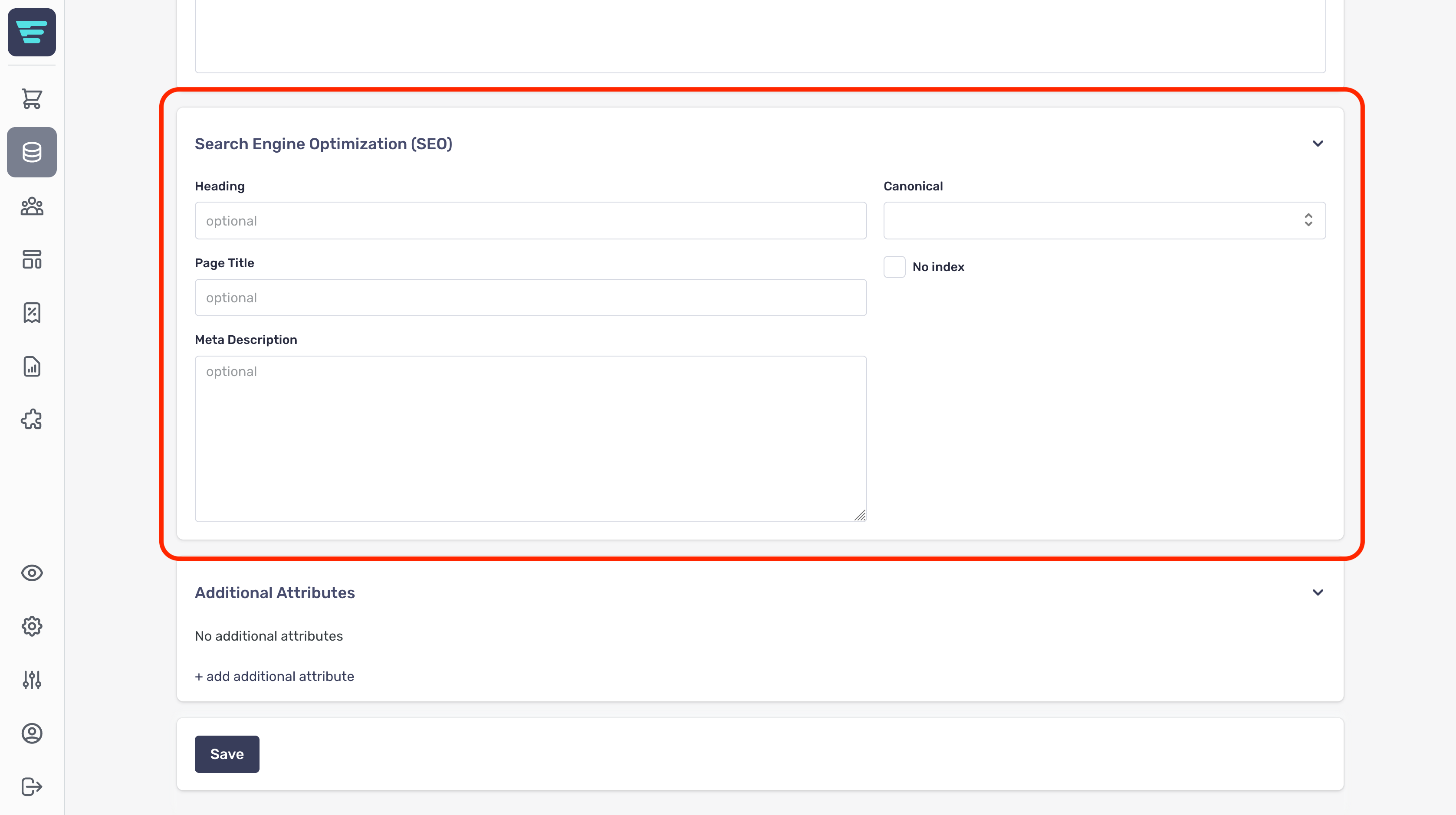
Additional Attributes
The additional attributes section is used to provide custom fields, these may have been set up by your agency and used to display additional information about your manufacturer.
Additional attributes are useful if Aero does not contain a certain attribute that you require, e.g. for integration with an ePos system.