Catalog Management
Catalog Management
- Attributes
- What is an attribute?
- Where do I find my attributes?
- How do I search my attributes?
- How do I create a new attribute?
- What is the attributes list?
- How do I create a new attribute group?
- How do I edit an attribute group?
- How do I delete an attribute group?
- How do I delete an attribute?
- How do I edit an attribute?
- Categories
- What is a category?
- Where do I find my categories?
- How do I create a new category?
- What is the categories list?
- How do I search my categories?
- How do I delete a category?
- How do I edit a category?
- Collections
- Where do I find my collections?
- What is the collections list?
- How do I search my collections?
- What is a collection?
- How do I create a new collection?
- How do I delete a collection?
- How do I edit a collection?
- Introduction
- Introduction to manufacturers
- Introduction to categories
- Introduction to collections
- What is catalog management?
- Where do I find catalog management?
- Introduction to products
- Introduction to Attributes
- Introduction to tags
- Manufacturers
- What is the manufacturer list?
- How do I search my manufacturers?
- How do I create a new manufacturer?
- What is a manufacturer?
- Where do I find my manufacturers?
- How do I edit a manufacturer?
- How do I delete a manufacturer?
- Products
- How do I create a new product in the admin?
- How do I create a single product?
- How do I create a product with variants?
- How do I change the images on my product?
- How do I update the pricing of my product?
- How do I manage inventory of my product?
- How do I manage shipping options for my product?
- What are products?
- Where do I find my products?
- What is the products list?
- How do I search my products?
- How do I view a product in the storefront?
- What is a variant product?
- What are bulk actions for products?
- What is a product marker?
- What is a single product?
- How do I edit a product?
- How do I delete a product?
- How do I perform bulk actions on products?
- What are the standard bulk actions for products?
- Tags
Attributes
Attributes
What is an attribute?
Within Aero, attributes are used to differentiate versions of a product. This allows you to create variant products
Attributes consist of the following 2 elements:
Attribute groups
All attributes belong to an attribute group. Typical examples of attribute groups include:
- Size - Colour
Attributes
Attributes are the specific options within your attribute groups. Typical examples of attributes include:
- Small - Large - Black - White
Attribute Example
The example below shows attributes being used within a variant product:

Where do I find my attributes?
Your attributes are located in your Aero admin console.
- Step 1 - Click the Catalog Management button in the left hand menu

- Step 2 - Select Attributes from the Catalog Management menu

How do I search my attributes?
Whether you're searching for attribute groups or attributes within you Aero store, you follow the same process:
- Step 1 - Login to your Aero Admin Console - Step 2 - Hover over the 'Catalog Management' icon in the left hand menu
- Step 3 - Click on 'Attributes'
- Step 4 - Enter your search term in the Searchinput at the top of the page

- Step 5 - Click 'Search'
How do I create a new attribute?
Individual attributes are tied to their group, in order to create a new attribute you must first decide which group you want to add this new attribute to.

Clicking the "+ New Attribute" button will add a new row to the attributes table. Attributes have a number of fields available;
- Name- Enter the attribute name - e.g. black or small - Display Name- Enter the display name if this is different to name (also used by the colour swatches display type to display the colour) - Tags- Select any tags from the selection box - start by entering the first few letters of the tag - Image- Optional - Add an image using drag and drop, or clicking, on the Drop image box

These attributes could both be assigned the tag Blue
What is the attributes list?
Your attributes list shows your current attribute groups. You can view the individual attributes within a group by clicking on the attribute group name, or the arrow icon.

How do I create a new attribute group?
In order to create a new attribute group first navigate to the attributes listings page and click the "+ New Attribute Group" button at the top of the page.

From here you will be presented with the form for creating a new attribute group.
The form is grouped into sections with non-required sections collapsed.
Attribute Group Information
First up is the group information;
- Attribute Group Name- The name of your group (e.g size) - Display Type- this determines how your customers will select the different options on your storefront
- Dropdown- This will provide a dropdown list to choose an option - Colour Swatches- This will display swatches attribute colours - defined by using a HEX colour in the DISPLAY NAME field (e.g. '#ff0000' for red) - Image Swatches- This will display swatches with attribute images - defined by the images uploaded against the attribute value - Swatches- This will display swatches with the product names

Attributes
The attributes section is where you create the attributes that belong to this group, for more information on how to create each individual attribute please see "How do I create a new attribute?

How do I edit an attribute group?
- Step 1 - Login to your Aero Admin Console - Step 2 - Hover over the 'Catalog Management' icon in the left hand menu
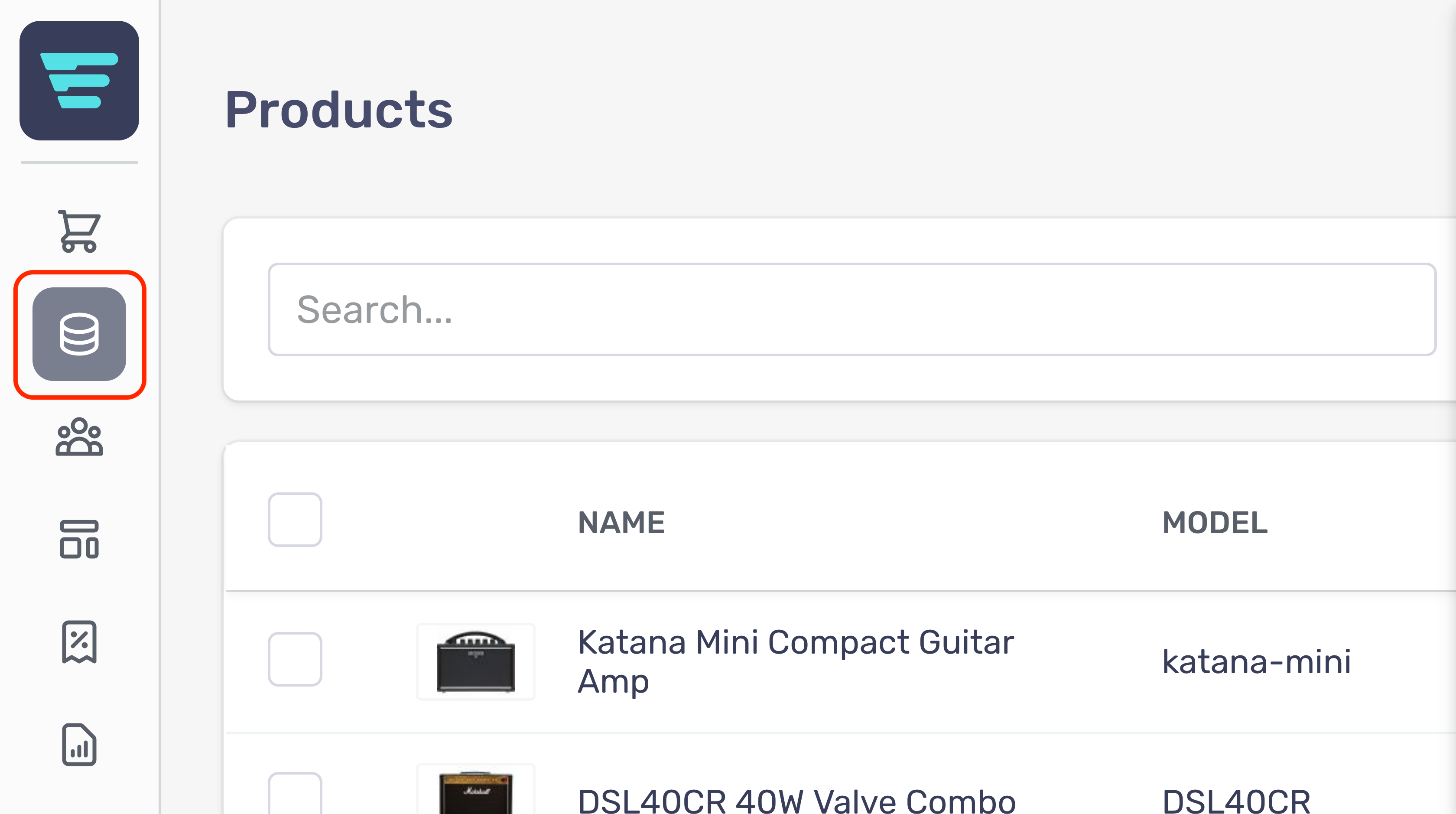
- Step 3 - Click on 'Attributes'

- Step 4 - Search for the attribute group you would like to edit (more information here; "How do I search my attributes? - Step 5 - Click on the attribute group name or arrow icon - Step 6 - Edit or enter the necessary information for your atttribute group - (more information here; "How do I create an attribute group? - Step 7 - Click the 'Save' button in the bottom left of your screen

How do I delete an attribute group?
Deleting attribute groups cannot be undone
- Step 1 - Login to your Aero Admin Console - Step 2 - Hover over the 'Catalog Management' icon in the left hand menu
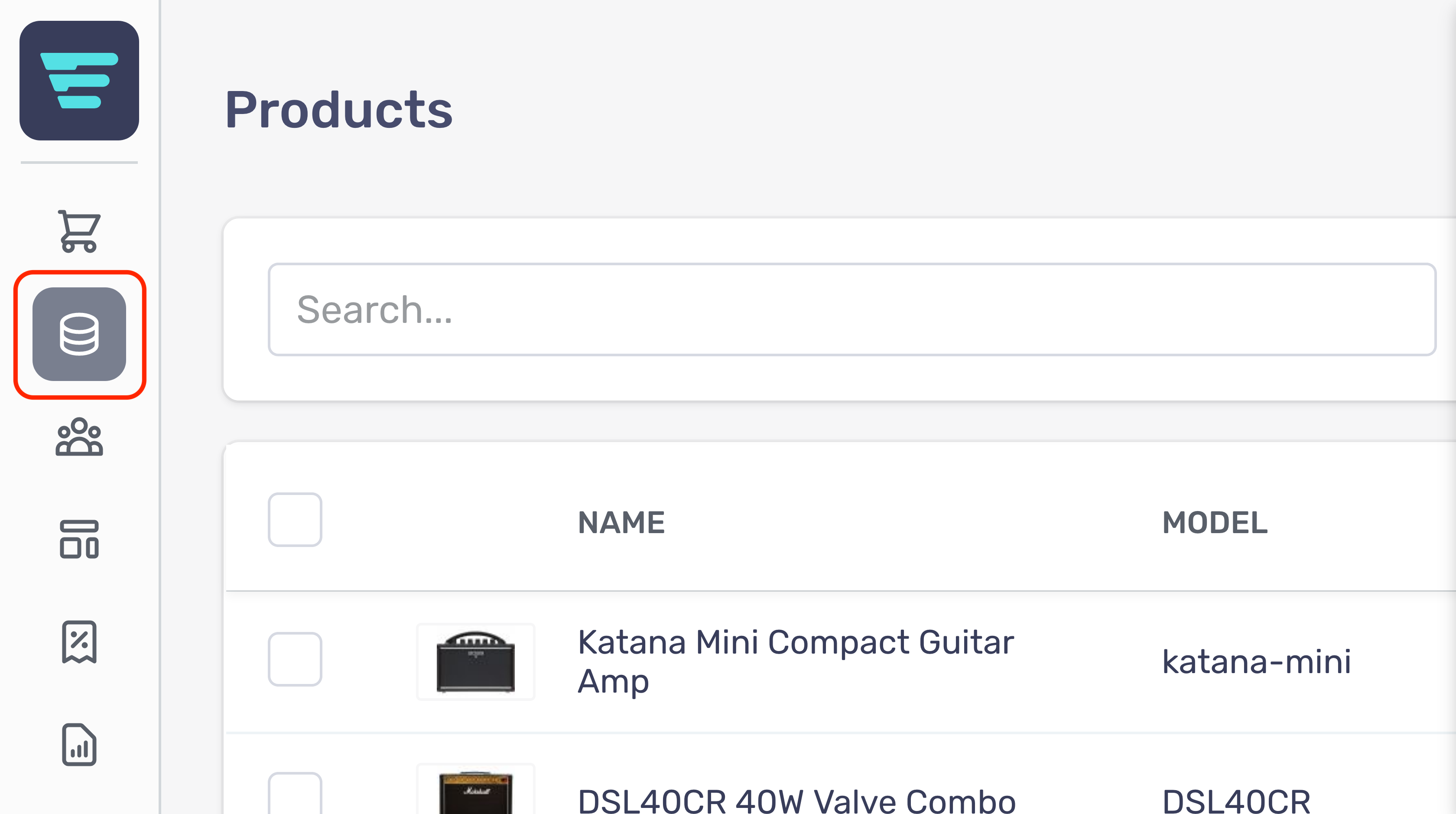
- Step 3 - Click on 'Attributes'

- Step 4 - Search for the attribute group(s) you would like to delete (more information here; "How do I search my attributes? - Step 5 - Select the attribute group(s) you would like to delete by click their checkbox(es) - Step 6 - Select 'Delete attribute groups' from the 'Select a bulk action' dropdown

- Step 7 - Click go - A confirmation tick will appear when your bulk action has been completed
How do I delete an attribute?
Deleting attributes cannot be undone
- Step 1 - Login to your Aero Admin Console - Step 2 - Hover over the 'Catalog Management' icon in the left hand menu
- Step 3 - Click on 'Attributes'
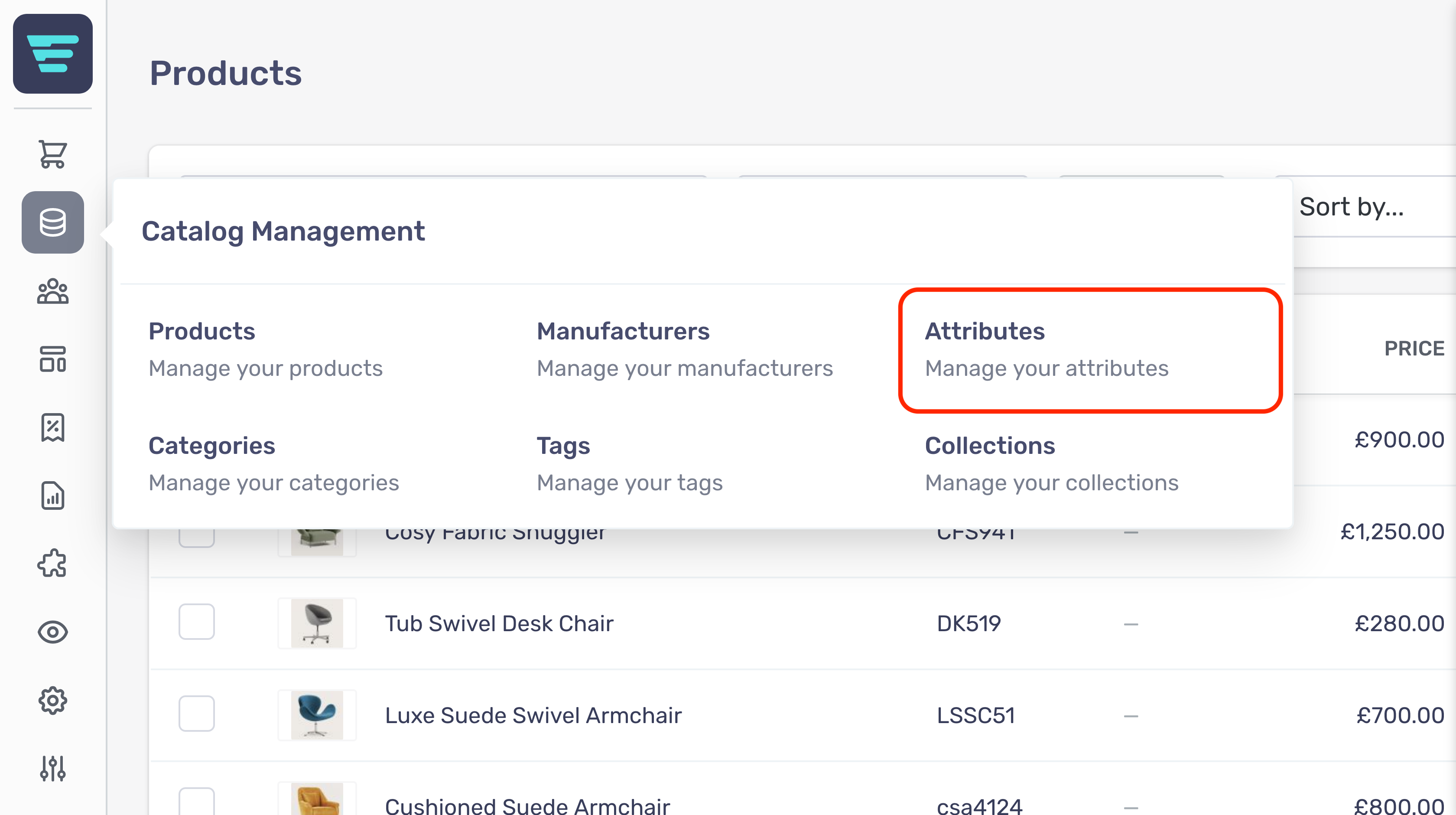
- Step 4 - Search for the attribute group(s) you would like to delete (more information here; "How do I search my attributes? - Step 5 - Click on the attribute group name or arrow icon - Step 6 - Click the 'Bin' icon corresponding to the attribute you would like to delete

- Step 7 - Click the save button located at the bottom left of the screen
How do I edit an attribute?
- Step 1 - Login to your Aero Admin Console - Step 2 - Hover over the 'Catalog Management' icon in the left hand menu
- Step 3 - Click on 'Attributes'
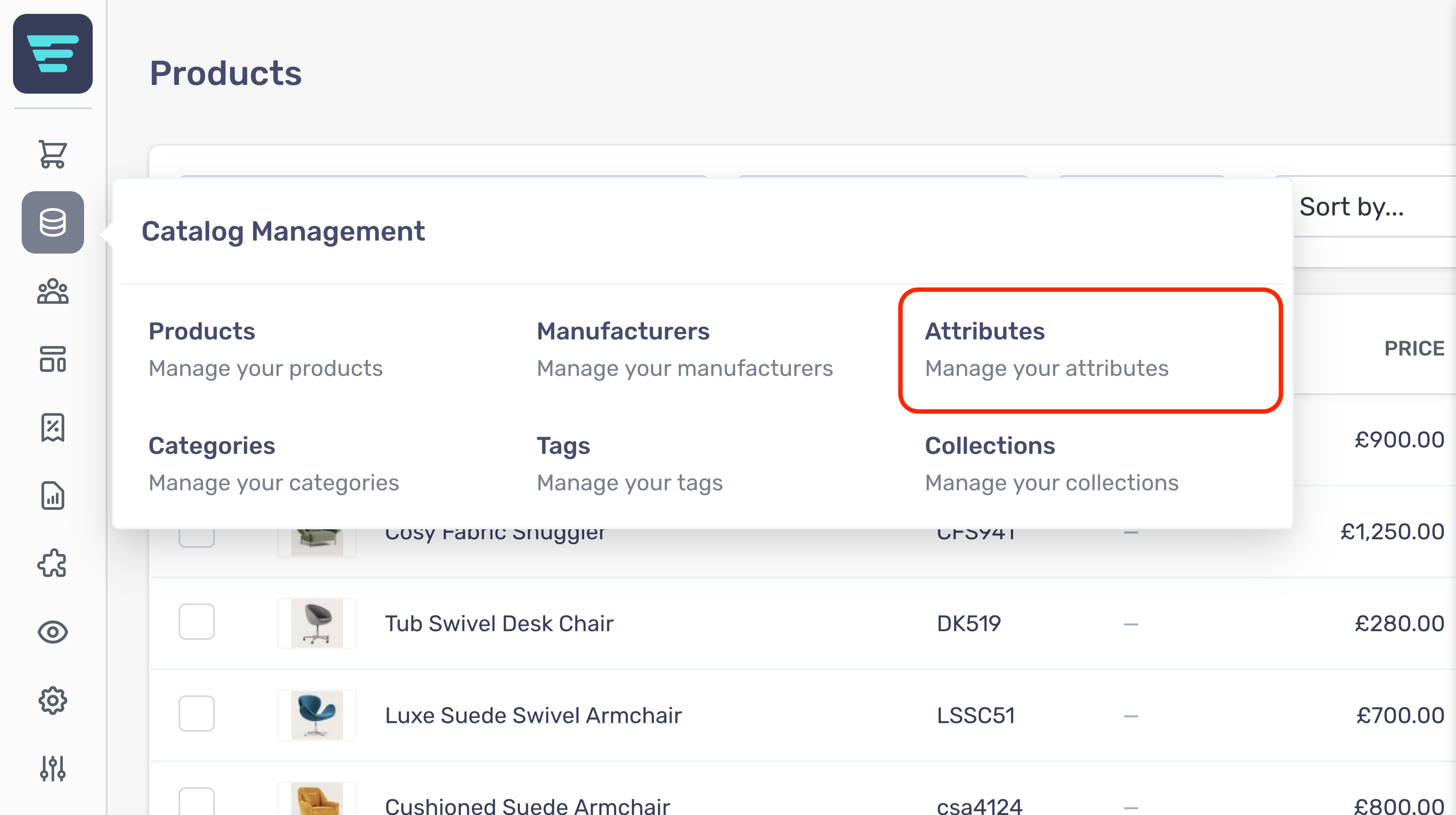
- Step 4 - Search for attribute group containing the attribute you would like to edit (more information here; "How do I search my attributes? - Step 5 - Click on the attribute group name or arrow icon - Step 6 - Find the attribute you want to edit and replace the attribute details with the new information - (more information here; "How do I create a new attribute? - Step 7 - Click the 'Save' button in the bottom left of your screen

Categories
Categories
What is a category?
Within Aero, you can create categories and assign them to multiple products.
Categories are heirarchal with parent and child relationships, e.g:
| Parent category | Child category |
|---|---|
| Menswear | Accessories |
| Accessories | Belts |
This would give the hierarchy: Menswear » Accessories » Belts
Where do I find my categories?
Your categories are located in your Aero admin console.
- Step 1 - Click the Catalog Management button in the left hand menu

- Step 2 - Select Categories from the Catalog Management menu

How do I create a new category?
In order to create a new category first navigate to the attributes listings page and click the "+ New Category" button at the top of the page.

From here you will be presented with the form for creating a new category.
The form is grouped into sections with non-required sections collapsed.
Category Information
First up is the category information;
- Name- The main identifier for you category. Namewill be shown on the category page and on the associate product pages and listings - depending on your theme/configuration. - Parent Category- Select from the existing categories by typing the first few letters of the category name. Leave blank if this is going to be a top-level category. - Tags- Select any tags from the selection box - start by entering the first few letters of the tag - Featured Image- Optional - Add an image using drag and drop, or clicking, on the Drop image box. The use of this image in the storefront will depend on the your theme/configuration.
Listing Page Content
The content entered here will be used to populate certain content areas depending on your theme/configuration.
- Summary- Enter a shorter summary of your category - Description- Enter a detailed description of your category - Images- Optional - Either drag your category image file(s) into the box or click to browse files. The images section is broken down into 3 sections allowing you to provide different sized images for different screen sizes.
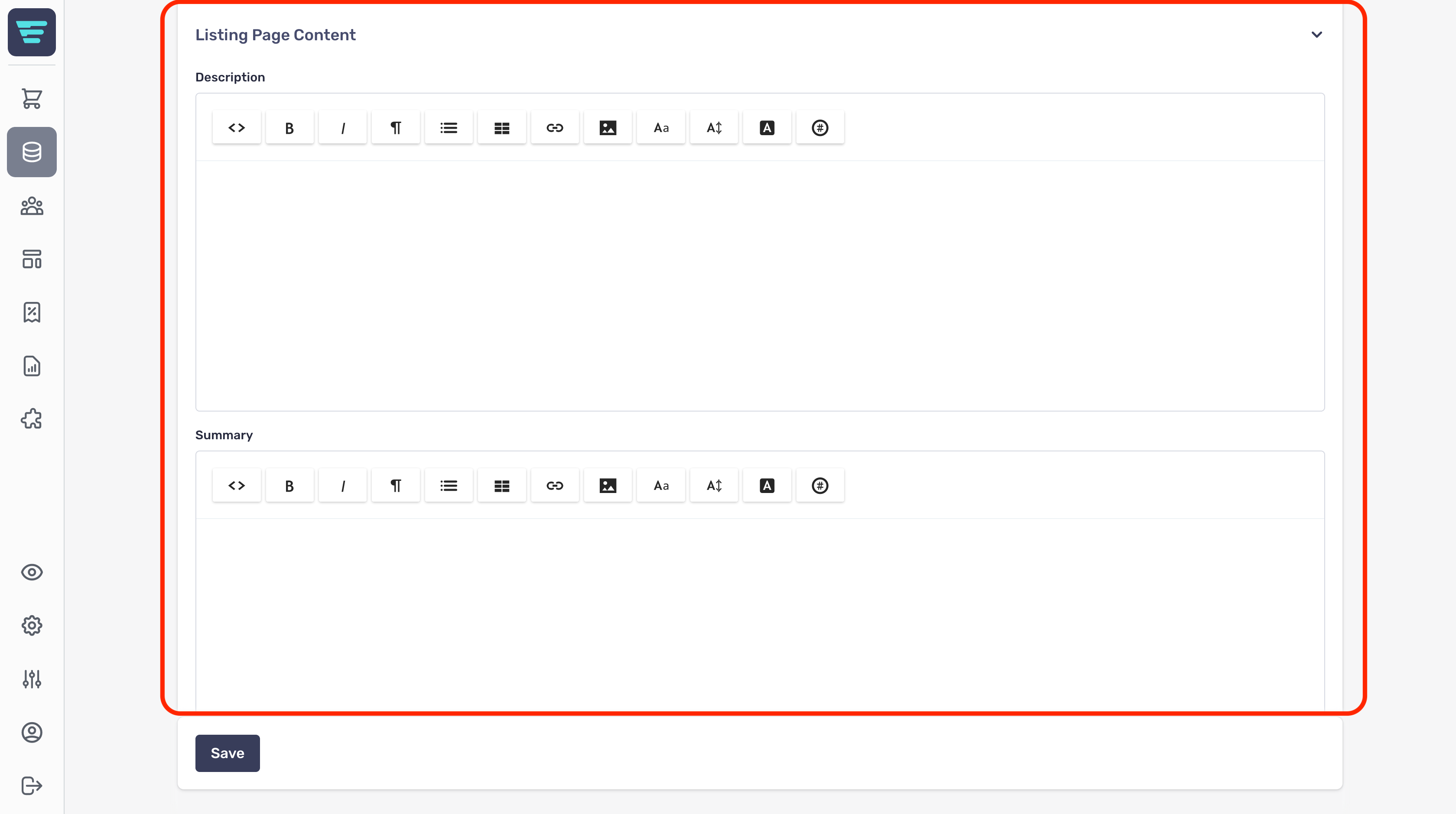
Both Summaryand Descriptionprovide the following inputs for controlling the content and layout;
- Bold- Embolden selected text - Italic- Italicise selected text - Format- Select from a range of standard formats. - Lists- Select bulletted or numbered lists, and change indent level. - Table- Insert and control a table (supports all standard table operations). - Link- Link or unlink - When you add a link you can choose to open in new tab - useful if the link points away from your storefront. - Image- Add an image by drag and drop or file selection. - Font- Choose from existing fonts or remove a font. - Size- Choose from existing font sizes or remove a font size. - Text Colour- Choose text or highlight colour to apply - select none to remove text or highlight colour that has already been applied. - Properties- Allows you set CSS Class and ID properties - this is advanced functionality for those comfortable working with CSS. - Main text area- This is where you enter you category description - the detailed category text that your customers will see.
Listing Page Options
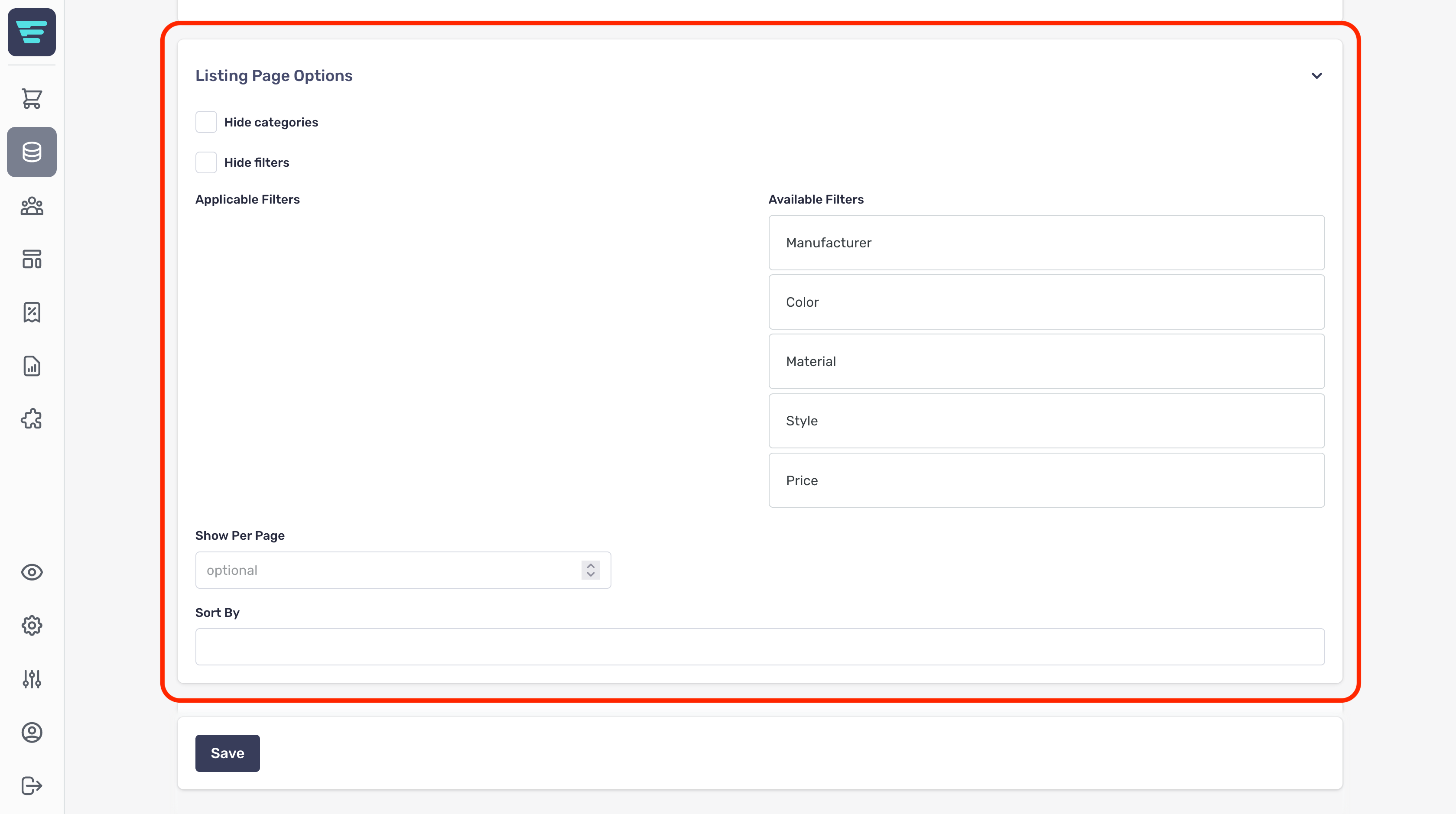
This section allows you to control the products shown on this page by applying various filters;
- Hide categries- Select this to hide categories from your filters list - Hide filters- Select this to hide categories from your filters list - Applicable & available filters- Drag filters from available filtersto applicable filtersto add them to your category page - Show per page- Enter the number of listings to show on this category page - Sort by- Select the 'sort by' options that will be displayed on this category page
Search Engine Optimization (SEO)
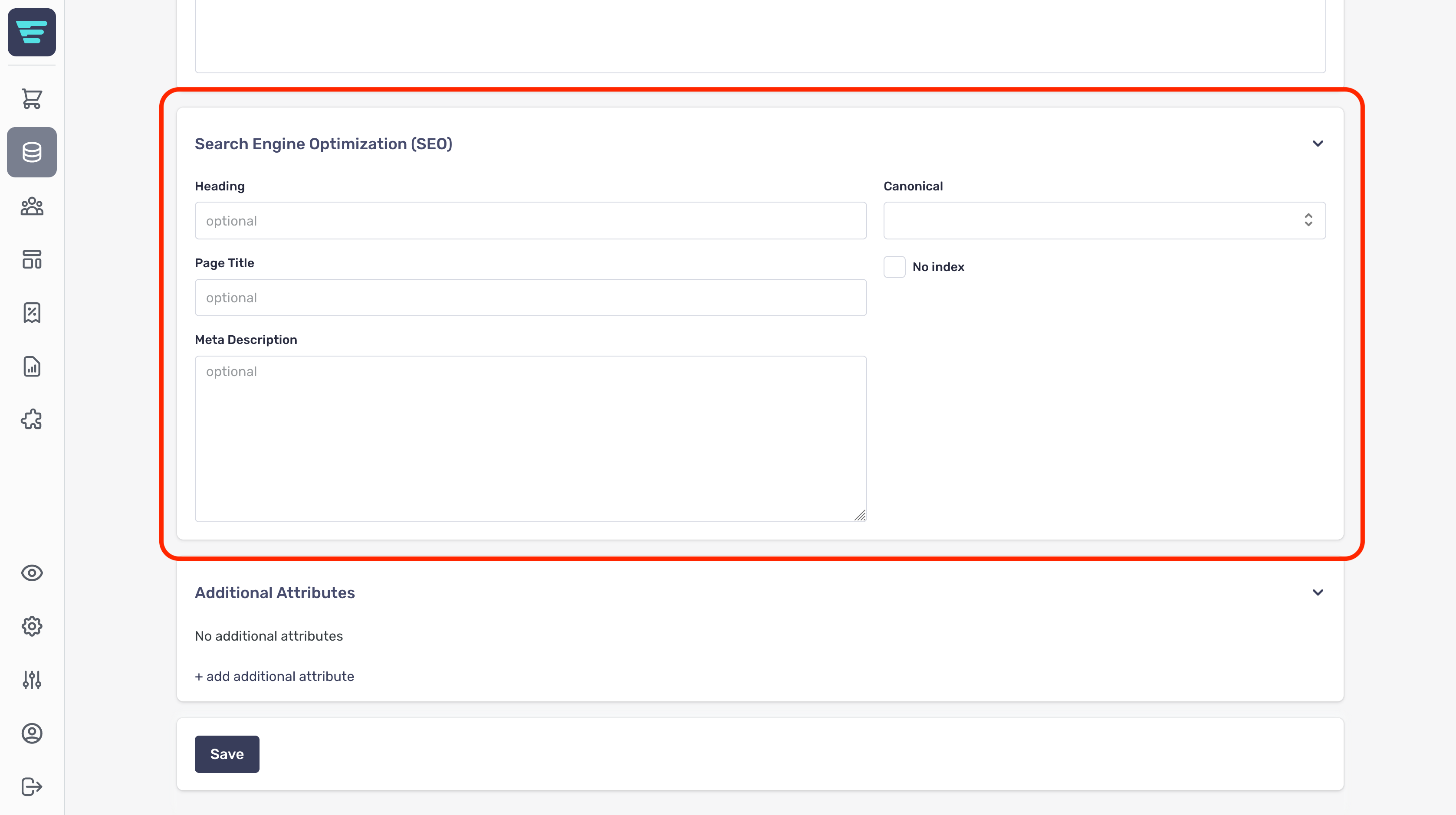
The SEO section is where you manage the content used by search engines to index your store.
SEO is an important aspect when it comes to customers finding your store when searching for products you're selling.
The SEO section has a number of fields for you to complete;
- Heading- this is the category name and will be the main heading in most themes. - Page title- used by search engines as the title of this page. - Meta description- combined with the page title and displayed as the search engine listing description. - Canonical- used to determine relationships when multiple pages share duplicate content - No index- checking this box will direct search engines to not index this page.
Additional Attributes
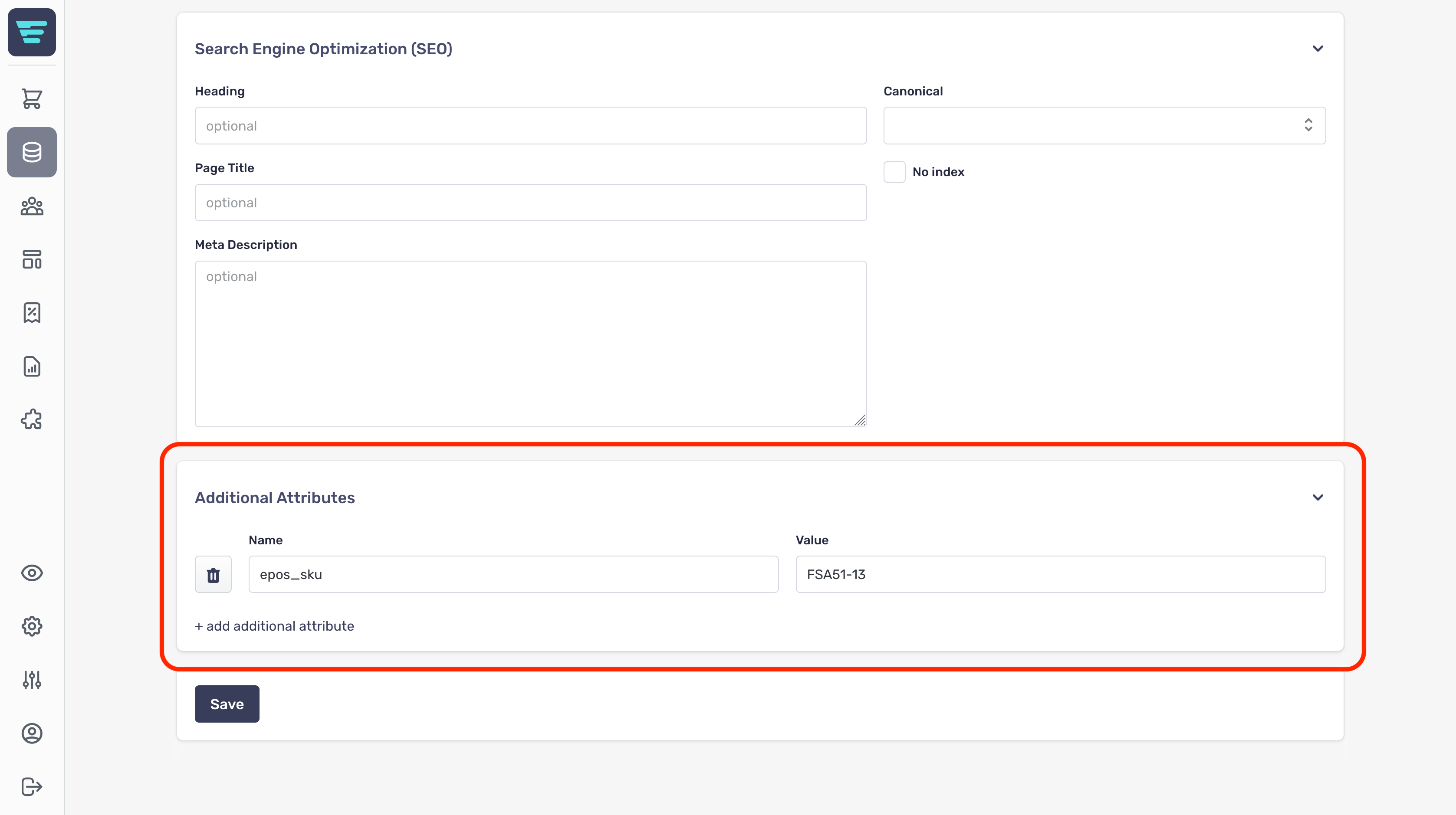
The additional attributes section is used to provide custom fields, these may have been set up by your agency and used to display additional information about your category.
Category attributes are not the same as product attributes
Additional attributes are useful if Aero does not contain a certain attribute that you require, e.g. for integration with an ePos system.
What is the categories list?
The categories list is nested, which makes it slightly different to other lists within Aero catalog management.
- To see child categories, click on the '>' to the left of the category name - To see the category details, click on the circular arrow icon or the name of the category
This is an example of a top level categories list;

This is an example of a category page with the some top level categories expanded;

How do I search my categories?
- Step 1 - Login to your Aero Admin Console - Step 2 - Hover over the 'Catalog Management' icon in the left hand menu
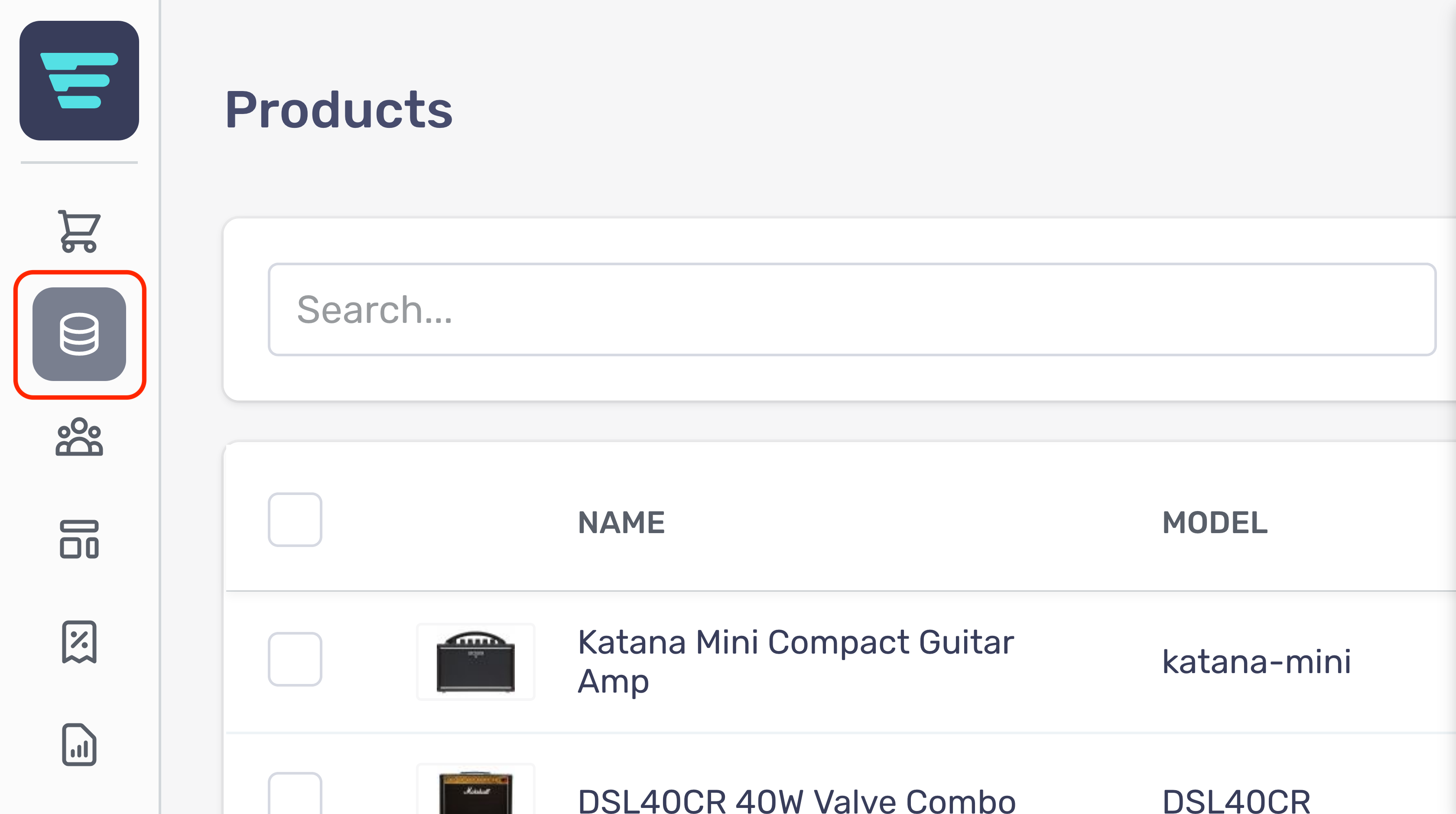
- Step 3 - Click on 'Categories'
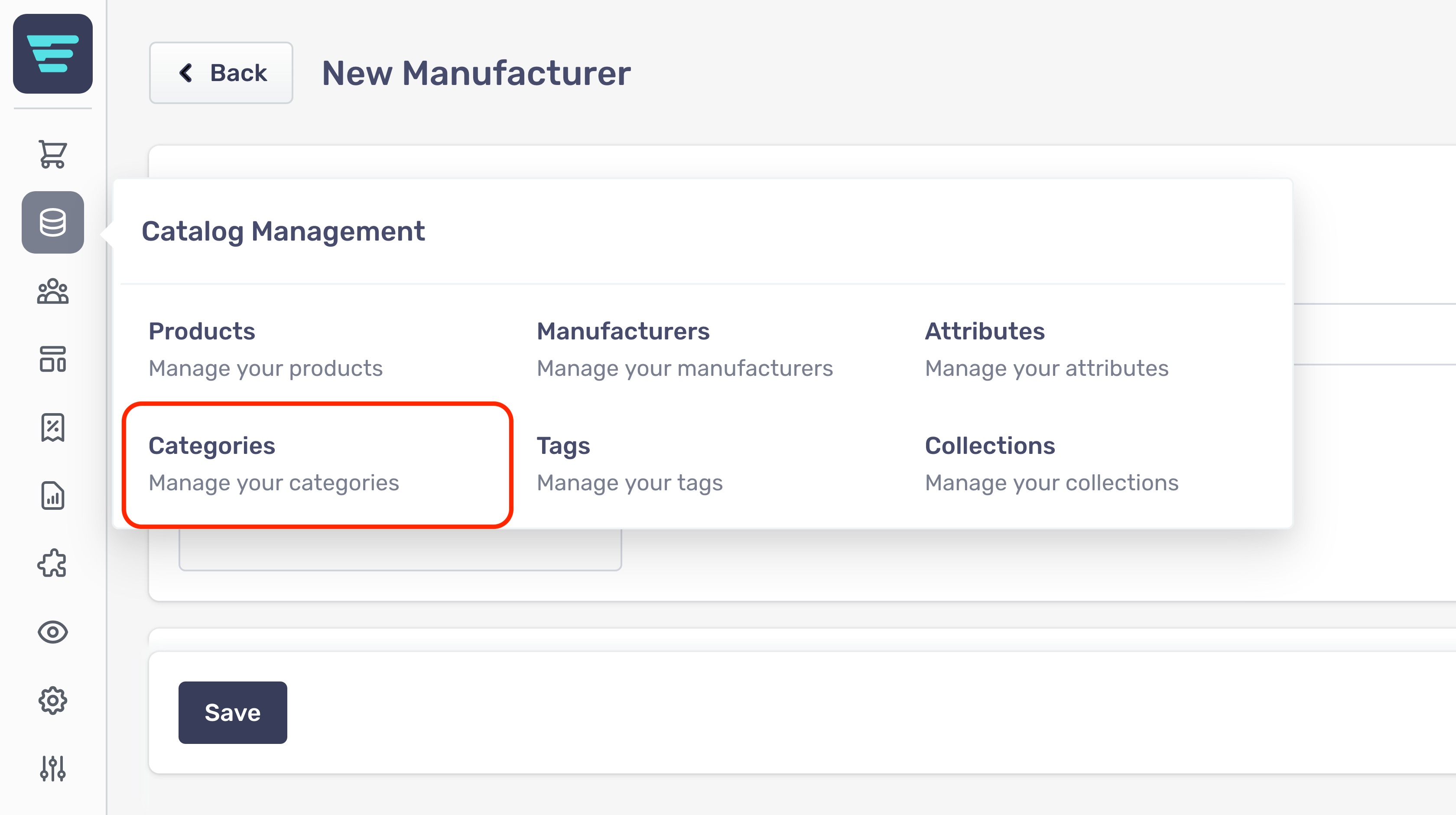
- Step 4 - Enter your search term in the Searchinput at the top of the page

- Step 5 - Click 'Search'
How do I delete a category?
Deleting manufacturers cannot be undone
- Step 1 - Login to your Aero Admin Console - Step 2 - Hover over the 'Catalog Management' icon in the left hand menu
- Step 3 - Click on 'Categories'
- Step 4 - Search for the category/categories you would like to delete (more information here; "How do I search my categories? - Step 5 - Select the category/categories you would like to delete by click their checkbox(es)

- Step 6 - Select 'Delete categories' from the 'Select a bulk action' dropdown - Step 7 - Click go - A confirmation tick will appear when your bulk action has been completed
How do I edit a category?
- Step 1 - Login to your Aero Admin Console - Step 2 - Hover over the 'Catalog Management' icon in the left hand menu
- Step 3 - Click on 'Categories'
- Step 4 - Search for the category you would like to edit (more information here; "How do I search my categories? - Step 5 - Click on the category NAME or arrow icon - Step 6 - Edit or enter the necessary information for your category - (more information here; "How do I create a new category? - Step 7 - Click the 'Save' button in the bottom left of your screen
Collections
Collections
Where do I find my collections?
- Step 1 - Hover over the Catalog Management button in the left hand menu
- Step 2 - Select Collections from the Catalog Management menu

What is the collections list?
Your Collections list shows your current Collections. You can view the individual Collections within a group by clicking on the attribute group name, or the arrow icon.

How do I search my collections?
- Step 1: Hover over the Catalog Management button in the left hand menu
- Step 2 - Select Collections from the Catalog Management menu
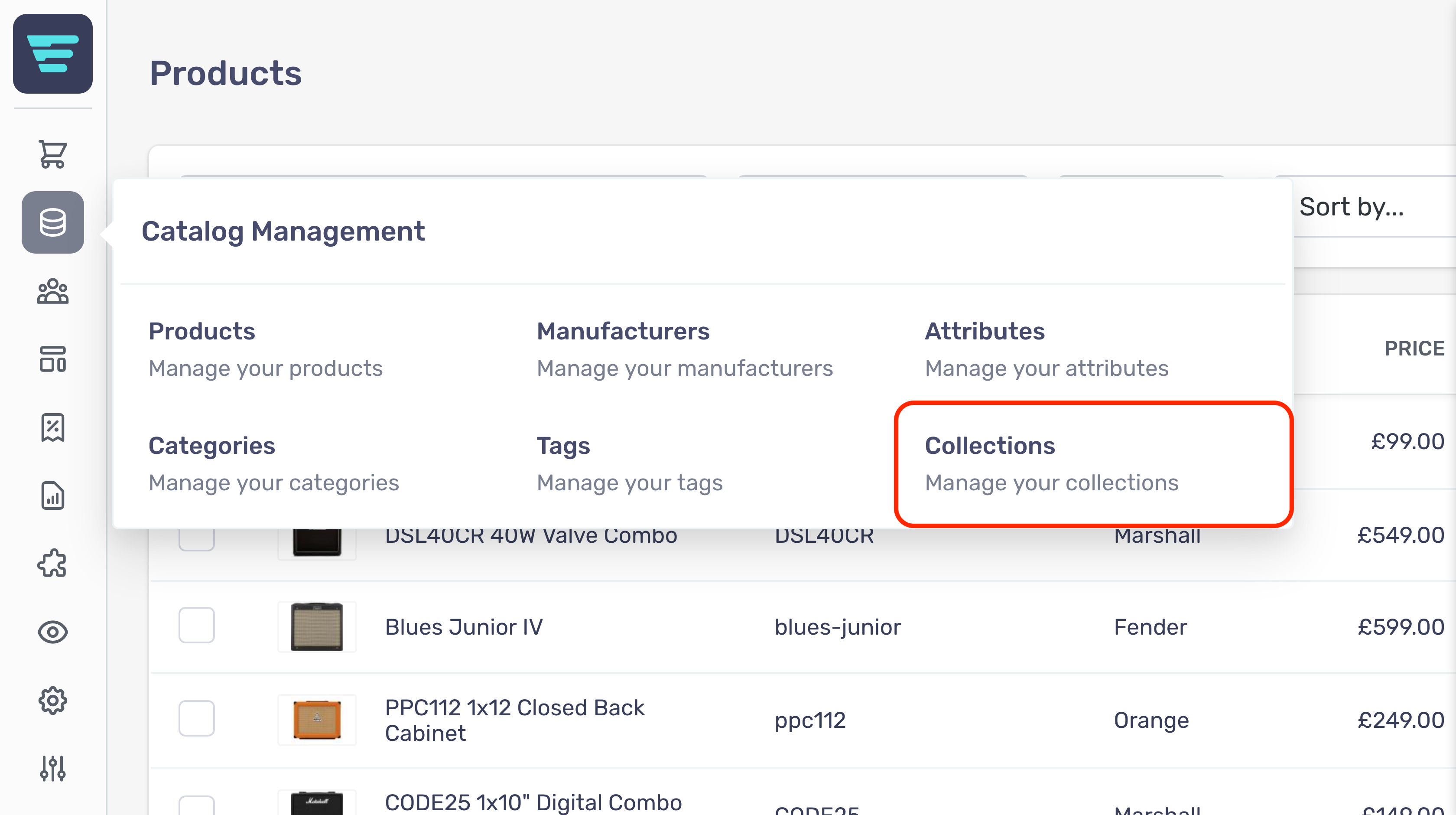
- Step 3 - Enter your search term in the Searchinput at the top of the page

- Step 4 - Click 'Search'
What is a collection?
Collections are dynamic groupings of products in your storefront. Unlike tags or categories that group based on fixed properties, Collections allow greater flexibility.
How to define Collections
You define Collections based on specific rules. Rules allow you to set the following criteria for your Collections:
- Include specified tags - Include specified manufacturers - Be within a given price range - Be within a given price status - Be published within a given timeframe
Collections are best explained through examples.
Collections example 1
Lets create a Collection called: BOSS Sale
For this, you would specify the following rules:
| Rule | Criteria |
|---|---|
| Limit to price status | Reduced price items only |
| Limit to manufacturer | BOSS |
You would enter these rules in Aero as shown below;

Collections example 2
As another example, you could create a Collection called: Everything Pink Under £2000
For this example, you would specify the following rules:
| Rule | Criteria |
|---|---|
| Limit to tags | Colour: Pink |
| Limit to price range | 0 : 2000 |
We will enter the rules in Aero as shown below;

How do I create a new collection?
In order to create a new collection for your store first navigate to the collection listings page and click the "+ New Collection" button at the top of the page.

From here you will be presented with the form for creating a new collection.
The form is grouped into sections with non-required sections collapsed.
Collection Information
The first section is the collection name, tags and logo.
- Name- The main identifier for your collection. Namewill be shown on the collection page and on the associated product pages and listings - depending on your theme/configuration.

Rules
The rules section is where we choose which products to show on this page, instead of individually selecting products we apply rules to filter our stores products.
Start by clicking the "+ add rule" button this will display the fields available for you to start to filter your products;
Rule types
There's a number of different rule types available each with their own options

Listing Page Content
The content entered here will be used to populate certain content areas depending on your theme/configuration.
- Summary- Enter a shorter summary of your collection - Description- Enter a detailed description of your collection - Images- Optional - Either drag your collection image file(s) into the box or click to browse files. The images section is broken down into 3 sections allowing you to provide different sized images for different screen sizes.
Both Summaryand Descriptionprovide the following inputs for controlling the content and layout;
- Bold- Embolden selected text - Italic- Italicise selected text - Format- Select from a range of standard formats. - Lists- Select bulletted or numbered lists, and change indent level. - Table- Insert and control a table (supports all standard table operations). - Link- Link or unlink - When you add a link you can choose to open in new tab - useful if the link points away from your storefront. - Image- Add an image by drag and drop or file selection. - Font- Choose from existing fonts or remove a font. - Size- Choose from existing font sizes or remove a font size. - Text Colour- Choose text or highlight colour to apply - select none to remove text or highlight colour that has already been applied. - Properties- Allows you set CSS Class and ID properties - this is advanced functionality for those comfortable working with CSS. - Main text area- This is where you enter you collection description - the detailed collection text that your customers will see.
Listing Page Options
This section allows you to control the products shown on this page by applying various filters;
- Hide categries- Select this to hide categories from your filters list - Hide filters- Select this to hide categories from your filters list - Applicable & available filters- Drag filters from available filtersto applicable filtersto add them to your collection page - Show per page- Enter the number of listings to show on this collection page - Sort by- Select the 'sort by' options that will be displayed on this collection page
Search Engine Optimization (SEO)
The SEO section is where you manage the content used by search engines to index your store.
SEO is an important aspect when it comes to customers finding your store when searching for products you're selling.
The SEO section has a number of fields for you to complete;
- Heading- this is the collection name and will be the main heading in most themes. - Page title- used by search engines as the title of this page. - Meta description- combined with the page title and displayed as the search engine listing description. - Canonical- used to determine relationships when multiple pages share duplicate content - No index- checking this box will direct search engines to not index this page.
Additional Attributes
The additional attributes section is used to provide custom fields, these may have been set up by your agency and used to display additional information about your product.
Additional attributes are useful if Aero does not contain a certain attribute that you require, e.g. for integration with an ePos system.
How do I delete a collection?
Deleting collections cannot be undone
- Step 1 - Login to your Aero Admin Console - Step 2 - Hover over the 'Catalog Management' icon in the left hand menu
- Step 3 - Click on 'Collections'
- Step 4 - Search for the collection(s) you would like to delete (more information here; "How do I search my collections? - Step 5 - Select the collection(s) you would like to delete by clicking their checkbox(es)

Step 6 - Select 'Delete collections' from the 'Select a bulk action' dropdown
Step 7 - Click go - A confirmation tick will appear when your bulk action has been completed
How do I edit a collection?
- Step 1 - Login to your Aero Admin Console - Step 2 - Hover over the 'Catalog Management' icon in the left hand menu
- Step 3 - Click on 'Collections'
- Step 4 - Search for the collection you would like to edit (more information here; "How do I search my collections? - Step 5 - Click on the collection NAME or arrow icon - Step 6 - Edit or enter the necessary information for your collection - (more information here; "How do I create a new collection? - Step 7 - Click the 'Save' button in the bottom left of your screen
Introduction
Introduction
Introduction to manufacturers
Manufacturers are where you store brand information. Aero automatically creates manufacturer pages within your store, allowing your customers to easily view and purchase their favourite brands.
A typical manufacturers list;

Introduction to categories
Categories allow you to group similar products together. They provide a heirarchical structure, this makes it easy for your customers to drill down to specific product groups.
See "What is a category?
A typical high level categories list;
A typical drilled down categories list;
Introduction to collections
Collections are a way to dynamically group products together. The grouping criteria includes tags, manufacturers, price range, price status and publish date.
A typical collections list;

What is catalog management?
Catalog Management is where you create, store and manage your products. It is the central hub where you control everything you sell.
In addition to products, Catalog Management also holds associated product information, including:
Aero Catalog Management makes administration as easy as possible. With features including:
- Bulk Actions - Rapid searches and results filtering - Easy access to key information - Additional attributes - user defined fields that allow you to include any additional information you need.
Where do I find catalog management?
Catalog Management is located in your Aero admin console.
- Step 1: Click the Catalog Management button in the left hand menu
- Step 2 - Select the information you want to view from the Catalog Management menu

Introduction to products
Products are the main focus of your catalog management and can be split into 2 main types:
See "What are Products?
A typical products list

Introduction to Attributes
Attributes allow you to create variant products within your ecommerce store. Attributes are your product options such as size and colour.
A typical attributes list;

Introduction to tags
See "What is a tag?

Manufacturers
Manufacturers
What is the manufacturer list?
Your manufacturers list shows your current manufacturers.
- You can view the manufacturer details by clicking on the manufacturer name, or the arrow icon. - You can view your internal manufacturer page by click on the manufacturer URL
How do I search my manufacturers?
- Step 1 - Login to your Aero Admin Console - Step 2 - Hover over the 'Catalog Management' icon in the left hand menu
- Step 3 - Click on 'Manufacturers'

- Step 4 - Enter your search term in the Searchinput at the top of the page

- Step 5 - Click 'Search'
How do I create a new manufacturer?
In order to create a new manufacturer for your store first navigate to the manufacturer listings page and click the "+ New Manufacturer" button at the top of the page.

From here you will be presented with the form for creating a new manufacturer.
The form is grouped into sections with non-required sections collapsed.
Manufacturer Information
The first section is the manufacturer name, tags and logo.
- Name- The main identifier for your manufacturer. Namewill be shown on the manufacturer page and on the associate product pages and listings - depending on your theme/configuration. - Tags- Select any tagsthat apply to your manufacturer. - Logo- Optional logo for your manufacturer.

Listing Page Content
The content entered here will be used to populate certain content areas depending on your theme/configuration.
- Summary- Enter a shorter summary of your manufacturer - Description- Enter a detailed description of your manufacturer - Images- Optional - Either drag your manufacturer image file(s) into the box or click to browse files. The images section is broken down into 3 sections allowing you to provide different sized images for different screen sizes.

Both Summaryand Descriptionprovide the following inputs for controlling the content and layout;
- Bold- Embolden selected text - Italic- Italicise selected text - Format- Select from a range of standard formats. - Lists- Select bulletted or numbered lists, and change indent level. - Table- Insert and control a table (supports all standard table operations). - Link- Link or unlink - When you add a link you can choose to open in new tab - useful if the link points away from your storefront. - Image- Add an image by drag and drop or file selection. - Font- Choose from existing fonts or remove a font. - Size- Choose from existing font sizes or remove a font size. - Text Colour- Choose text or highlight colour to apply - select none to remove text or highlight colour that has already been applied. - Properties- Allows you set CSS Class and ID properties - this is advanced functionality for those comfortable working with CSS. - Main text area- This is where you enter you manufacturer description - the detailed manufacturer text that your customers will see.
Listing Page Options
This section allows you to control the products shown on this page by applying various filters;
- Hide categries- Select this to hide categories from your filters list - Hide filters- Select this to hide categories from your filters list - Applicable & available filters- Drag filters from available filtersto applicable filtersto add them to your manufacturer page - Show per page- Enter the number of listings to show on this manufacturer page - Sort by- Select the 'sort by' options that will be displayed on this manufacturer page

Search Engine Optimization (SEO)
The SEO section is where you manage the content used by search engines to index your store.
SEO is an important aspect when it comes to customers finding your store when searching for products you're selling.
The SEO section has a number of fields for you to complete;
- Heading- this is the manufacturer name and will be the main heading in most themes. - Page title- used by search engines as the title of this page. - Meta description- combined with the page title and displayed as the search engine listing description. - Canonical- used to determine relationships when multiple pages share duplicate content - No index- checking this box will direct search engines to not index this page.
Additional Attributes
The additional attributes section is used to provide custom fields, these may have been set up by your agency and used to display additional information about your manufacturer.
Additional attributes are useful if Aero does not contain a certain attribute that you require, e.g. for integration with an ePos system.
What is a manufacturer?
Within Aero, you can create manufacturer and assign them to multiple products.
This will create a specific manufacturer page within your store, allowing your customer to browse their favourite brand.
Using manufacturers also removes duplication by allowing you to store manufacture information in a single place.
Where do I find my manufacturers?
Your manufacturers are located in your Aero admin console.
- Step 1 - Hover over the Catalog Management button in the left hand menu
- Step 2 - Select Manufacturers from the Catalog Management menu
How do I edit a manufacturer?
- Step 1 - Login to your Aero Admin Console - Step 2 - Hover over the 'Catalog Management' icon in the left hand menu
- Step 3 - Click on 'Manufacturers'

- Step 4 - Search for the manufacturer you would like to edit (more information here; "How do I search my manufacturers? - Step 5 - Click on the manufacturer NAME or arrow icon - Step 6 - Edit or enter the necessary information for your manufacturer - (more information here; "How do I create a new manufacturer? - Step 7 - Click the 'Save' button in the bottom left of your screen
How do I delete a manufacturer?
Deleting manufacturers cannot be undone
- Step 1 - Login to your Aero Admin Console - Step 2 - Hover over the 'Catalog Management' icon in the left hand menu
- Step 3 - Click on 'Manufacturers'
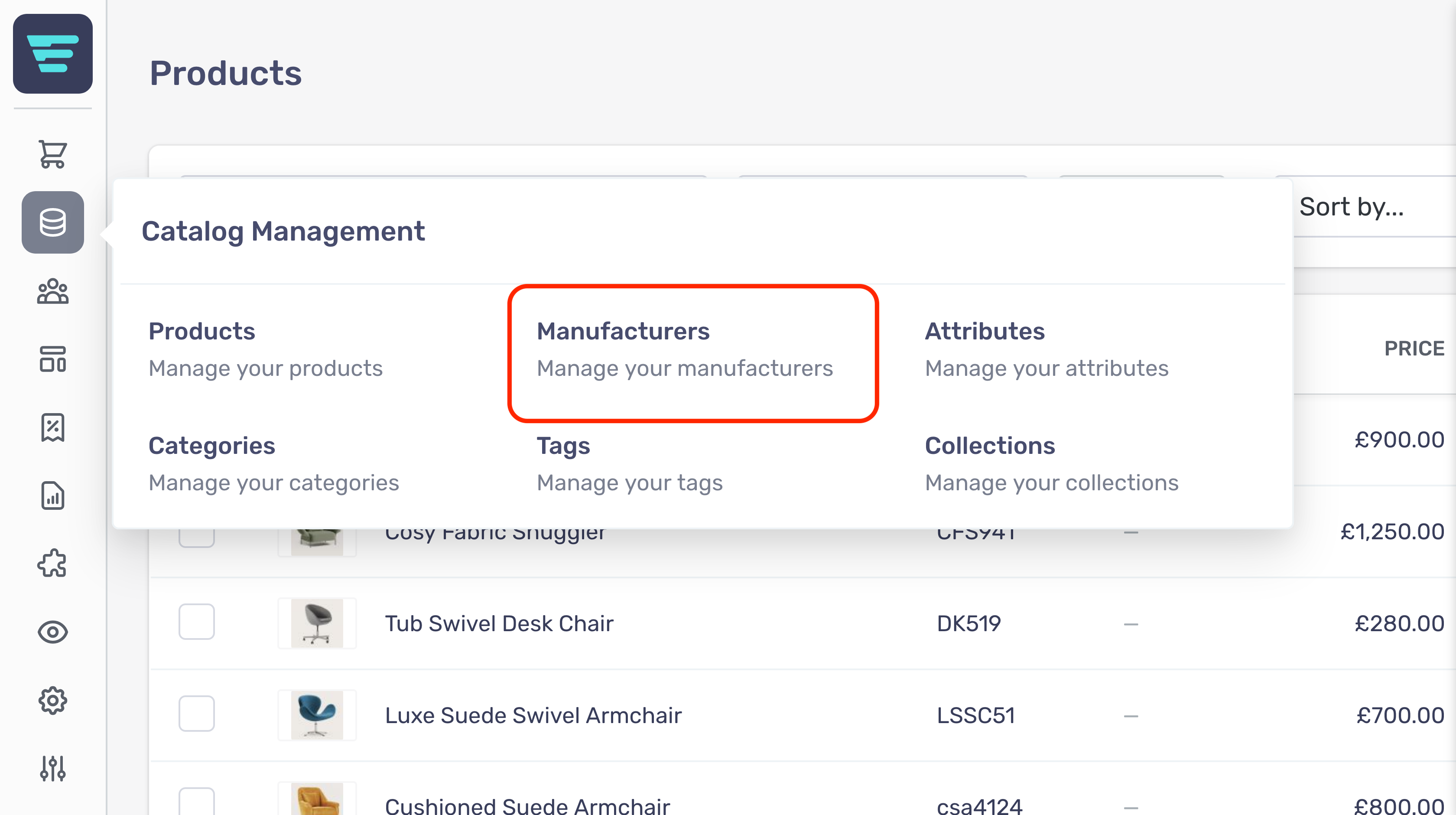
- Step 4 - Search for the manufacturer you would like to delete (more information here; "How do I search my manufacturers? - Step 5 - Select the manufacturer(s) you would like to delete by click their checkbox(es)

- Step 6 - Select 'Delete manufacturer' from the 'Select a bulk action' dropdown - Step 7 - Click go - A confirmation tick will appear when your bulk action has been completed
Products
Products
How do I create a new product in the admin?
In order to create a new product for your store first navigate to the product listings page and click the "+ New Product" button at the top of the page.

From here you will be presented with the form for creating a new product.
The product form is grouped into sections with non-required sections collapsed.
Product Type
The first thing you need to do is choose if this is a single product or product that has variations such as colour or size.

Product information
Next is the product information such as name and manufacturer. You can also select the category and any tags you wish to add to this product, as well as setting a custom slug to make up the URL for this product.
- Name- this is the name of your product. - **Model **(product with variants only) - this is the model of the product (this name is shared by all variants) - Manufacturer- this is where you select the manufacturer or brand of this product - Categories- this is where you select which category or categories this product applies to - Tags- this is where you select any additional tags (tags are used in a variety of ways depending on the theme and functionality of your store) - This product has a custom slug- checking this box allows you to set a custom url for your product.

From here the form is slightly different depending on if this product is singular or has variants;
Creating a product with variants
How do I create a single product?
Please see how do I create a product in the admin? In order to set up the basic product information.
After the product type has been selected and product information completed the next part of the data is pricing.
Pricing
The pricing section is where you enter all of the information related to the pricing of your product;
- Price- this is the normal price the customer will pay for the item. - Reduced price- this is the sale price of the item. - RRP- this is the recommended retail price. - Cost price- this is the cost of the item to your business. - Tax group- this allows you to choose which tax group this price applies to.

Inventory
The inventory section is where you add all of the information regarding your stock of this particular product;
- Model / SKU- this is a unique identifier for this product. - Barcode- while optional the barcode is often used by third party applications such as Google Shopping. - Reference- while optional the reference field can be used to provide data to an EPOS or other system. - Track this products stock level- this is selected by default but you can choose to not track stock if you are using drop shipping for example. - Stock level- this is used to enter the quantity in stock of the product you're creating. (Aero will automatically deduct stock when an item is sold.) - Min purchase quantity- allows you to set a minimum quantity for ordering this product. - Max purchase quantity- allows you to limit the quantity when ordering this product. - Multiples of- allows you to restrict the purchase of this product to a certain multiple, for example only allowing wine to be bought as a case of 6. - Stock buffer- allows you to set the number of items in stock before the website will list the item as out of stock, this is mainly used for when selling via third party integrations as well as your Aero store. - Allow customers to purchase this product when out of stock- Ticking this box will allow customers to purchase this item even when none are in-stock, this is particularly useful for drop shipping.

Shipping
The shipping section is where you add all of the information regarding the shipping of the product;
- This is a physical product and requires shipping- this checkbox is selected by default however if you're selling a digital product that does not require shipping this box should be unticked. - Weight- the weight field is used to calculate the shipping cost of the item. - Harmonized system code- These codes are a standardized numerical method of classifying traded products. It is used by customs authorities around the world to identify products when assessing duties and taxes and for gathering statistics. - Country of origin- this is the country from which the item will be shipped and used to calculate shipping costs.

Images
The images section is where you manage the images associated with this product.
Although product images are optional we strongly recommend adding at least a few high quality images to each product as this helps towards increasing conversion from your customers.
You can upload images by clicking the button or dragging your images onto the box in the page.
Once your images have uploaded you can hover over the image to see the options available on the image;
- Alt- clicking the alt text button will present you with a text field to put in some alt text for this image. Alt text is used by screen readers in order to provide a description to disabled users. - Delete- clicking on the bin icon will remove the image from the product.
Images can be re-ordered by dragging them into the order you want to display them to the customer.

Status & Visibility
The status & visibility section is where you manage everything to do with how and when your product is visible, published and purchasable by your customers. The options in this section are;
- This product is active- checking this box will cause the product to not appear on the storefront and cannot be purchased. - This product is visible- checking this box will cause the product to not appear on the storefront but customers will still be able to purchase. - Hide when out of stock- checking this box will cause the product to not appear on the storefront and cannot be purchased when the stock level reaches zero. - This product can be purchased- checking this box will cause the product to not be purchasable, but will still appear on the storefront. - Hide from listings pages and search results- checking this box will not show this product on the storefront and in search results but can be accessed directly using the url. - Published Timestamp- this field allows you to change when the product was or will be published (if a date and time in the future are set). If left blank the published timestamp will be automatically filled in with the time the product was created.

Description & Summary
The Description & summary section is where you can add both a long and short description for your product. Where these are shown to your customer will depend on the theme your store is using.
Writing your own description and summary is important for SEO and increasing conversions.

Search Engine Optimization (SEO)
The SEO section is where you manage the content used by search engines to index your store.
SEO is an important aspect when it comes to customers finding your store when searching for products you're selling.
The SEO section has a number of fields for you to complete;
- Heading- this is the product name and will be the main heading in most themes. - Page title- used by search engines as the title of this page. - Meta description- combined with the page title and displayed as the search engine listing description. - Canonical- used to determine relationships when multiple pages share duplicate content - No index- checking this box will direct search engines to not index this page.

Additional Attributes
The additional attributes section is used to provide custom fields, these may have been set up by your agency and used to display additional information about your product.
Additional attributes are useful if Aero does not contain a certain attribute that you require, e.g. for integration with an ePos system.

How do I create a product with variants?
Please see how do I create a product in the admin? or learn more by reading what is a variant product? In order to set up the basic product information.
After the product type has been selected and product information completed the next step is to choose which attributes you want to use to create your variants.
Attributes
The attributes section is where you select the attributes you want to use to create the variants for this product. For example if you want to sell the same product in three sizes you would choose the attribute name as "size" and then select the sizes from the values field.
- Name- this is the attribute group you want to use to generate the variations of this product. - Values- this is where you select the values of your chosen attribute group. - Custom sort- checking this box will allow you to choose the order that the varients are displayed to the customer. When this box is checked you can change the order of the attribute values by dragging them into position. If this box is not selected the order they appear on the attributes page in the admin will be used. - Split listings- checking this box will create a separate listing for each of your variants.

Variants
The variants section is generated once you have selected the attributes you want to create variants from. Each variant will have its own row where you can set price and inventory for each variant. Each variant has a number of fields, the most commonly used fields are displayed on the page, the additional fields can be accessed by clicking the row or arrow on the end of the row.
- Price- this is the normal price the customer will pay for the item. - Reduced price- this is the sale price of the item. - SKU- this is a unique identifier for this product. - Stock level- this is used to enter the quantity in stock of the product you're creating. (Aero will automatically deduct stock when an item is sold.) - Variant name- this is used to provide a custom name for this variant that is different from the product name. - Tags- this is used to apply tags to this variant. Your store for example could be using tags to manage discounts or shipping, where tags could be used to differentiate between variants where needed. How tags are used for variants will depend on how your store has been set up.

Additional price fields
- RRP- this is the recommended retail price. - Cost price- this is the cost of the item to your business. - Tax group- this allows you to choose which tax group this price applies to. - Add price- clicking this button will add another price row, allowing you to add additional prices such as time limited and quantity discounts.

Additional inventory fields
- Barcode- while optional the barcode is often used by third party applicaitions such as Google Shopping. - Reference- while optional the reference field can be used to provide data to an EPOS or other system. - Track this variant's stock level- this is selected by default but you can choose to not track stock if you are using drop shipping for example. - Stock buffer- allows you to set the number of items in stock before the website will list the item as out of stock, this is mainly used for when selling via third party integrations as well as your Aero store. - Allow customers to purchase this variant when out of stock- checking this box will allow customers to purchase this item even when none are in-stock, this is particularly useful for drop shipping. - Min purchase quantity- allows you to set a minimum quantity for ordering this product. - Max purchase quantity- allows you to limit the quantity when ordering this product. - Multiples of- allows you to restrict the purchase of this product to a certain multiple, for example only allowing wine to be bought as a case of 6.

Additional shipping fields
- This variant is a physical product and requires shipping- this checkbox is selected by default however if you're selling a digital product that does not require shipping this box should be unticked. - Weight- the weight field is used to calculate the shipping cost of the item. - Harmonized system code- These codes are a standardized numerical method of classifying traded products. It is used by customs authorities around the world to identify products when assessing duties and taxes and for gathering statistics. - Country of origin- this is the country from which the item will be shipped and used to calculate shipping costs.

Additional status & visibility fields
- This variant is visible- checking this box will cause the variant to not appear on the storefront but customers will still be able to purchase. - This variant can be purchased- checking this box will cause the variant to not be purchasable, but will still appear on the storefront. - Hide when out of stock- checking this box will cause the variant to not appear on the storefront and cannot be purchased when the stock level reaches zero. - Available at- allows you to choose the date and time when customers will be able to purchase this variant.
Additional attributes
Additional variant attributes can be used to provide custom fields, these may have been set up by your agency and used to display additional information about your variant.
Images
The images section is where you manage the images associated with this product & its variants.
Although product images are optional we strongly recommend adding at least a few high quality images to each product as this helps towards increasing conversion from your customers.
You can upload images by clicking the button or dragging your images onto the box in the page.
Once your images have uploaded you can hover over the image to see the options available on the image;
- **Default **- checking the default box will use the image when no variant has been selected by the customer. - Alt- clicking the alt text button will present you with a text field to put in some alt text for this image. Alt text is used by screen readers in order to provide a description to disabled users. - Delete- clicking on the bin icon will remove the image from the product.
Images can be re-ordered by dragging them into the order you want to display them to the customer.
Clicking the "Toggle default/attribute images" checkbox allows you to choose which of your images apply to which variant.
Using the select menu to choose the variant will then allow you to drag the images you wish to use for the selected variant.
The order of attribute images can again be changed by dragging the images to re-order them.

Status & Visibility
The status & visibility section is where you manage everything to do with how and when your product is visible, published and purchasable by your customers. The options in this section are;
- This product is active- checking this box will cause the product to not appear on the storefront and cannot be purchased. - This product is visible- checking this box will cause the product to not appear on the storefront but customers will still be able to purchase. - Hide when out of stock- checking this box will cause the product to not appear on the storefront and cannot be purchased when the stock level reaches zero. - This product can be purchased- checking this box will cause the product to not be purchasable, but will still appear on the storefront. - Hide from listings pages and search results- checking this box will not show this product on the storefront and in search results but can be accessed directly using the url. - Published Timestamp- this field allows you to change when the product was or will be published (if a date and time in the future are set). If left blank the published timestamp will be automatically filled in with the time the product was created.

Description & Summary
The Description & summary section is where you can add both a long and short description for your product. Where these are shown to your customer will depend on the theme your store is using.
Writing your own description and summary is important for SEO and increasing conversions.

Search Engine Optimization (SEO)
The SEO section is where you manage the content used by search engines to index your store.
SEO is an important aspect when it comes to customers finding your store when searching for products you're selling.
The SEO section has a number of fields for you to complete;
- Heading- this is the product name and will be the main heading in most themes. - Page title- used by search engines as the title of this page. - Meta description- combined with the page title and displayed as the search engine listing description. - Canonical- used to give direction to the search engine about how to index this product. - No index- checking this box will direct search engines to not index this page.

Additional Attributes
The additional attributes section is used to provide custom fields, these may have been set up by your agency and used to display additional information about your product.

How do I change the images on my product?
In order to update your products images, first you will need to navigate to the product in the admin. To do this use the "Catalog Management" menu and locate the "Products" button.
Next we'll scroll down to the images section.
You can upload images by clicking the button or dragging your images onto the box in the page.
Once your images have uploaded you can hover over the image to see the options available on the image;
- **Default **- checking the default box will use the image when no variant has been selected by the customer (only shown when the product has variants). - Alt- clicking the alt text button will present you with a text field to put in some alt text for this image. Alt text is used by screen readers in order to provide a description to disabled users. - Delete- clicking on the bin icon will remove the image from the product.
Images can be re-ordered by dragging them into the order you want to display them to the customer.
If you are editing a product that has variants then you will have additional options available;
Clicking the "Toggle default/attribute images" checkbox allows you to choose which of your images apply to which variant.
Using the select menu to choose the variant will then allow you to drag the images you wish to use for the selected variant.
The order of attribute images can again be changed by dragging the images to re-order them.
How do I update the pricing of my product?
In order to update your products pricing, first you will need to navigate to the product in the admin. To do this use the "Catalog Management" menu and locate the "Products" button.
Where the price is located on this page will depend on if the product is a sigular or a product with variants.
If your product is singularthen you will need to scroll down to the "pricing" section.
If your product has variantsthen you will need to scroll down to the "variants" section.
There are a number of fields available in these sections that all relate to the pricing of your products.
- Price- this is the normal price the customer will pay for the item. - Reduced price- this is the sale price of the item. - RRP- this is the recommended retail price. - Cost price- this is the cost of the item to your business. - Tax group- this allows you to choose which tax group this price applies to.
How do I manage inventory of my product?
In order to update your products inventory, first you will need to navigate to the product in the admin. To do this use the "Catalog Management" menu and locate the "Products" button.
Where the inventory is located on this page will depend on if the product is a singular or a product with variants.
If your product is singularthen you will need to scroll down to the "inventory" section.
If your product has variantsthen you will need to scroll down to the "variants" section.
There are a number of fields available in these sections that all relate to the inventory of your products;
- Model / SKU- this is a unique identifier for this product. - Barcode- while optional the barcode is often used by third party applications such as Google Shopping. - Reference- while optional the reference field can be used to provide data to an EPOS or other system. - Track this products stock level- this is selected by default but you can choose to not track stock if you are using drop shipping for example. - Stock level- this is used to enter the quantity in stock of the product you're creating. (Aero will automatically deduct stock when an item is sold.) - Min purchase quantity- allows you to set a minimum quantity for ordering this product. - Max purchase quantity- allows you to limit the quantity when ordering this product. - Multiples of- allows you to restrict the purchase of this product to a certain multiple, for example only allowing wine to be bought as a case of 6. - Stock buffer- allows you to set the number of items in stock before the website will list the item as out of stock, this is mainly used for when selling via third party integrations as well as your Aero store. - Allow customers to purchase this product when out of stock- Ticking this box will allow customers to purchase this item even when none are in-stock, this is particularly useful for drop shipping.
How do I manage shipping options for my product?
In order to update your products shipping options, first you will need to navigate to the product in the admin. To do this use the "Catalog Management" menu and locate the "Products" button.
Where the shipping options are located on this page will depend on if the product is a sigular or a product with variants.
If your product is singularthen you will need to scroll down to the "shipping" section.
If your product has variantsthen you will need to scroll down to the "variants" section.
There are a number of fields available in these sections that all relate to the shipping options of your products.
- This is a physical product and requires shipping- this checkbox is selected by default however if you're selling a digital product that does not require shipping this box should be unticked. - Weight- the weight field is used to calculate the shipping cost of the item. - Harmonized system code- These codes are a standardized numerical method of classifying traded products. It is used by customs authorities around the world to identify products when assessing duties and taxes and for gathering statistics. - Country of origin- this is the country from which the item will be shipped and used to calculate shipping costs.
What are products?
Within Aero, everything you sell is classified as a product.
Aero products contain rich information, creating a compelling user experience, and allowing your customers to make a succesful purchase.
There are two main types of product within Aero:
- Single products - Simple products that have no variations, and therefore no attributes - Variant products - Complex products that have variations, differentiated by their attributes
Where do I find my products?
Your products are located in your Aero admin console.
- Step 1 - Hover over the Catalog Management button in the left hand menu
- Step 2 - Select Products from the Catalog Management menu

What is the products list?
Your product list shows all of your current products and includes a summary of important information including Name, Model, Manufacturer, Price and Stock. This allows you to quickly check key details and quickly drill into your product for further information.
Example Product List;

How do I search my products?
Within your Aero admin console, your main product screen allows easy searching of all products.

Search filters
Search filters are shown below your search criteria. These allow you to search products by product markers.
You can choose whether specific markers will be included in the displayed filters. This is done within the specific product markers page, e.g. within a paricular tag or category.

How do I view a product in the storefront?
You can easily view a product on the storefront.
- Step 1 - Hover over the product line in your product list, an eye icon will appear to the right of the product name.

- Step 2 - Click this and a new browser window will open showing the product on your storefront - Alternatively you can click the same icon from the product edit page;

What is a variant product?
Variant products are complex products that have options such as colour or size.
Variant products provide greater flexibility however required more set up and configuration than single products. Attributes are used to differentation between variants of the same product.
Within Aero, variant products are complex products. They can have multiple differentiating attributes, such as size and colour. Each variant will have its own unique product identifier.
A variant product has variations such as size or colour.
Typical examples of variant products include:
- Items of clothing with different colours and sizes - Shelving units of different heights and widths
Top-level and sub-products products
When you create a variant product, you are creating a top-level product. Each attribute you assign will create 1 or more sub-products. In Aero these sub-products are called 'variants'.
Variant product example
Let's say you have an 'Aero T-Shirt' product. 2 attributes as follows:
Colour: with 3 options: Steel Blue, Slate and Vin Rouge
Material: with 2 options: Suede and Fabric
6 variants will be created representing the different colour and material combinations, each identified by a unique SKU code.

The actual number of variants can be manually reduced if certain combinations do not exist
What are bulk actions for products?
Bulk actions are a quick and easy way to apply mass changes across multiple products.
With bulk actions, you search, filter and select the appropriate products. Then simply select the action from the drop down menu.
Example Bulk Actions List;

What is a product marker?
As well as providing your customers with detailed product information and photographs, you can add additional useful markers to your products:
- Attributes allow you to create variant products - Manufacturers allow you to group products under a manufacturer or brand - Categories allow you to create hierarchical product groups - Tags allow you to group products together for an enhanced and simplified customer experience
Relevant manufacturers, categories, tags and attributes should be set up prior to adding a new product.
What is a single product?
Single products are the most straighforward product type. They have no options such as colour or size.
Single products are quicker to set up than variant products, but lack flexibility. Once created, it is possible to convert single products into variant product if required.
Typical examples of single products include:
- Bespoke jewellery - Artwork
For information on adding or editing single product, check out the Single product - add/edit page.
How do I edit a product?
- Step 1 - Login to your Aero Admin Console - Step 2 - Hovver over the 'Catalog Management' icon in the left hand menu

- Step 3 - Click on 'Products'

- Step 4 - Search for the product you would like to edit (more information here; "How do I search my products? - Step 5 - Click on the product NAME or MODEL - Step 6 - Edit or enter the necessary information for your product - (more information here; "How do I create a single product?How do I create a product with variants? - Step 7 - Click the 'Save' button in the bottom left of your screen

How do I delete a product?
- Step 1 - Login to your Aero Admin Console - Step 2 - Hover over the 'Catalog Management' icon in the left hand menu

- Step 3 - Click on 'Products'

- Step 4 - Search for the product you would like to delete (more information here; "How do I search my products? - Step 5 - Select the product(s) checkbox - Step 6 - Select 'Delete products' from the dropdown menu above the product list

- Step 7 - Click 'Go'
How do I perform bulk actions on products?
- Step 1 - Find your products using the search and filter options on the right hand side - Step 2 - Select products using the product checkboxes or the topmost select all checkbox
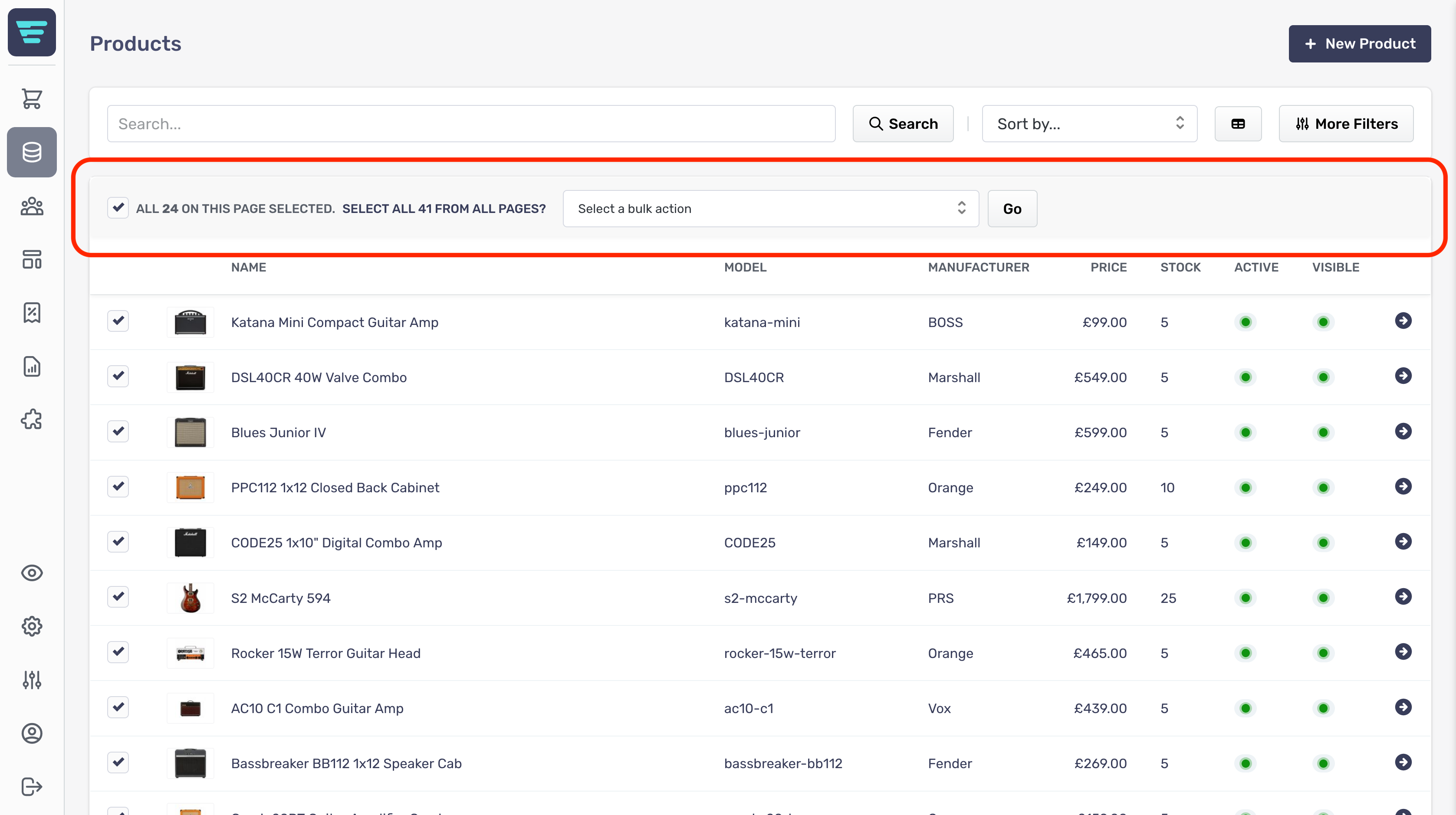
- Step 3 - Choose your bulk action from the drop down at the top of your product list - Step 4 - Click go - A confirmation tick will appear when your bulk action has been completed
What are the standard bulk actions for products?
Your store includes the following bulk actions as standard
- Delete products - Tag products - Untag products - Categorise products - Edit publish date - Activate products - Deactivate products - Assign manufacturer - Set additional attributes - Reset reduced price to standard price
Tags
Tags
What is a tag?
- Creating selected lists - E.g. editors picks or seasonal recommendations - Associating similar colours - E.g you could assign a tag 'Blue' to 'Royal Blue' and 'Navy' products, allowing your customers to search for a more generic term.
Tags example
Here's an example of tags used within the 'colour' attribute. As you can see:

Tags within listings
If you don't want certain tags to appear in listings, you can disable the feature on a per tag basis.
What is the tags list?

How do I create a new tag group?
In order to create a new attribute group first navigate to the tags listings page and click the "+ New Tag Group" button at the top of the page.

From here you will be presented with the form for creating a new tag group.
The form is grouped into sections with non-required sections collapsed.
Tag Group Information
First up is the group information;
- Tag Group Name- The name of your group (e.g colours) - This tag group can appear in the listing filters- Select whether to include your tag in your customer's listing filters using the checkbox

Tags

Where do I find my tags?
- Step 1 - Hover over the Catalog Management button in the left hand menu

How do I search my tags?
- Step 1 - Login to your Aero Admin Console - Step 2 - Hover over the 'Catalog Management' icon in the left hand menu
- Step 3 - Click on 'tags' - Step 4 - Enter your search term in the SEARCH input at the top of the page

- Step 5 - Click 'Search'
How do I create a new tag?

Clicking the "+ New Tag" button will add a new row to the tags table. Tags have a single field available;
- Name- Enter the tag name - e.g. Men or Women

How do I edit a tag group?
- Step 1 - Login to your Aero Admin Console - Step 2 - Hover over the 'Catalog Management' icon in the left hand menu
- Step 3 - Click on 'Tags'

- Step 4 - Search for the tag group you would like to edit (more information here; "How do I search my tags? - Step 5 - Click on the tag group name or arrow icon - Step 6 - Edit or enter the necessary information for your tag group - (more information here; "How do I create a tag group? - Step 7 - Click the 'Save' button in the bottom left of your screen

How do I delete a tag group?
Deleting tag groups cannot be undone
- Step 1 - Login to your Aero Admin Console - Step 2 - Hovver over the 'Catalog Management' icon in the left hand menu
- Step 3 - Click on 'Tags'

- Step 4 - Search for the tag group(s) you would like to delete (more information here; "How do I search my tags? - Step 5 - Select the tag group(s) you would like to delete by click their checkbox(es) - Step 6 - Select 'Delete tag groups' from the 'Select a bulk action' dropdown

- Step 7 - Click go - A confirmation tick will appear when your bulk action has been completed
How do I edit a tag?
- Step 1: Hover over the Catalog Management button in the left hand menu
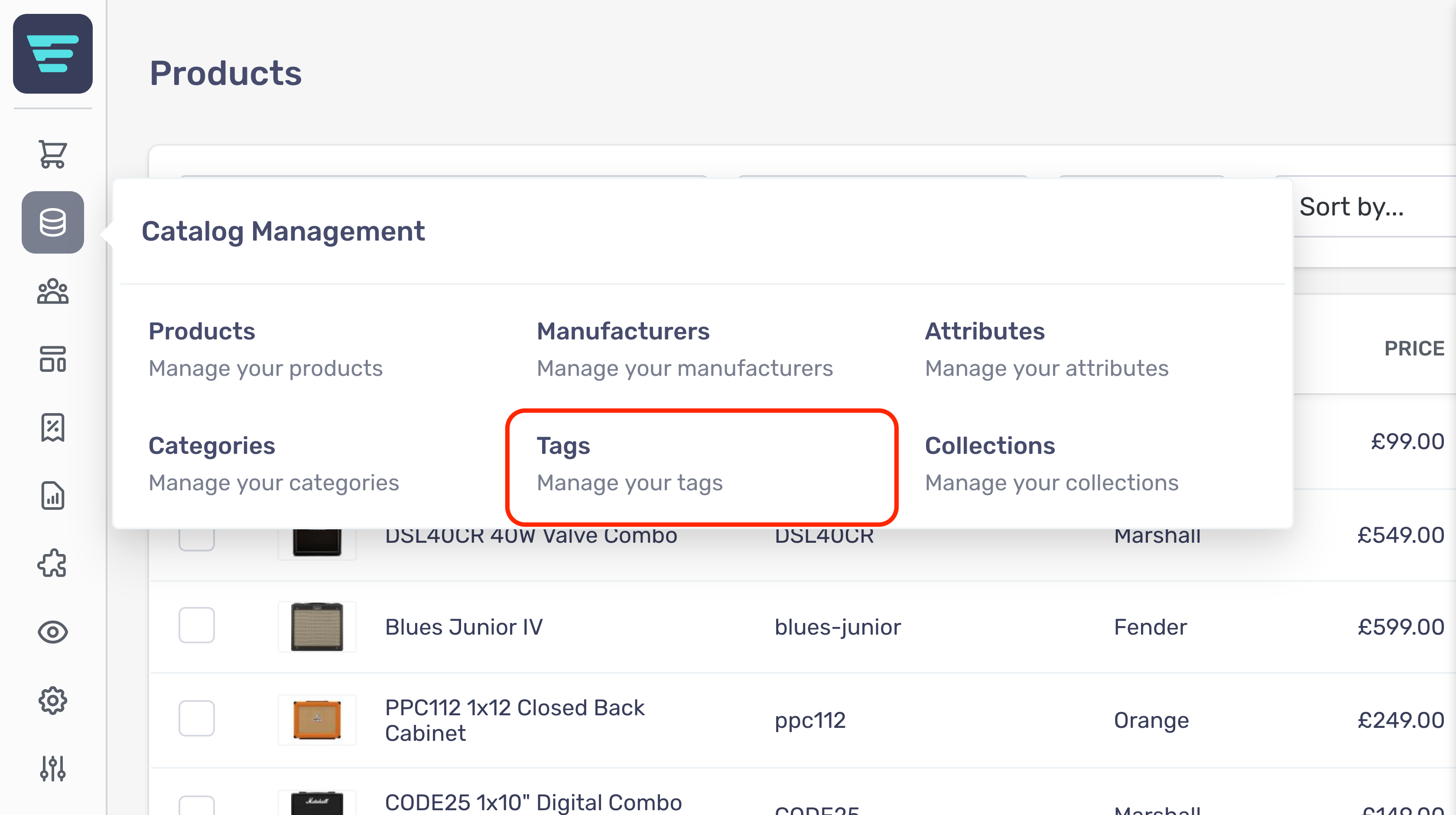
- Step 4 - Search for tag group containing the tag you would like to edit (more information here; "How do I search my tags? - Step 5 - Click on the tag group name or arrow icon - Step 6 - Find the tag you want to edit and replace the tag details with the new information - (more information here; "How do I create a new tag - Step 7 - Click the 'Save' button in the bottom left of your screen

How do I delete a tag?
- Step 1 - Login to your Aero Admin Console - Step 2 - Hover over the 'Catalog Management' icon in the left hand menu
- Step 3 - Click on 'Tags'
- Step 4 - Search for the tag group(s) you would like to delete (more information here; "How do I search my tags? - Step 5 - Click on the tag group name or arrow icon - Step 6 - Click the 'Bin' icon corresponding to the attribute you would like to delete

- Step 7 - Click go - A confirmation tick will appear when your bulk action has been completed