Attributes
Attributes
- What is an attribute?
- Where do I find my attributes?
- How do I search my attributes?
- How do I create a new attribute?
- What is the attributes list?
- How do I create a new attribute group?
- How do I edit an attribute group?
- How do I delete an attribute group?
- How do I delete an attribute?
- How do I edit an attribute?
What is an attribute?
Within Aero, attributes are used to differentiate versions of a product. This allows you to create variant products
Attributes consist of the following 2 elements:
Attribute groups
All attributes belong to an attribute group. Typical examples of attribute groups include:
- Size - Colour
Attributes
Attributes are the specific options within your attribute groups. Typical examples of attributes include:
- Small - Large - Black - White
Attribute Example
The example below shows attributes being used within a variant product:

Where do I find my attributes?
Your attributes are located in your Aero admin console.
- Step 1 - Click the Catalog Management button in the left hand menu

- Step 2 - Select Attributes from the Catalog Management menu

How do I search my attributes?
Whether you're searching for attribute groups or attributes within you Aero store, you follow the same process:
- Step 1 - Login to your Aero Admin Console - Step 2 - Hover over the 'Catalog Management' icon in the left hand menu
- Step 3 - Click on 'Attributes'
- Step 4 - Enter your search term in the Searchinput at the top of the page

- Step 5 - Click 'Search'
How do I create a new attribute?
Individual attributes are tied to their group, in order to create a new attribute you must first decide which group you want to add this new attribute to.

Clicking the "+ New Attribute" button will add a new row to the attributes table. Attributes have a number of fields available;
- Name- Enter the attribute name - e.g. black or small - Display Name- Enter the display name if this is different to name (also used by the colour swatches display type to display the colour) - Tags- Select any tags from the selection box - start by entering the first few letters of the tag - Image- Optional - Add an image using drag and drop, or clicking, on the Drop image box

These attributes could both be assigned the tag Blue
What is the attributes list?
Your attributes list shows your current attribute groups. You can view the individual attributes within a group by clicking on the attribute group name, or the arrow icon.

How do I create a new attribute group?
In order to create a new attribute group first navigate to the attributes listings page and click the "+ New Attribute Group" button at the top of the page.

From here you will be presented with the form for creating a new attribute group.
The form is grouped into sections with non-required sections collapsed.
Attribute Group Information
First up is the group information;
- Attribute Group Name- The name of your group (e.g size) - Display Type- this determines how your customers will select the different options on your storefront
- Dropdown- This will provide a dropdown list to choose an option - Colour Swatches- This will display swatches attribute colours - defined by using a HEX colour in the DISPLAY NAME field (e.g. '#ff0000' for red) - Image Swatches- This will display swatches with attribute images - defined by the images uploaded against the attribute value - Swatches- This will display swatches with the product names

Attributes
The attributes section is where you create the attributes that belong to this group, for more information on how to create each individual attribute please see "How do I create a new attribute?

How do I edit an attribute group?
- Step 1 - Login to your Aero Admin Console - Step 2 - Hover over the 'Catalog Management' icon in the left hand menu
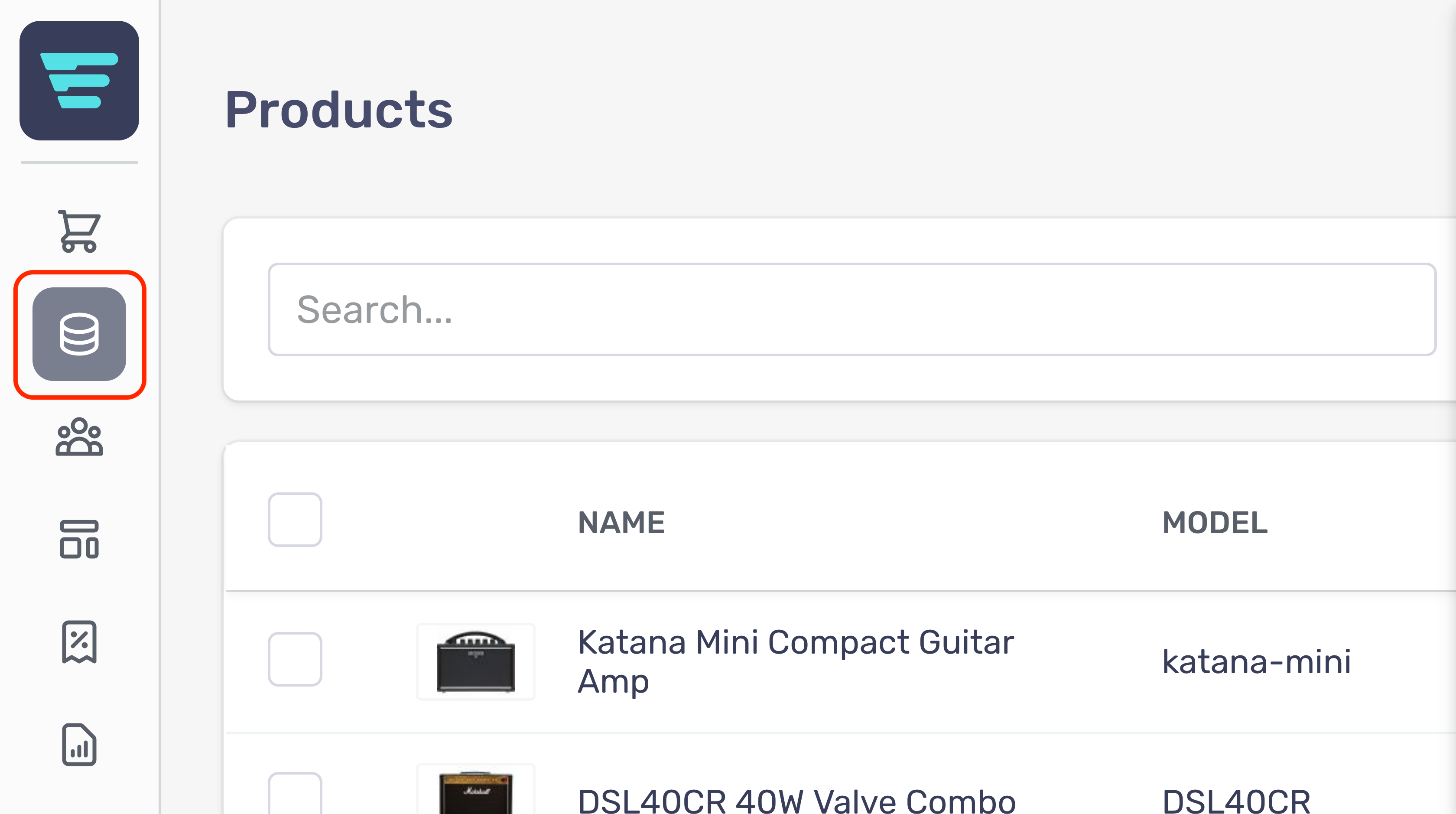
- Step 3 - Click on 'Attributes'

- Step 4 - Search for the attribute group you would like to edit (more information here; "How do I search my attributes? - Step 5 - Click on the attribute group name or arrow icon - Step 6 - Edit or enter the necessary information for your atttribute group - (more information here; "How do I create an attribute group? - Step 7 - Click the 'Save' button in the bottom left of your screen

How do I delete an attribute group?
Deleting attribute groups cannot be undone
- Step 1 - Login to your Aero Admin Console - Step 2 - Hover over the 'Catalog Management' icon in the left hand menu
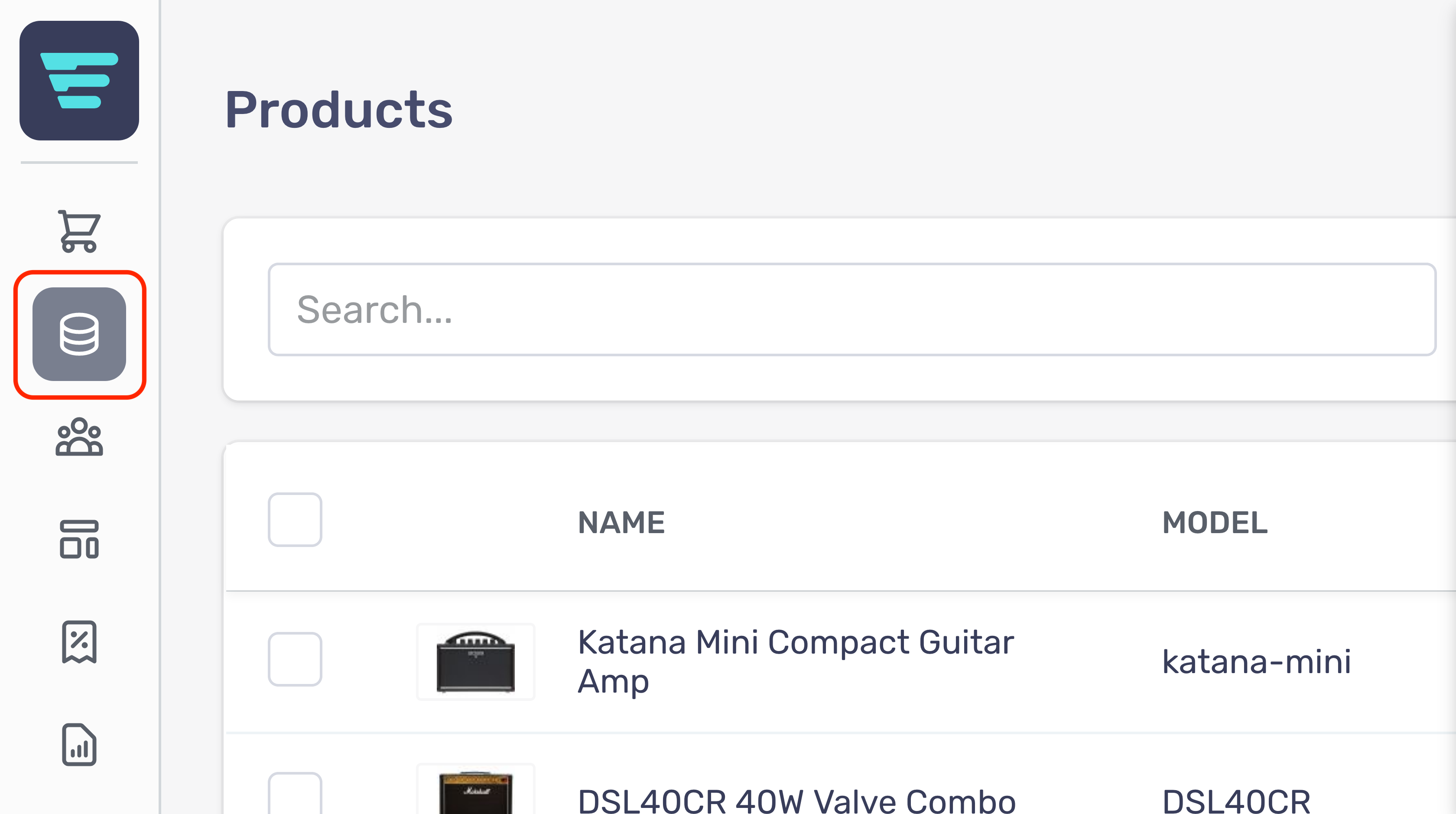
- Step 3 - Click on 'Attributes'

- Step 4 - Search for the attribute group(s) you would like to delete (more information here; "How do I search my attributes? - Step 5 - Select the attribute group(s) you would like to delete by click their checkbox(es) - Step 6 - Select 'Delete attribute groups' from the 'Select a bulk action' dropdown

- Step 7 - Click go - A confirmation tick will appear when your bulk action has been completed
How do I delete an attribute?
Deleting attributes cannot be undone
- Step 1 - Login to your Aero Admin Console - Step 2 - Hover over the 'Catalog Management' icon in the left hand menu
- Step 3 - Click on 'Attributes'
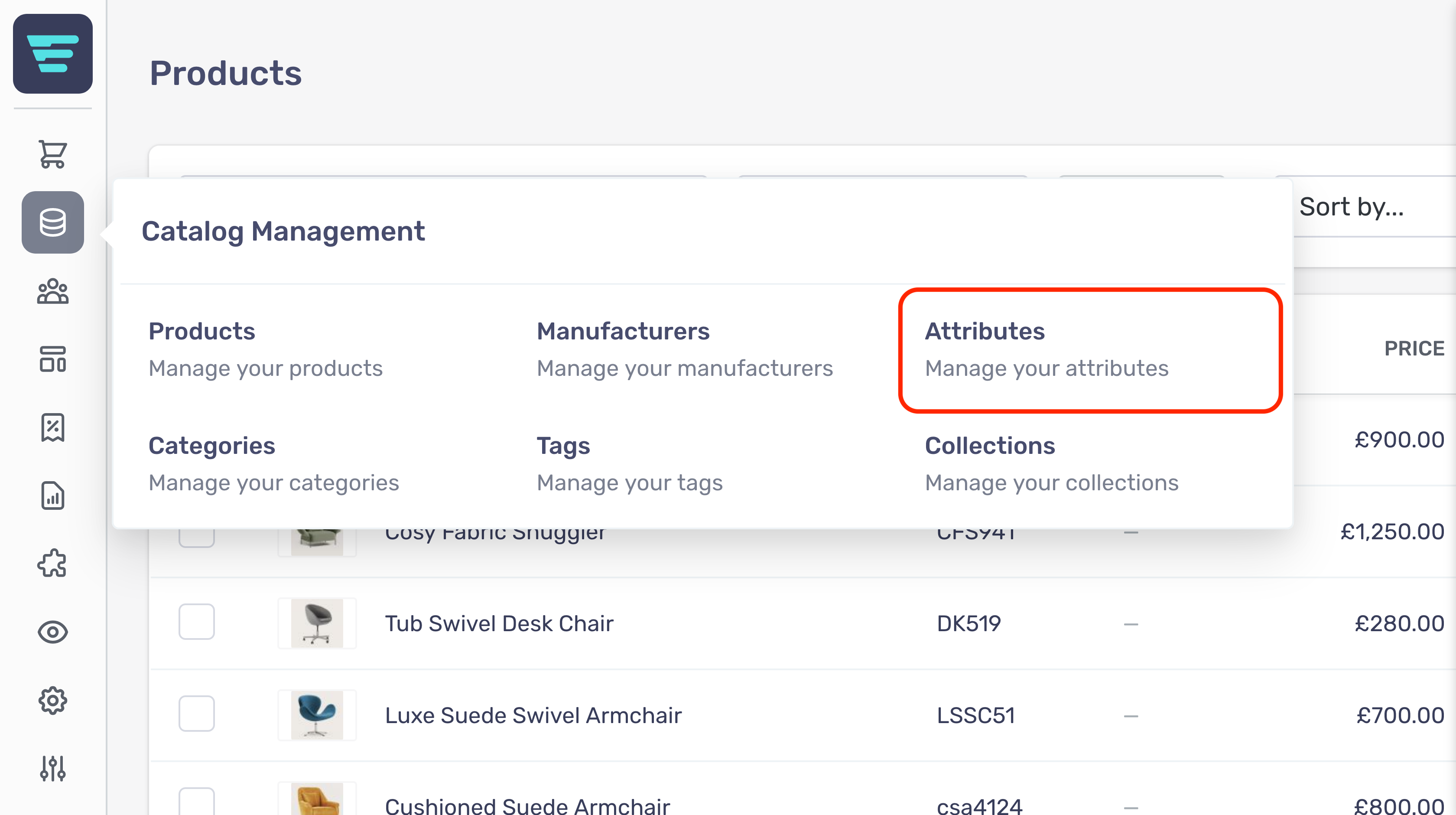
- Step 4 - Search for the attribute group(s) you would like to delete (more information here; "How do I search my attributes? - Step 5 - Click on the attribute group name or arrow icon - Step 6 - Click the 'Bin' icon corresponding to the attribute you would like to delete

- Step 7 - Click the save button located at the bottom left of the screen
How do I edit an attribute?
- Step 1 - Login to your Aero Admin Console - Step 2 - Hover over the 'Catalog Management' icon in the left hand menu
- Step 3 - Click on 'Attributes'
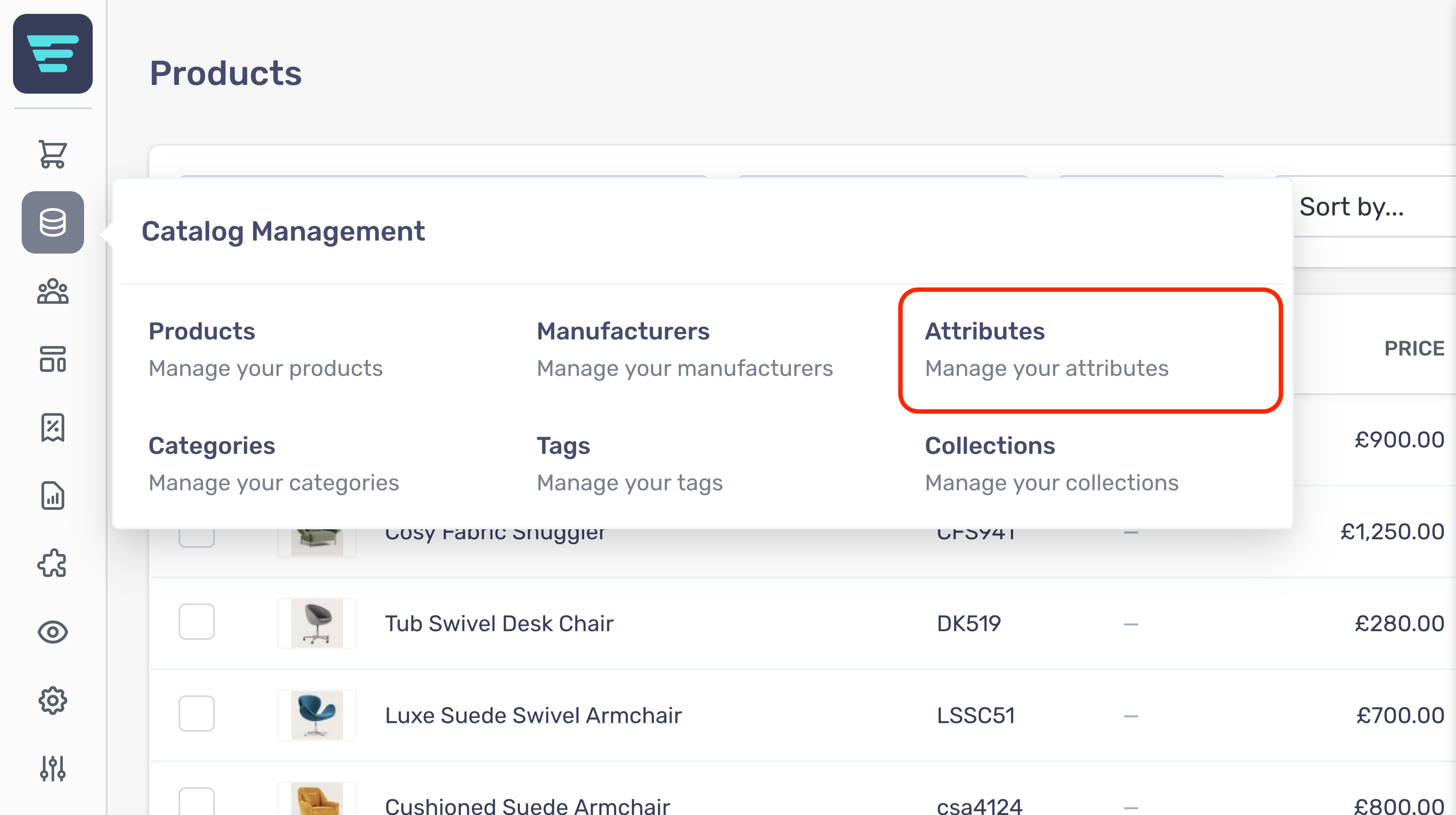
- Step 4 - Search for attribute group containing the attribute you would like to edit (more information here; "How do I search my attributes? - Step 5 - Click on the attribute group name or arrow icon - Step 6 - Find the attribute you want to edit and replace the attribute details with the new information - (more information here; "How do I create a new attribute? - Step 7 - Click the 'Save' button in the bottom left of your screen
